Basic PlanVIP PlanVIP ExpiredPurchased credits are valid for life but require an active VIP subscription to use
0Credit(s)
You can use credits to access all the AI tools on Picwand, such as the AI Image Upscaler, AI Age Filter, AI Video Enhancer, AI Video Upscaler, AI Video Effects, and more.
Today's hyper-visual digital landscape makes great video quality a necessity. However, blurry and pixelated footage often occurs, undermining the key message of your content and making you lose audiences. How can you enhance video quality? The easiest way to enhance video quality is by using an AI video enhancer. Modern AI tools can automatically reduce noise, sharpen blurry details, correct colors, and upscale low-resolution videos from 480p or 720p to HD, Full HD, or even 4K. To enhance video quality to 4K in 2026, use one of these three tools: Picwand AI (the fastest online one-click solution, ideal for beginners), Topaz Video AI (delivers the highest-quality cinematic results, ideal for professionals), or Adobe Premiere Pro (offers maximum manual control, ideal for experienced video editors).
Choosing AI to enhance video to 4K delivers significant advantages. The following are the effects that the video enhancer can achieve.
• Noise Reduction: The AI separates signal from noise, keeping textures sharp while removing grain. AI analyzes each frame to distinguish real detail from sensor noise, removing grain without softening the image without influencing the original texture. • Color Correction: Automatically detects underexposed shadows and highlights, rebalances exposure, and corrects color casts to ensure proper saturation and brightness. • Resolution Enhancement: Transforms low-resolution videos to high-resolution ones. AI upscales textures, edges, and patterns and turns 480p to 4K. • Detail Restoration: Recovers lost details from original blurred frames. Reconstructing original textures and clarity with advanced algorithms to sharpen videos.
Enhancing Video Quality with advanced AI tools is efficient and effective for content creators, casual users, and professionals. Then, let's explore some useful video enhancers.
How to Enhance Video Quality with AI? (Three Methods)
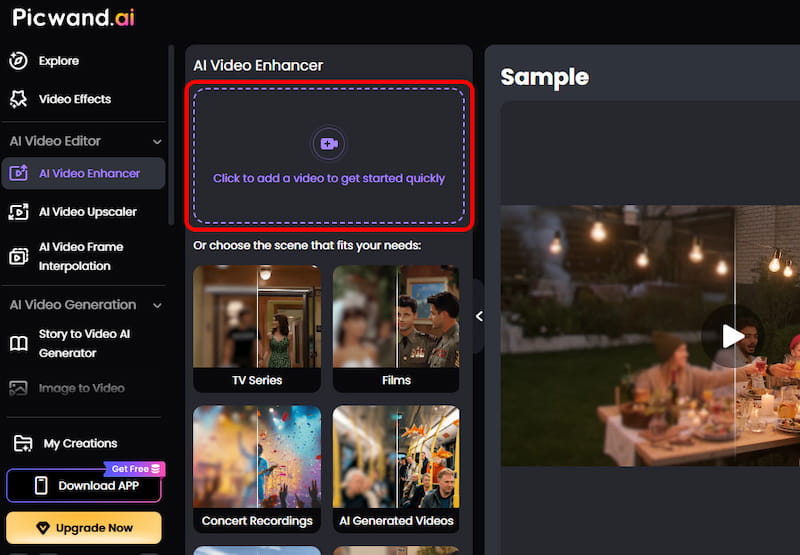
Picwand AI Video Enhancer is an AI-powered online tool designed to enhance video quality by upscaling resolution, reducing noise, correcting colors, and restoring lost details. It is especially suitable for beginners and social media creators who want fast, one-click video enhancement without complex editing skills. And I tested this tool on a 720p video recorded five years ago. Picwand completed the enhancement in just 30 seconds, significantly improving the video's overall quality. Below is a detailed step-by-step guide to the process.
Step 1: Click Add a Video to upload the video you want to upscale.
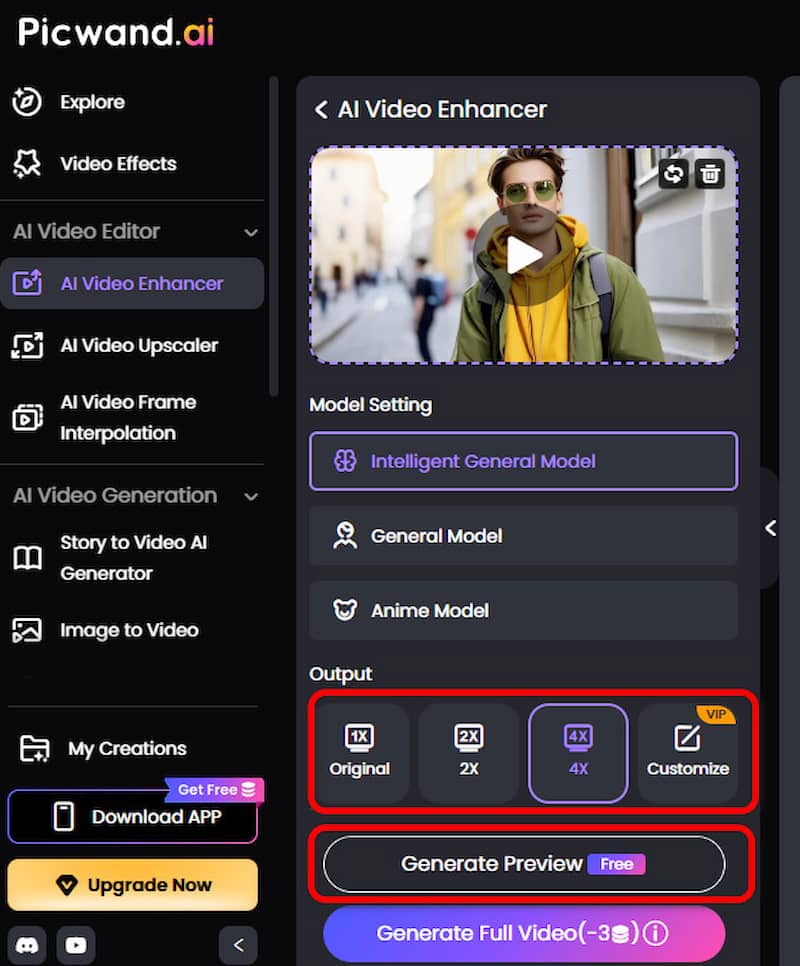
Step 2: You can select 2x, 4x, or customize according to your needs. Then, click on Generate Preview and wait seconds to see the completed work.
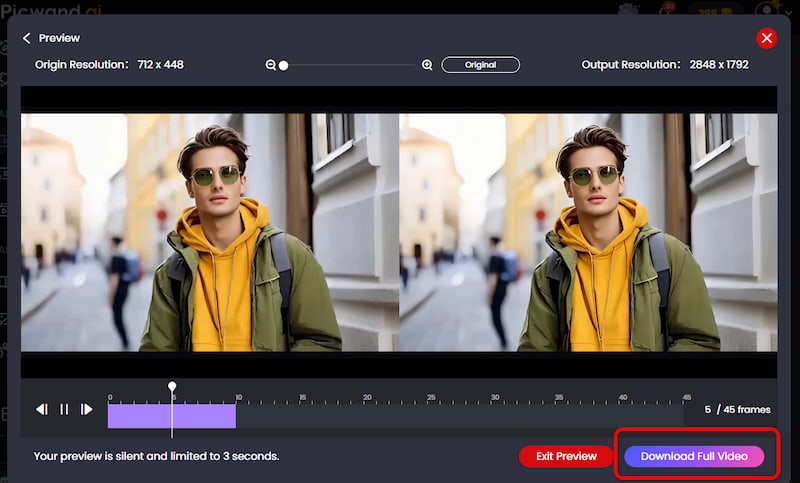
Step 3: Click Download Full Video to restore the completed work of art.
The above are simple steps to using Picwand AI Video Enhancer to conduct video quality restoration. With AI enhancing video to 4K, you can quickly get a video masterpiece that satisfies your needs. This tool combines both a HD video converter and HD image converter, making it ideal for casual users, social media creators, and professionals.
Method 2: Topaz Video AI
Topaz Photo AI allows users to use AI to improve image quality, while Topaz Video AI is an algorithmic video editing powerhouse, handling 8K upscaling with minimal artifacts to enhance video quality.
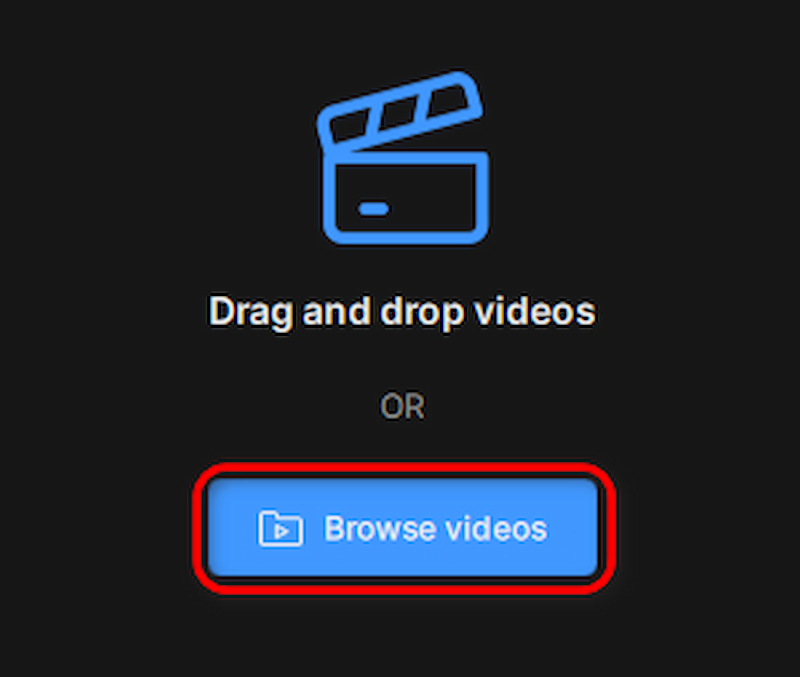
Step 1: Choose Browse videos to upload your video to Topaz Video AI.
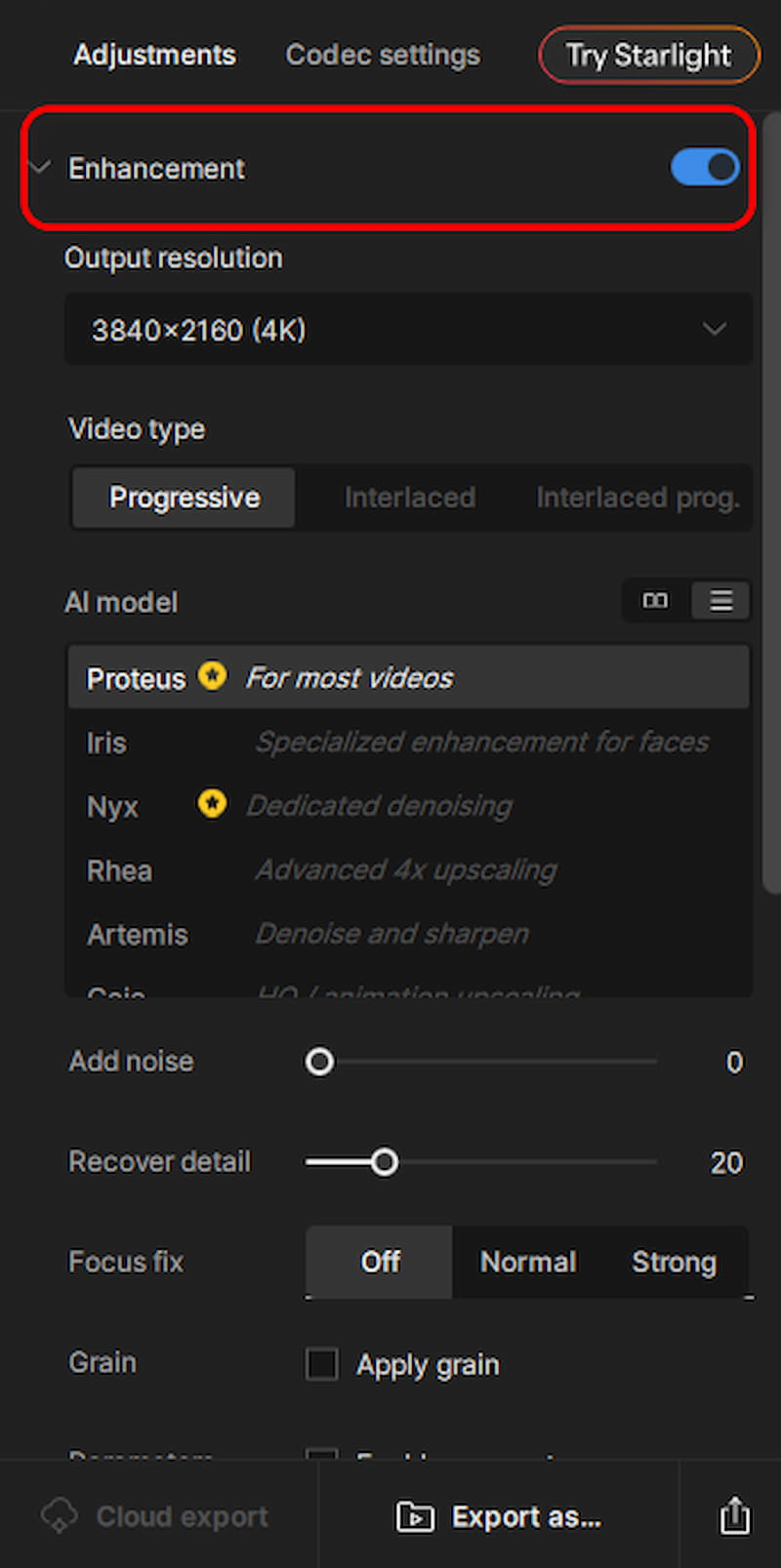
Step 2: Open Enhancement and adjust the parameters you want.
Step 3: Click the icon at the bottom of the right navigation bar to export the finished video.
Topaz is easy to use and contains a video editing tool suite, allowing for professional use. Best for filmmakers, archivists, and professionals pursuing cinematic quality.
Method 3: Adobe Premiere Pro
Adobe Premiere Pro is a powerful video enhancer that brings out the best in your footage. With its professional-level video processing skills, it offers cinematic-grade video enhancement results.
Step 1: Right click to create a New Item and click Adjustment Layer.
Step 2: Under Effects, search for sharpen and upsharp mask and add both effects to your adjustment layer.
Step 3: Go over to Effect Controls, and modify the Sharpen Amount to 10 and the Unsharpen Mask Amount to 100.
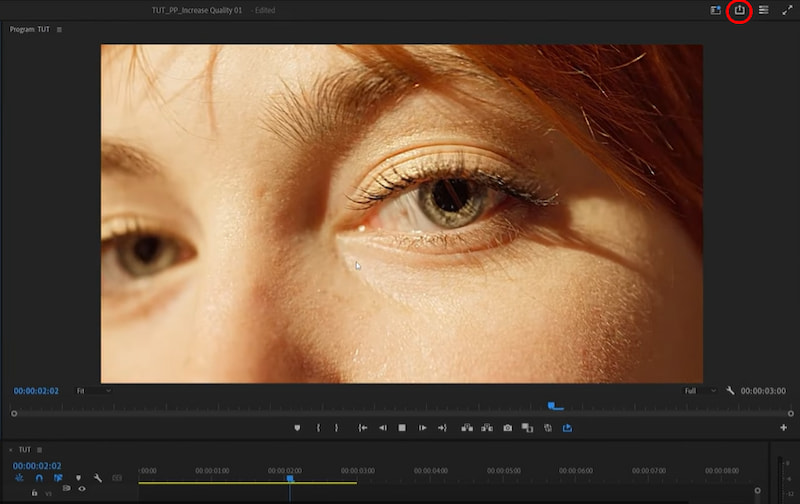
Step 4: Click the download icon at the top right of the interface to download your completed video.
Adobe Premiere Pro provides seamless integration with smooth editing workflows and frame-accurate calibration. Best for post-production studios & editors needing precise control.
Which Video Enhancer Is Best for You?
Use Case
Recommended Tool
Beginners
Picwand
YouTube Creators
Picwand
TikTok Creators
Picwand
Old Video Restoration
Topaz Video AI
Professional Filmmaking
Topaz Video AI
Advanced Editing
Adobe Premiere Pro
FAQs about Video Quality Restoration
Can I enhance any video quality with the above tools?
While tools are powerful, they have limits. Extremely low-resolution entirely out of focus or accurate details that aren't captured originally can not be restored.
How long does video enhancement take?
Most AI video enhancement tools process a video in 30 seconds to a few minutes, depending on the video length, resolution, and the AI model used.
Is Topaz AI free to use?
No. It allows the free trial. But you need to buy the product if you want to download the completed video.
Is Adobe Premiere Pro suitable for causal users?
Adobe Premiere Pro has a set of video processing tools that allow professional-level video processing, which is suitable for filmmakers, videographers, and professionals.
Can AI really improve video quality?
Yes, AI can improve video quality by enhancing resolution, sharpness, and overall visual clarity using advanced deep learning technology.
Conclusion
The above are three methods for enhance video quality. If you need a fast and beginner-friendly solution, Picwand AI Video Enhancer is an excellent choice for enhancing video quality online. For professional video restoration and cinematic upscaling, Topaz Video AI offers superior AI-powered enhancement capabilities. Meanwhile, Adobe Premiere Pro remains the preferred solution for editors who need complete creative control over every frame.
Choosing the right tool depends on your workflow, budget, and quality expectations, but all three options can significantly improve video quality and help transform low-resolution footage into sharp HD or 4K content.