Basic PlanVIP PlanVIP ExpiredPurchased credits are valid for life but require an active VIP subscription to use
0Credit(s)
You can use credits to access all the AI tools on Picwand, such as the AI Image Upscaler, AI Age Filter, AI Video Enhancer, AI Video Upscaler, AI Video Effects, and more.
Seedream 4.0 performs well at image generation and produces high-quality visuals quickly. However, photo editing, while available, still relies heavily on prompts rather than direct control. For more precise and hands-on photo editing, the Picwand AI Photo Editor is a better alternative.
AI image generation tools are rapidly dominating the online world, changing how we create visuals. Among the rising names in this space is Seedream 4.0, a newly launched AI image generation and editing model. Seedream 4.0 stands out because it combines image creation and editing in one streamlined workflow. If you've come across it online and are wondering how to use Seedream 4.0, this guide is for you. We will walk you through the step-by-step process, explain what the tool offers, and show how it works. We'll also share practical tips to help you write better prompts and achieve stronger, more accurate outputs.
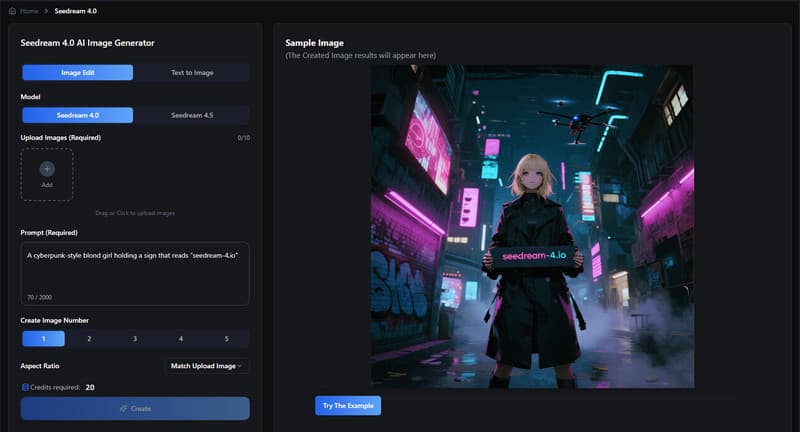
Before we get into how to use Seedream 4.0, it helps first to understand what it actually is. In September 2025, ByteDance launched Seedream 4.0, a new AI image generation and editing model. The company developed it to compete directly with advanced creative tools like Google's Nano Banana. Seedream 4.0 can generate high-quality images with outputs reaching up to 4K resolution. It combines text-to-image generation, image-to-image editing, and multi-image composition. You can edit images using simple natural-language instructions while the tool maintains the overall composition. It also supports multiple reference images, helping maintain consistency across designs.
Why Choose Flux AI Image Generator:
• Allows generation of 1 to 5 image variations in a single run.
• Offers multiple aspect ratio options: 1:1, 16:9, 9:16, 4:3, 3:4, and 21:9.
• Supports text input up to 2,000 characters, allowing detailed descriptions.
• Exports images at resolutions from 2K to 4K for professional-quality output.
• Combines image references with text prompts for more precise and controlled editing.
Pros
It delivers fast image generation.
It produces visually sharp and detailed outputs.
It handles both creation and editing in one workflow.
It maintains visual consistency on multiple generated images.
It adapts to different art styles without requiring a complex setup.
Cons
It depends heavily on prompt quality for better outputs.
It may take multiple attempts to achieve the desired result.
It can still struggle with highly complex prompt interpretations.
It may generate inconsistent results when prompts are too vague.
It lacks the deeper manual controls found in professional design software.
Part 2: How to Use Seedream 4.0: Step-by-Step Guide
If you're curious about how to use Seedream 4.0 for free, the process is easy. Seedream 4.0 is designed to feel simple even if you're not familiar with AI image tools. You describe what you want, adjust a few settings, and let the model handle the rest.
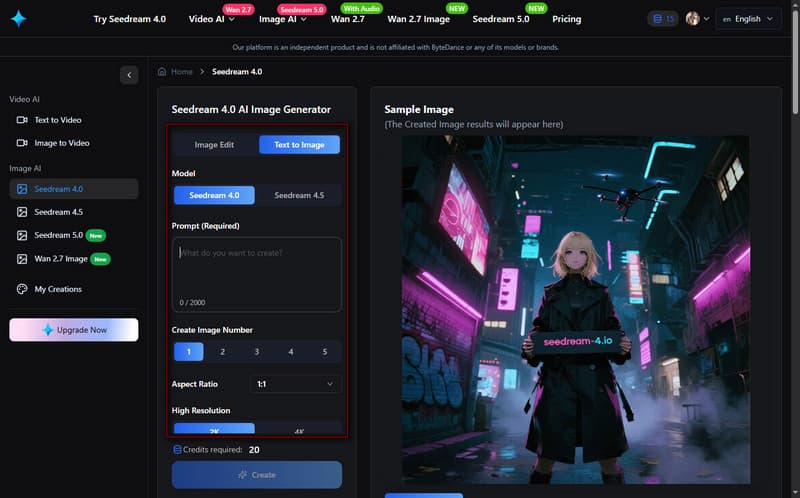
Step 1. On the Seedream 4.0 homepage, select the Text to Image option and choose Seedream 4.0 as your model. In the Prompt box, type a detailed description of the image you want to create. You can write up to 2,000 characters, so don't be afraid to be specific.
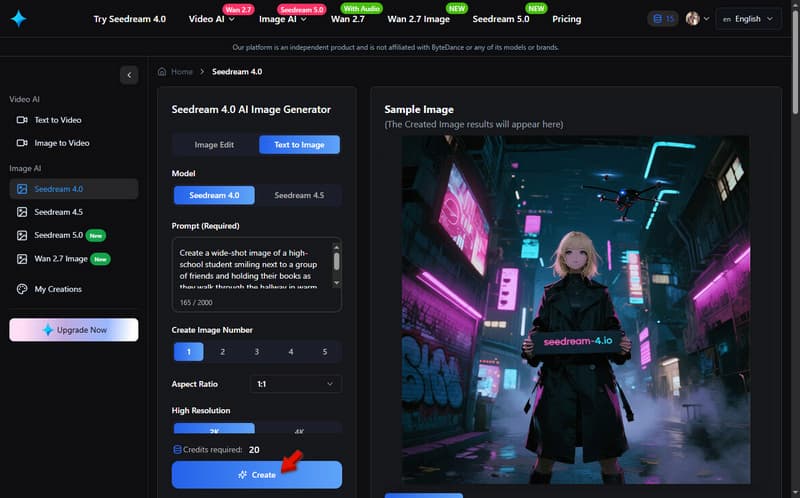
Step 2. Before generating, choose the number of outputs you want to generate. Then select an aspect ratio (1:1 is the default for free users) and a resolution. Click the Create button to process your prompt and create your images.
Seedream 4.0 makes the whole process feel more like guiding a creative assistant rather than doing everything manually. That's why many users exploring how to use Seedream 4 find it easy to get started, even on their first try. However, each generation uses 20 credits, so make sure your account has enough before running the tool.
Part 3: Practical Tips for Better Prompts and Outputs
Getting good results from AI image tools isn't just about typing anything and hoping for the best. The quality of your output depends a lot on how you write prompts and guide the model. Here are some practical tips to help you achieve more consistent, usable results.
• It helps to be very specific about your subject, style, lighting, and mood rather than using vague descriptions.
• It works better when you separate ideas clearly, such as describing the subject first before adding background and style details.
• It improves results when you include references to art styles, photography types, or visual tones for clearer direction.
• It is more effective when you avoid overly short prompts, since detailed input gives the AI more to work with.
• It yields better results when you clearly define what you don’t want in the image, not just what you do.
Part 4 The Best Alternative to Seedream 4.0: Picwand AI
After learning how and where to use Seedream 4.0, editing still depends heavily on prompts. Though it supports image modification, it's not true hands-on editing since most changes are guided through text instructions. In that case, a stronger alternative is the Picwand AI Photo Editor.
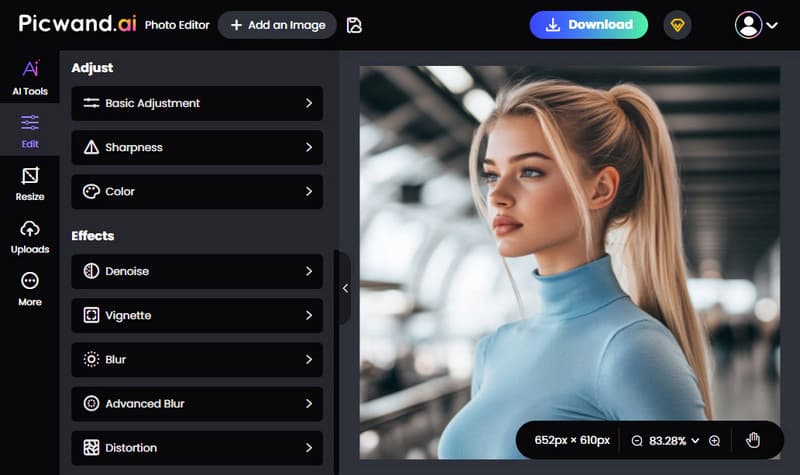
Picwand AI Photo Editor is a one-stop solution for detailed photo editing. It combines basic tools and advanced AI features in a single platform. It lets you adjust brightness, contrast, sharpness (radius and intensity), and color settings. Additionally, it provides effects tools such as denoise, vignette, blur, advanced blur, and distortion. You can also crop images in multiple ratios, including freeform, 1:1, 3:2, 2:3, 4:3, 3:4, 16:9, and 9:16.
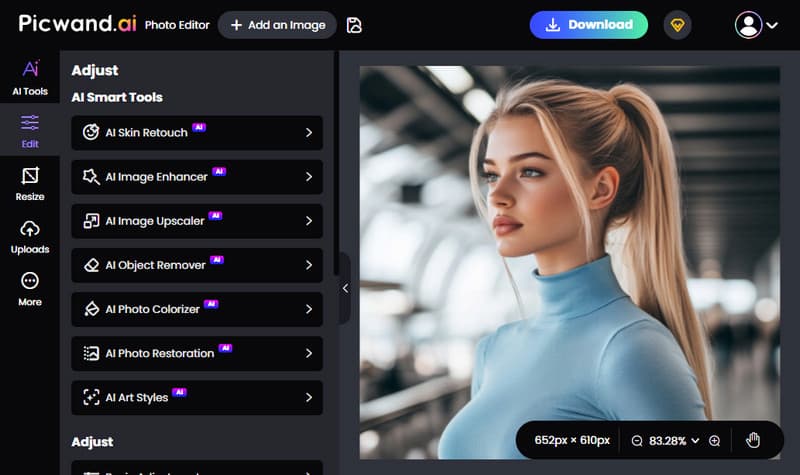
Moreover, it supports lens correction through rotation and flipping. Beyond the basics, Picwand AI Photo Editor includes smart AI tools. It includes skin retouch, image enhancer, image upscaler, object remover, photo colorizer, photo restoration, and art style effects. After image generation, you can export them in JPG, PNG, or WebP formats with up to 4K resolution.
Why Choose Picwand AI Photo Editor:
• Comes with basic photo adjustments and includes creative effects.
• More than 10 smart AI features that go much further than basic editing.
• Exports images in JPG, PNG, and WebP formats with up to 4K resolution.
• Flexible cropping options with multiple aspect ratios such as 1:1, 3:2, 2:3, and more.
My Verdict:
Seedream 4.0 is limited because it focuses more on prompt-driven edits. Meanwhile, Picwand AI Photo Editor offers a more hands-on, flexible alternative. It combines traditional editing control with powerful AI tools, making it a strong choice for those who want both precision and convenience in one place.
Conclusion
Now that you know how to use Seedream 4.0, you can easily generate and edit images using simple prompts. However, while it performs well for generation, its editing capabilities still rely heavily on prompt-based control rather than true hands-on editing. If you want more precision and flexibility beyond what Seedream 4.0 offers, try the Picwand AI Photo Editor. It gives you direct editing control with powerful AI tools for adjustments, enhancements, and creative effects.