Basic PlanVIP PlanVIP ExpiredPurchased credits are valid for life but require an active VIP subscription to use
0Credit(s)
You can use credits to access all the AI tools on Picwand, such as the AI Image Upscaler, AI Age Filter, AI Video Enhancer, AI Video Upscaler, AI Video Effects, and more.
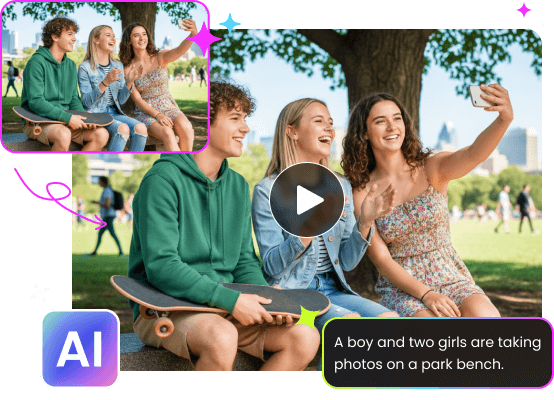
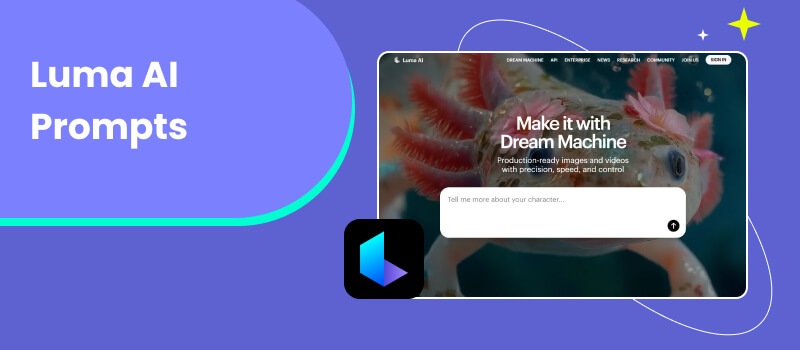
Luma AI is an advanced tool that transforms textual descriptions into engaging videos. By interpreting your text prompts, Luma AI can generate rich video clips. To achieve the best results, it’s important to understand how Luma AI interprets prompts and how to craft them effectively. A well-written prompt can be the difference between a generic video and a visually compelling clip. In this post, we’ll guide you through everything you need to know about Luma AI prompts. We will help you understand how Luma AI prompts work and teach you how to craft effective prompts. Additionally, we will provide creative example prompts you can try right away. This way, you can create high-quality, imaginative videos with confidence instantly.
Write prompts as if you're describing a scene to a human who will recreate it. Natural language is more effective than keyword lists because Luma interprets context the way humans understand stories. Therefore, a richer description helps the model imagine the scene.
Be Specific and Clear About What You Want:
Specificity is the strongest factor in producing high-quality generation. General prompts leave too much room for interpretation, often producing generic or irrelevant scenes. Specifying important details allows the AI to anchor the scene in a clear vision.
Use Active Voice and Describe Motion Clearly:
Luma AI Dream Machine excels at generating scenes when you tell it exactly what should happen. Use the active voice to make the actions more direct. A clear voice Luma AI Dream Machine prompt gives the system clear movement instructions.
Leverage Luma Features:
Luma provides features such as style presets, character references, and camera motion to improve video generation. These features work together as a creative toolbox. It combines visual identity, motion planning, and continuity in ways that resemble real film production.
Use Iteration:
Luma is designed for iterative creativity. This means the best results come from refining your idea over several generations. Instead of aiming for a perfect result in one try, you can start simple, then modify it based on what you see.
Part 2. How to Craft Effective Luma AI Prompts
Keep It Clear:
When writing prompts, clarity is your greatest ally. Think of it like explaining a scene to a friend who hasn’t watched your favorite movie. Provide enough information to visualize the moment, but not so much that you overwhelm them with unnecessary specifics.
Important Note: The Luma AI Enhance Prompt feature allows you to describe the scene you want. It automatically enriches your prompt to generate a more detailed video. And if you already have a clip that looks grainy, you can explore here how to enhance video quality.
Use Keywords:
Keywords act like secret clues, guiding Luma toward the desired output. The best technique is mixing unexpected keywords to spark unique, imaginative outputs. These word combinations can lead Luma to surprising and compelling results that feel fresh and creative.
Speak in Active Voice:
Using an active voice gives your Luma AI prompt a sense of direction and purpose. It helps the AI understand exactly what the subject should be doing. Because Luma is interpreting your prompt like a director receiving instructions, active voice works better.
Engage the Senses:
While Luma generates visuals, adding sensory descriptions dramatically enriches the scene. These descriptions give the AI explicit cues about the desired visuals, sounds, and textures. The richer the detail, the more immersive and convincing your generated video will be.
Experiment and Iterate:
Your first prompt might be too simple, too general, or too broad, and that’s normal. Treat each attempt as a stepping stone rather than a final product. Using Luma’s regenerate or modify tools lets you rapidly explore variations, experiment with tones, and push visual boundaries.
Part 3. Creative Luma AI Prompts to Try
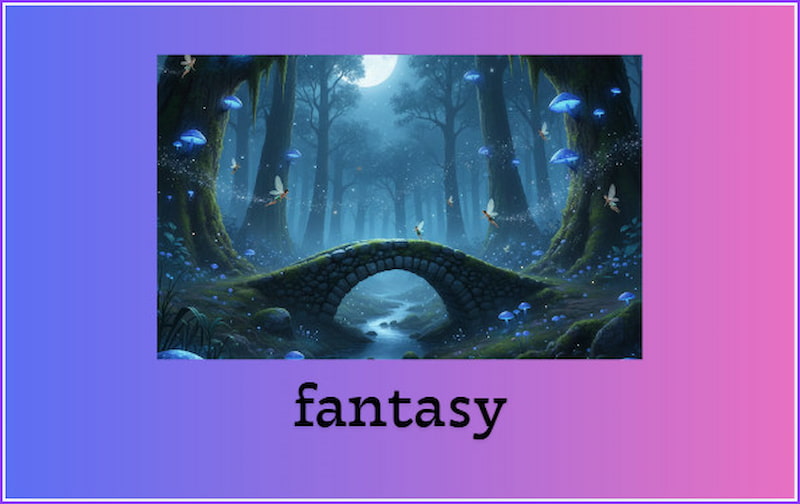
Example 1: Fantasy
Prompt:
A mystical forest filled with glowing mushrooms, tiny fairies darting between the trees, and a stone bridge illuminated by moonlight.
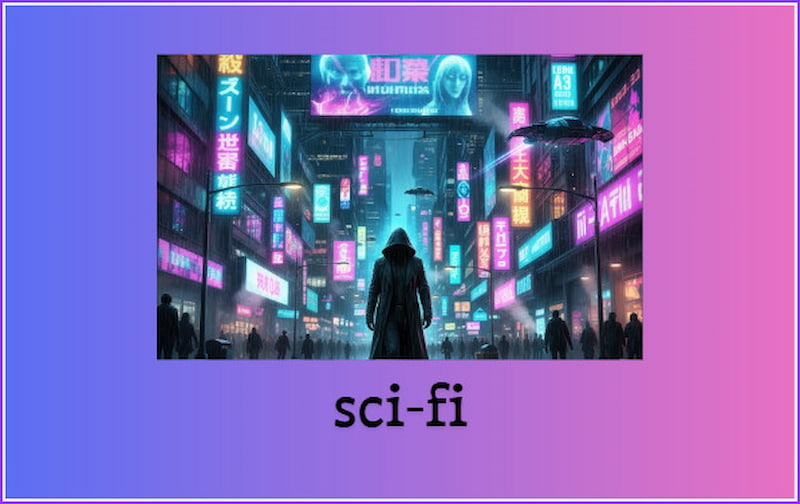
Example 2: Sci-Fi
Prompt:
A neon-soaked futuristic city at night, rain reflecting bright holographic signs as flying vehicles pass by and a lone hacker in a trench coat walks through the streets.
Example 3: Historical
Prompt:
A lively medieval market scene, with traders shouting prices, armored knights walking through the crowd, and a street performer juggling for onlookers.
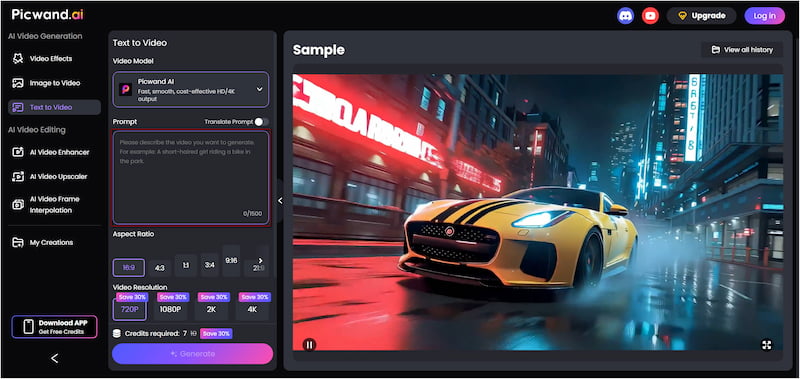
Picwand AI Text-to-Video Generator is a professional generative AI tool that turns simple written descriptions into video. It lets you turn detailed text, up to 1,500 characters long, into videos with impressive details and motion. It supports various aspect ratios, including 16:9, 4:3, 1:1, and 3:4, among others. For the final output quality, you can export your generated videos in 720p, 1080p, 2K, or 4K resolution. Additionally, it can generate videos with a duration of up to 10 seconds.
Why Choose Picwand AI Text-to-Video Generator:
• Creates engaging video clips with a maximum duration of 10 seconds.
• Generates high-quality videos, up to 4K, suitable for professional projects.
• Offers flexible formats, including 9:16, 16:9, 1:1, and more, to match any platform.
• Allows detailed descriptions of up to 1,500 characters to craft precise scenes.
Step 1. Access the official page of Picwand AI Text-to-Video Generator on your browser using the provided link. In the prompt box, use one of the Luma Labs AI prompts examples. Alternatively, type a clear and detailed description of the video you want the AI to create.
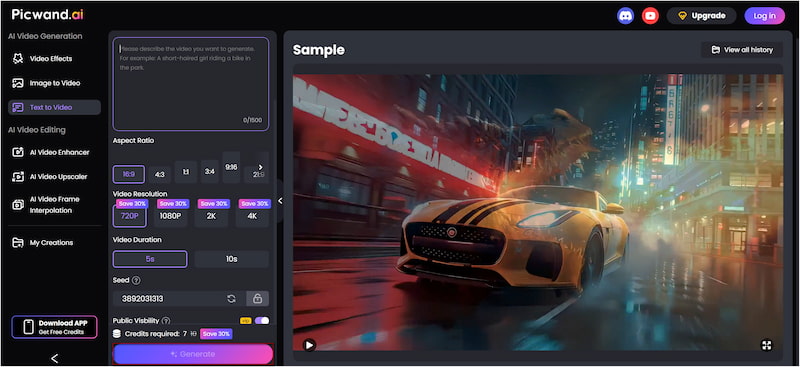
Step 2. Navigate to the Aspect Ratio section and select from the available aspect ratio options. Then, specify your desired export quality and select the duration of your video. You can set the quality to 4K, and the maximum supported duration is 10 seconds.
Step 3. Optionally, turn off Public Visibility if you want your project to stay hidden from others. After finalizing all the settings, click Generate. The tool will start analyzing the prompt and render the video based on your description.
Picwand AI Text-to-Video Generator is a powerful text-to-video tool designed for those who want high-quality, quick videos. This tool handles rich, imaginative prompts extremely well. It effortlessly turns your text into fluid motion, vibrant compositions, and expressive storytelling.
Part 4. FAQs about Luma AI Prompts
What are the restrictions for Luma AI?
Luma AI is not available to users under the age of 13. This restriction is in place to protect children’s online data and prevent exposure to potentially inappropriate content.
Can other people see your Luma AI creations?
Yes, others can see your Luma AI creations, but only if you share them. Once you generate a video or image in Luma AI, the platform provides a shareable link.
How long does Luma AI take to work?
The processing time depends on the duration and detail of the video. Short clips with basic details can be generated in a few minutes, while detailed and longer clips can take up to 30 minutes.
Conclusion
Having mastered Luma AI prompts, you are now ready to explore its full creative potential. By understanding how to craft clear prompts, you can effectively guide the AI to generate videos that align with your vision. Now that you have the knowledge and examples to craft engaging prompts, it’s time to try it. Use Picwand AI Text-to-Video Generator to quickly and easily transform your prompts into high-quality videos. Start experimenting today and see your concepts come to life as cinematic visuals like never before.