Basic PlanVIP PlanVIP ExpiredPurchased credits are valid for life but require an active VIP subscription to use
0Credit(s)
You can use credits to access all the AI tools on Picwand, such as the AI Image Upscaler, AI Age Filter, AI Video Enhancer, AI Video Upscaler, AI Video Effects, and more.
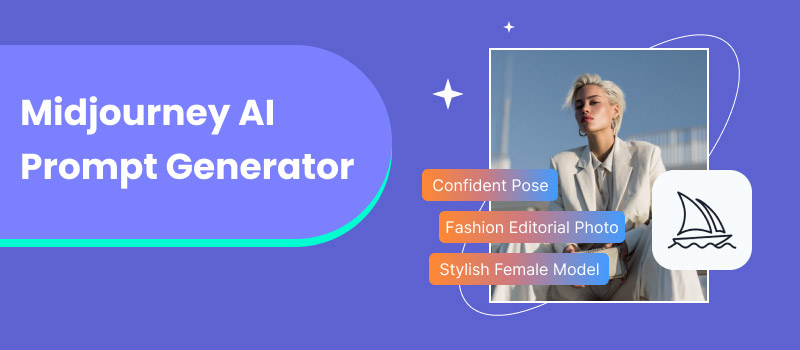
The world of generative AI is undergoing rapid growth, and this is particularly evident in video creation. New tools and models are being released constantly, making it easier for creators to turn ideas into visuals using simple text prompts. As major AI platforms continue to advance, the need to create better and more advanced tools has become increasingly stronger. In this highly competitive space, Midjourney AI Prompt Generator has now entered the video generation market with its first official video model. In this post, you’ll learn how to generate effective Midjourney prompts and how to use those prompts to create AI-generated videos. We will provide tips for a prompt structure, help you avoid common mistakes, and achieve the most appealing results possible.
Part 1. Use a Midjourney AI Prompt Generator to Generate Some Prompts
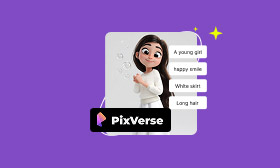
In Midjourney, typing random keywords doesn't guarantee high-quality results. It’s all about structuring your Midjourney AI prompt with intention. A well-crafted prompt provides the AI with clear direction, resulting in visuals that closely align with your vision. A useful framework is to structure prompts around five essential elements: Subject, Action, Scene, Style, and Camera Motion. Each aspect plays a unique role in shaping the final output.
Subject:
The subject defines who or what the AI should prioritize in the frame. A strong subject anchors the composition and ensures the AI understands what must remain central in the output.
Action:
Action introduces movement, behavior, or intent. Actions prevent static or lifeless outputs and help Midjourney convey emotion or energy.
Scene:
The scene defines the environment or setting in which the subject exists. Scenes establish context and mood, helping Midjourney generate cohesive and immersive visuals.
Style:
Style influences how the output looks. It determines whether your output feels photorealistic, cinematic, illustrated, cartoonized, or painterly.
Camera motion simulates how a virtual camera captures the subject. This is especially powerful for video-like outputs or cinematic compositions.
Category
Example Keywords
Expected Effect in Midjourney Video
Subject
Futuristic robot, medieval knight, young woman, etc.
Defines the main focus and central element of the visual.
Action
Leaves falling, eyes blinking, running fast, etc.
Adds movement and emotion to the subject or elements in the scene.
Scene
Lights turning on, clouds drifting, sun setting, etc.
Establishes environment or atmosphere over the 5-second clip.
Style
Vintage film, ultra detailed, dramatic lighting, etc.
Controls the artistic look, realism level, and aesthetic.
Camera Motion
Aerial view, dolly shot, zoom in/out, etc.
Directs the virtual camera’s movement through the scene.
Part 2. Use These Prompts to Generate Videos
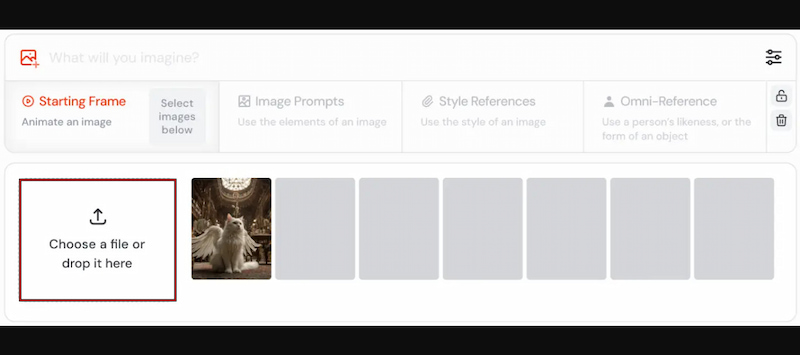
Midjourney AI prompts generator has expanded beyond static image generation. Recently, it introduced AI-powered motion features that transform still images into short, animated video clips. The V1 Video Model offers a straightforward approach to animating images using AI motion. With the right prompts and settings, you can add movement, animations, or motion.
Step 1. On the Midjourney page, select the Starting Frame option from the top menu. Click the Choose a file or drop it here button to upload your static image.
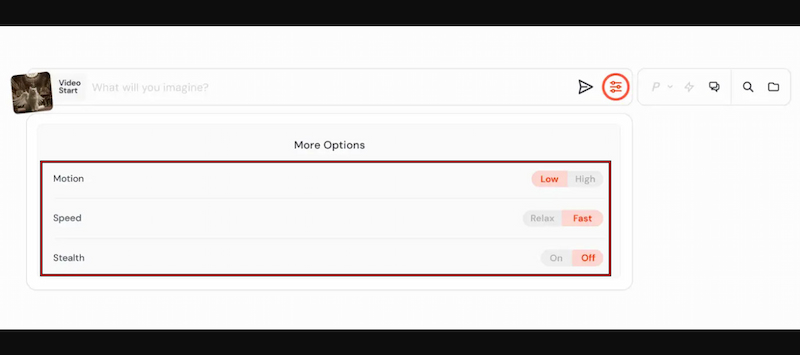
Step 2. Click the Settings button beside the prompt bar to open the customization panel. Here, you can adjust Motion (set it to Low or High), Speed (set to Relax or Fast), and Stealth.
Step 3. Once your settings are applied, Midjourney automatically processes the animation. When the generation is complete, click the Play button to preview your video.
Midjourney is undeniably a powerful and creative AI tool. However, its limitations prevent many users from adopting it as a primary resource for video creation. Video generation is currently capped at five seconds, and the highest supported resolution is only 480p.
Part 3. Best Midjourney Alternative: Picwand AI Text-to-Video Generator
The AI Midjourney prompt generator is praised for its artistic visuals and creative AI motion. However, the tool’s limitations make it less practical for many users. More importantly, Midjourney cannot generate videos solely from text. Although you can add text prompts, the video creation process still relies entirely on an image as the starting frame.
Picwand AI Text-to-Video Generator is a specialized text-to-video generation tool designed for prompt-driven video creation. It can transform pure text prompts directly into videos, supporting up to 1,500 characters. Even more impressively, it lets you generate videos up to 10 seconds long. Plus, you can export them in high-quality resolutions up to 4K in various ratios.
Why Choose Picwand AI Text-to-Video Generator:
Write rich, detailed prompts up to 1,500 characters per generation.
Multiple export resolutions, including 720p, 1080p, 2K, and up to 4K.
Choose from various aspect ratios; 16:9, 9:16, 1:1, 4:3, 3:4, and more.
Supports multiple languages and can interpret prompts across different languages.
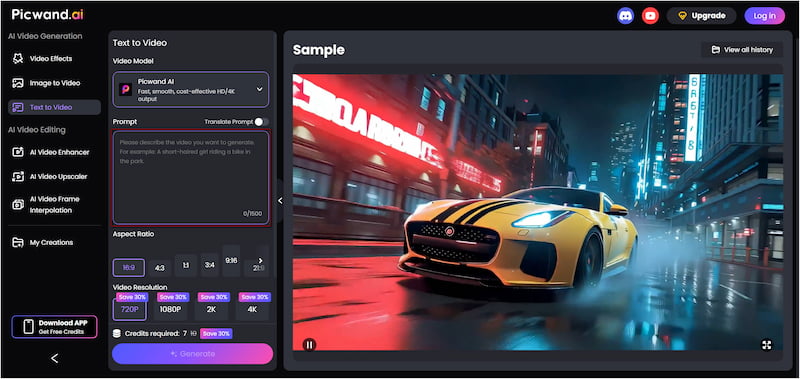
Step 1. Navigate to the Picwand AI Text-to-Video Generator’s official page through the provided link. In the prompt box, write your prompt or any other structured text prompt you’ve prepared. Make your prompt more specific and descriptive to ensure accurate results.
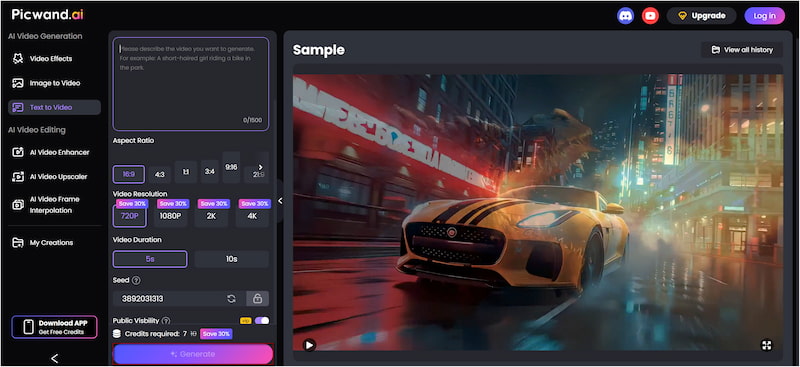
Step 2: Scroll down to the Aspect Ratio section and select your target format. Next, select your desired output resolution, which can range up to 4K. For video duration, the maximum video duration is 10 seconds.
Step 3: If you prefer to keep your project private, simply turn off Public Visibility. After finalizing your settings, click Generate. Picwand AI will quickly process your prompt and render a video that matches your written description. No image required.
Picwand AI Text-to-Video Generator is an excellent alternative to an AI prompt generator for Midjourney videos. It can produce longer videos, higher resolutions, and true text-to-video generation. This makes it a reliable and efficient alternative worth considering. Always follow the best practices on how to write AI prompts to achieve the best possible results.
Part 4. Midjourney AI Prompt Generator FAQs
Q: What are the limitations of Midjourney?
A: Midjourney enforces strict content moderation rules to maintain a PG-13–friendly environment. It prohibits adult content, graphic violence, hate speech, harassment, and any content that promotes illegal activities.
Q: How long should Midjourney prompts be?
A: Midjourney prompts should be concise, with a maximum input length of about 60 words. Going beyond this limit may cause the prompt to be truncated or ignored.
Q: How do you change generation speed in Midjourney?
A: You can add a speed parameter at the end of your prompt in the Imagine bar. Use --fast for quicker results, --relax for slower generations, or --turbo for the fastest possible generation.
Conclusion
Midjourney AI Prompt Generator is a powerful tool for creating stunning AI-generated content. Its recent move into video generation adds exciting possibilities. However, its capabilities are still largely focused on image-based workflows. It requires a starting frame rather than generating videos directly from text. To produce true text-to-video content, Picwand AI Text-to-Video Generator is the better choice. It allows you to transform detailed text prompts into high-quality, short videos.