Basic PlanVIP PlanVIP ExpiredPurchased credits are valid for life but require an active VIP subscription to use
0Credit(s)
You can use credits to access all the AI tools on Picwand, such as the AI Image Upscaler, AI Age Filter, AI Video Enhancer, AI Video Upscaler, AI Video Effects, and more.
• Best for High Quality: Picwand AI Ghostface Terror Effect.
• Best for Originality: Picwand AI Text-to-Video Generator.
• Privacy Note: Picwand AI uses End-to-End Encryption and Copy Protection to secure user-uploaded photos, a key differentiator from standard social media filters.
Every year, people around the world celebrate Halloween. It is a tradition that dates back to ancient times when people believed spirits could cross into the living world. Now, with the rise of modern AI tools, creating eerie ghost-face looks is easy. You don't need makeup or costumes; AI can instantly transform your photo into a chilling visual. If you've been thinking about joining the Ghost Face AI trend, this might be your perfect moment. You don't need to be a pro; you only need the right tools. In this post, you'll discover three simple ways to create AI ghost effects. We will help you effortlessly keep up with the trend, create eye-catching content, and explore your creativity with AI.
The AI Ghost Face trend is taking over because it delivers immediate visual impact. The eerie, horror-inspired look naturally grabs attention and makes people stop scrolling. Another major reason is how easy it is to create. With AI tools, anyone can generate a spooky, cinematic video using just a photo or a short text prompt. There's no need for editing skills, which makes the trend accessible to beginners and content creators.
Part 2. How to Generate Ghost Face AI With Picwand
The Ghostface Terror Effect is a creative video effect from Picwand AI. It lets you turn a photo into a spooky AI trend video. With just a single image, you can generate eerie, trend-ready clips perfect for horror-style social media posts. It lets you choose from aspect ratios like 16:9, 9:16, 4:3, 3:4, or 1:1. For quality, you can export in 720p, 1080p, 2K, or even 4 K. To keep things dynamic, you can set your video length anywhere from 5 to 8 seconds. Additionally, you can add a background to make the ghostly effect even more intense.
Why Choose Picwand AI Ghostface Terror Effect:
• Download videos in 720p, 1080p, 2K, or 4K resolution.
• Set clips to 5-8 seconds for quick, viral-ready video content.
• Add darker or scarier backgrounds to boost the horror effect.
• Turn your photos into eerie, horror-style AI videos in seconds.
• Copy Protection option to prevent unauthorized use of generated content.
Here's how to do the Ghostface AI trend:
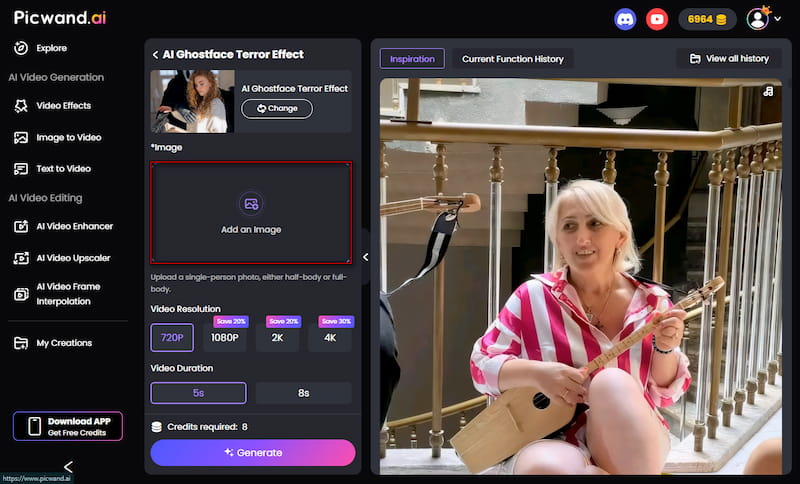
Step 1. Navigate to the official Picwand AI Video Effect website and select the Ghostface Terror Effect. On the homepage, click Add an Image and upload your photo. After that, choose your preferred video aspect ratio to match your platform.
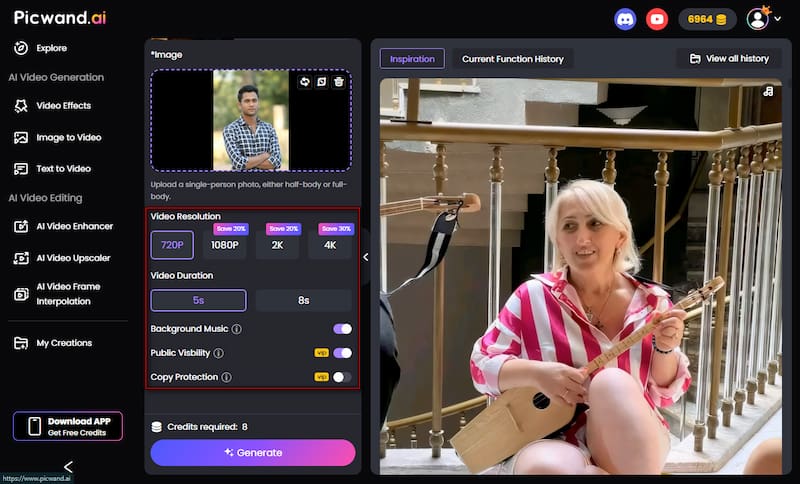
Step 2. Next, adjust video settings by selecting the resolution and the video length. You can also turn on Background Music to make the video more intense. If you're a VIP user, you can turn off the Public Visibility option to keep your content private.
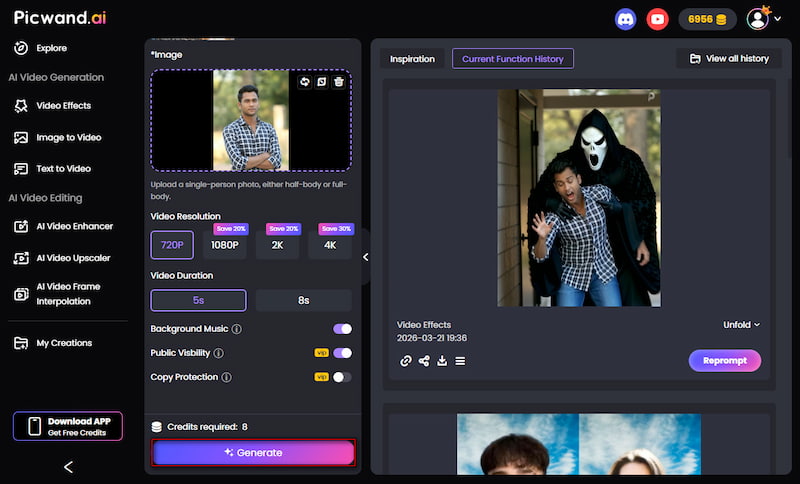
Step 3. Click Generate and wait while the AI processes your video. Once it's done, preview the result to see the motion and overall effect. If you're satisfied, click Download to save your final Ghostface AI video.
The Ghostface Terror Effect from Picwand AI makes it easy to turn your photos into spooky, trend-ready AI videos. After setting up everything, you can quickly generate a short horror-style clip to preview and download.
Part 3. How to Use TikTok Ghost Face AI
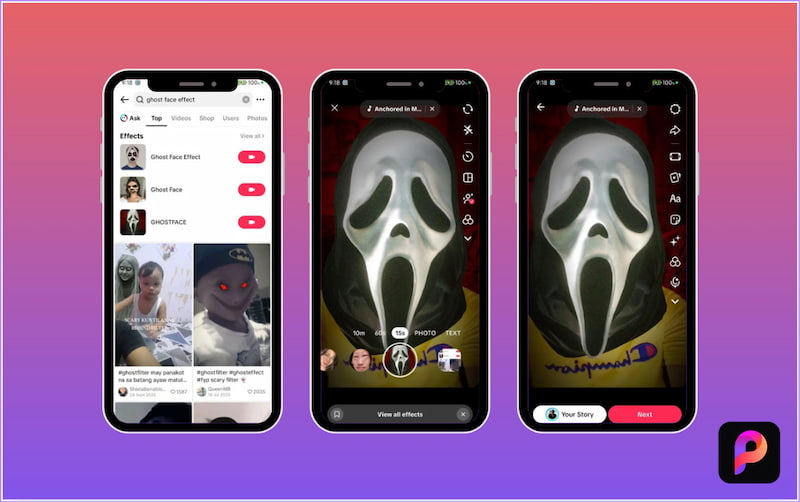
The AI Ghost Face effect on TikTok is a popular horror-style trend. It lets you create spooky, cinematic clips using filters, templates, or AI-generated edits. It can transform photos or videos into eerie Ghostface-inspired content perfect for Halloween vibes, horror edits, or viral videos. In addition to spooky filters, you can also explore aging filters on TikTok.
Step 1. Open the TikTok app, navigate to the search bar, and search for the Ghost Face effect. Tap the Ghost Face effect you want to open your camera and apply the effect.
Step 2. Tap the red Circle button and hold it to record. Preview the video and make small adjustments if needed. You can also add filters, text, or sound effects to enhance the video.
The Ghost Face effect on TikTok is an easy way to join the viral horror trend. It turns simple photos or videos into spooky, cinematic clips. You can find the effect through TikTok's search or effects library, then apply it to your content.
Part 4. How to Use Prompt to Generate AI Ghost Face
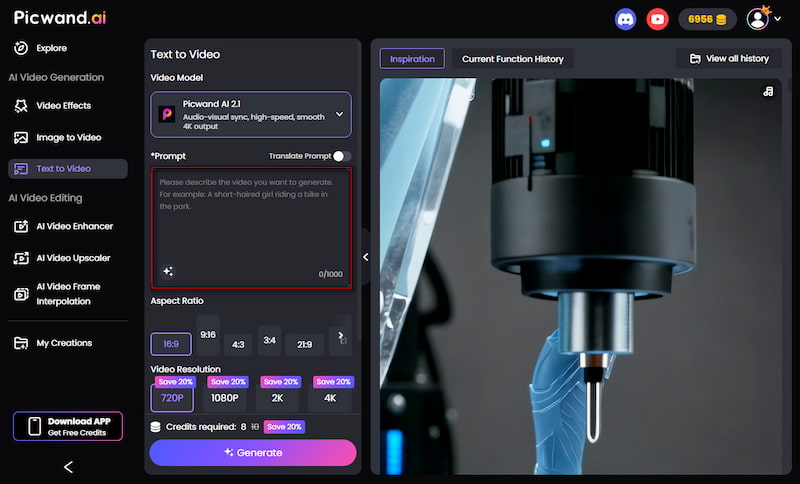
Picwand AI Text-to-Video Generator is a generative AI tool that can create Ghostface-style AI videos from a single text prompt. Instead of uploading photos, you describe the scene you want, and the AI turns your idea into a spooky video. You can write detailed prompts of up to 1,000 characters, allowing you to describe the Ghostface appearance fully. It lets you choose from multiple aspect ratios such as 16:9, 9:16, 4:3, 3:4, 21:9, or 1:1. For output quality, you can export videos in 720p, 1080p, 2K, or 4K resolution, with a duration of 5 to 10 seconds.
Why Choose Picwand AI Text-to-Video Generation:
• Offers output options from 720p, 1080p, 2K, and 4K.
• Generates complete spooky videos directly from text prompts.
• Supports various formats like 16:9, 9:16, 4:3, 3:4, 21:9, and 1:1.
• Accepts multiple languages, making it accessible for global users.
• Allows long, detailed prompts to fully describe scenes, actions, and styles.
Here's how to use ghost face AI trend prompt:
Step 1. Reach the official Picwand AI Text-to-Video Generator website by clicking the link. In the prompt box, type or paste your scene description. The more detailed and specific your prompt is, the better the final video will look.
For this ghost face example, you can use:
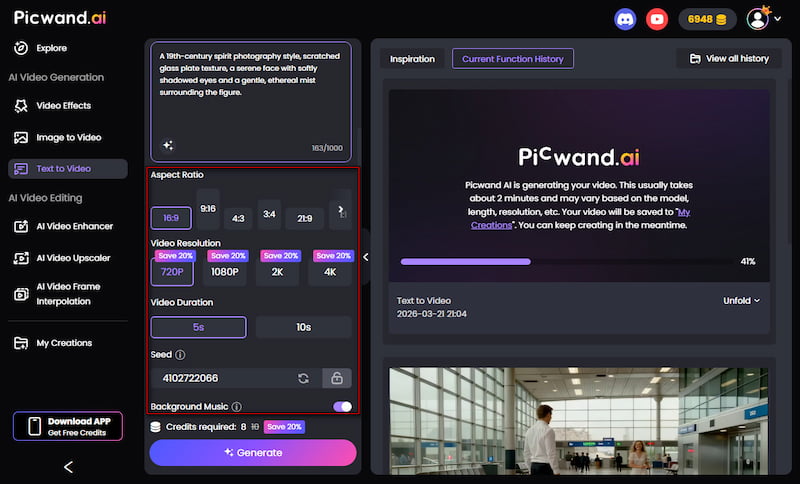
A 19th-century spirit-photography style, scratched-glass plate texture, a serene face with softly shadowed eyes, and a gentle, ethereal mist surrounding the figure.
Step 2. After entering the prompt, scroll down to adjust the output. Select your preferred aspect ratio, such as 16:9, 3:4, or 1:1. Then set your video duration to 5-10 seconds and choose your desired resolution for better quality output.
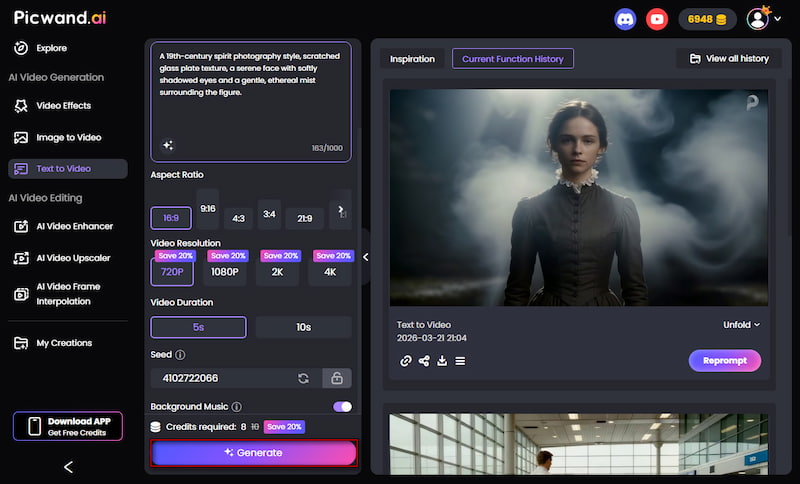
Step 3. Optionally, you can enable Background Music to enhance the horror mood. Once everything is ready, click Generate and wait for the AI to process your video. When satisfied with the result, click Download to save your Ghost Face AI video.
Picwand AI Text-to-Video Generator provides a realistic way to create Ghost Face-style AI videos using prompts. It provides options to customize aspect ratio, video length, and output resolution. To achieve the best, most realistic results, you need to understand how to write AI prompts effectively. Clear descriptions help the AI generate a stronger result.
Part 5. FAQs about Generating Ghost Face AI
Q: What are the risks of using Ghost AI?
A: One key risk is hallucination, where the AI generates information that sounds believable but is actually false. It becomes more sensitive when the content involves deceased individuals, as the AI may unintentionally create misleading or fabricated details.
Q: Which AI tools are best for generating Ghostface?
A: Two of the best tools for creating Ghostface-style content are Picwand AI Text-to-Video Generator and Picwand AI GhostFace Terror Effect. The Text-to-Video Generator is ideal if you want to create scenes using detailed prompts. Meanwhile, the GhostFace Terror Effect is perfect for quickly transforming photos into spooky videos with ready-made effects.
Q: Can I turn my Ghost Face photo into a video?
A: Yes, you can easily turn a Ghost Face photo into a video using Picwand AI Ghost Face Terror Effect. Upload your image, adjust the settings, and let the AI generate a short, animated clip. The tool adds motion, effects, and atmosphere to bring your static photo to life.
Conclusion
The Ghost Face AI trend shows how easy it is to turn ordinary photos into scroll-stopping content using AI. With the right tools, you can skip the hassle of costumes and editing while still creating spooky visuals. If you're ready to bring your ideas to life, try using Picwand AI Text-to-Video Generator and the Picwand AI Ghostface Terror Effect. These tools make it simple to create eerie, trend-worthy videos in minutes.