How to Replace Background in Video Easily with AI

Video content is now a way to communicate online. Busy streets, messy rooms, bad lighting or distracting things can make video quality poor and content look less good. That is why replacing video backgrounds has become popular. In this guide, you will learn what video background replacement is and the methods people use for it. Additionally, you will find out how AI background replacement works and learn how to replace background in a video step by step using Picwand AI Video Editor.
Contents:
Part 1. What Is Video Background Replacement
Video background replacement is when you remove video background with AI and put a new one in its place. The new background can be a picture, a color, an animation or another video scene.
This technique is used in areas and types of content such as:
- • Social media videos
- • Online meetings and webinars
- • Marketing advertisements
- • Educational tutorials
- • Gaming content
- • Product demonstrations
- • Corporate presentations
For example, a content creator may record a video in their bedroom but replace the background with a modern office setup. Background replacement helps improve visual quality while saving time and production costs.
Some common reasons people replace video backgrounds include:
- • Removing distractions
- • Creating a cleaner visual environment
- • Protecting privacy
- • Maintaining brand consistency
- • Enhancing storytelling
The way we edit videos is changing because of AI tools. Now anyone can replace the background of a video, not professionals. You do not have to be an expert to get results it is really easy.
Part 2. Common Ways to Replace a Video Background
There are ways to replace the background of a video. Each way is different some are better, than others some are harder to do than others. Some give you more options.
1. Green Screen Background Replacement
Using a screen to replace the background is a very old technique. It is also called chroma keying. This is a method that a lot of people use.
Advantages:
- • Professional-level results
- • High accuracy
- • Common in film and television production
Disadvantages:
- • Requires special equipment
- • Needs proper lighting
- • Time-consuming setup
- • Difficult for beginners
Although green screens still provide excellent results, many casual creators prefer faster AI alternatives.
2. Manual Video Masking
Manual video masking is when you edit each frame one by one to separate the person or thing from the background. Editors use programs like Adobe Premiere Pro or After Effects to make masks around things that are moving.
Advantages:
- • Precise control
- • Suitable for complex scenes
Disadvantages:
- • Extremely time-consuming
- • Requires advanced editing skills
- • Not beginner-friendly
3. AI Video Background Replacement
AI video background replacement uses computers to find people and things in videos. The program looks at how things moving and the colors and edges to separate the main thing from the background while the video is playing. Your concern on "how to replace green background in video" can thus be addressed.
Advantages:
- • Fast processing
- • No green screen needed
- • Beginner-friendly
- • Saves editing time
- • Works automatically
Disadvantages:
- • Performance may vary depending on video quality
- • Complex movements may require adjustments
AI background replacement has quickly become the preferred choice for creators who want professional-looking videos without complicated editing.
Part 3. How AI Background Replacement Works
AI background replacement relies on advanced computer vision and deep learning technology.
Instead of relying on a green screen color, AI models identify the subject directly from the video content. Here is how to replace green background in video generally works:
Subject Detection
The AI first detects the main subject in the video, such as a person, face, or object.
It analyzes:
- • Facial features
- • Body outlines
- • Movement patterns
- • Depth information
- • Contrast differences
This allows the software to distinguish the foreground from the background.
Background Segmentation
Once the subject is identified, the AI separates the foreground from the original background.
This process is called segmentation.
Modern AI tools can accurately handle:
- • Hair edges
- • Fast movements
- • Shadows
- • Clothing details
- • Multiple objects
- • Background Replacement
After removing the original background, the editor inserts a new background.
Real-Time Rendering
Advanced artificial intelligence editors can process the effect instantly or within minutes. This gets rid of the need for frame-by-frame editing and really speeds up video production. As artificial intelligence technology improves, video background replacement keeps getting easier for users.
Part 4. How to Replace Background in Video Step by Step
If you want an easier solution without complicated editing software, Picwand AI Video Editor offers a beginner-friendly way to replace video backgrounds automatically. It uses AI technology to remove unwanted scenes and generate professional results without requiring a green screen.
Key features include:
- • AI-powered background replacement
- • Automatic subject detection
- • No green screen required
- • Fast processing speed
- • Easy-to-use interface
- • High-quality export options
- • Suitable for beginners and professionals
Whether you are creating social media clips, tutorials, or promotional content, Picwand skin retouching software simplifies the editing process.
Step 1. Upload Your Video
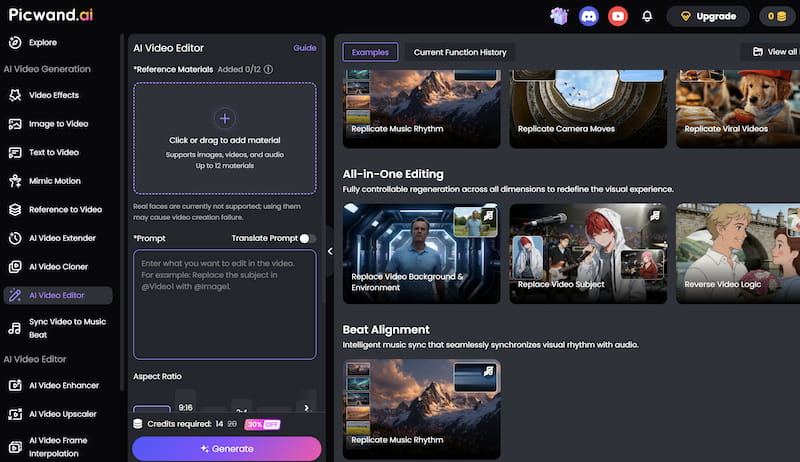
Open the PicWand AI Video Editor website and Click or drag to add material. After uploading, the AI system will process the video automatically.

Step 2. Apply Visual Effects
Browse available AI filters and effects and choose the one you need.
Step 3. Preview and export the Final Video
After finishing the edits, export the video in your preferred resolution. Download the final video and share it directly on your preferred platforms.
It also serve as a great skin smoothing video filter app. Users can create polished, professional-looking videos from almost any environment, making content creation far more convenient and affordable.
Part 5. FAQs about How to Replace Background in Video
What is the best AI tool for video background replacement?
There are AI editors that support background replacement but I think PicWand AI Video Editor is a great option for beginners because it is fast and easy to use.
Why does the background replacement sometimes look unnatural?
If the video is not clear or if it is too bright or too dark the AI might not work properly. Also if the subject is moving fast the background replacement might not look right. Using videos with lighting generally gives better results.
Is AI background replacement for professional videos?
Yes. Many people who make videos for a living like content creators, marketers and businesses now use AI background replacement to make their videos look professional. They use AI background replacement, for looking video production because it is easy to use and gives great results.
Conclusion
That’s all about how to replace background in video. Video background replacement is now really easy thanks to AI technology. You can remove scenes and make professional-looking videos in just a few steps. This is possible without needing screens or advanced editing skills. Whether you create content teach, market or just edit casually AI tools make your work faster and more convenient. Tools like Picwand AI Video Editor have features such as subject detection and smart background segmentation. These features make video editing easy for everyone. If you want to make your videos cleaner and more engaging without using software. AI background replacement is a great solution. It is one of the options available today, for making videos look better. You can use AI to make your videos more interesting. Video background replacement helps you achieve that.
AI Picwand - Anyone Can be A Magician
Get Started for Free