Basic PlanVIP PlanVIP ExpiredPurchased credits are valid for life but require an active VIP subscription to use
0Credit(s)
You can use credits to access all the AI tools on Picwand, such as the AI Image Upscaler, AI Age Filter, AI Video Enhancer, AI Video Upscaler, AI Video Effects, and more.
Imagen 4 is perfect for turning your ideas into realistic images, delivering highly detailed and nearly accurate results from simple prompts. However, to refine and perfect those outputs, it works best when paired with a true editing tool. Picwand AI Photo Editor helps enhance, adjust, and fine-tune images for better results.
Back in May 2025, Google officially announced Imagen 4, its latest upgrade in AI image generation technology. You may have already seen it while exploring AI image tools, as it quickly gained attention for producing highly realistic visuals. Compared to earlier versions, it delivers better prompt understanding, sharper output, and more refined image quality. If you're trying to figure out what it can actually do, you're definitely in the right place. This post will explain how to use Imagen 4, what features it offers, and how it compares with other AI generators. We'll also introduce a powerful alternative for detailed photo editing and enhancement.
Imagen 4, Google's latest AI prompt generator, transforms simple text prompts into detailed visuals. Building on its predecessors, it offers sharper rendering, more realistic lighting, and better texture handling. Imagen's standout feature is its ability to generate legible text within images; a major upgrade for posters and social media content. Additionally, the model offers faster processing speeds and supports a wide range of styles and aspect ratios.
Why Choose Flux AI Image Generator:
• Better accuracy in complex scenes and compositions.
• Faster image generation compared to earlier Imagen versions.
• Generates high-quality, photorealistic images from text descriptions.
• Improved detail rendering, including textures, lighting, and reflections.
• Stronger text generation within images, perfect for posters and graphics.
Pros
It produces clearer, more accurate text inside images.
It maintains a consistent visual style across multiple outputs.
It handles multi-object and detailed scenes with better consistency.
It understands complex prompts well and follows instructions closely.
It supports high-resolution outputs, up to 2K, and flexible aspect ratios.
Cons
It isn't fully accessible on all platforms yet.
It sometimes struggles with hand and facial accuracy.
It requires detailed prompts to achieve the best results.
It can produce overly polished or generic-looking images.
It can misinterpret spatial or complex scene relationships.
Part 2: How to Generate Images with Imagen 4
Getting started with Imagen 4 is pretty straightforward. Everything runs inside Google AI Studio, so you don't need to install anything or deal with complicated setups. You need to choose the right model, write a prompt, and let the AI handle the rest.
Here's how to use Imagen 4:
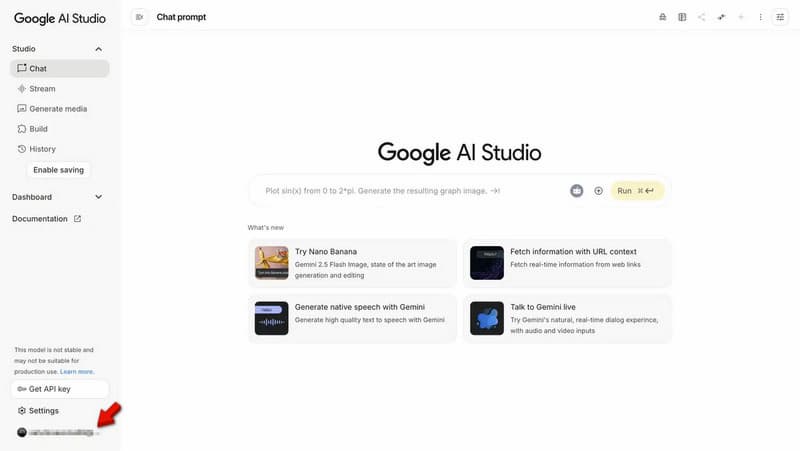
Step 1. Start by logging into your Google Account to connect your activity, so your projects are saved automatically. After signing in, navigate to Google AI Studio to access Google's AI tools, including image generation models.
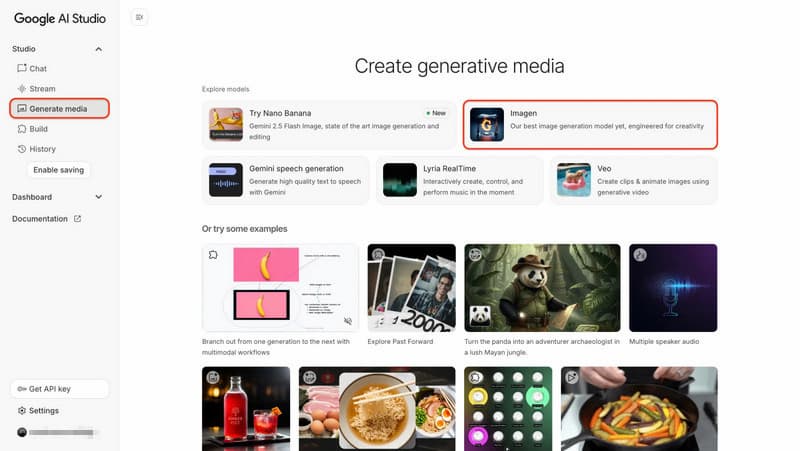
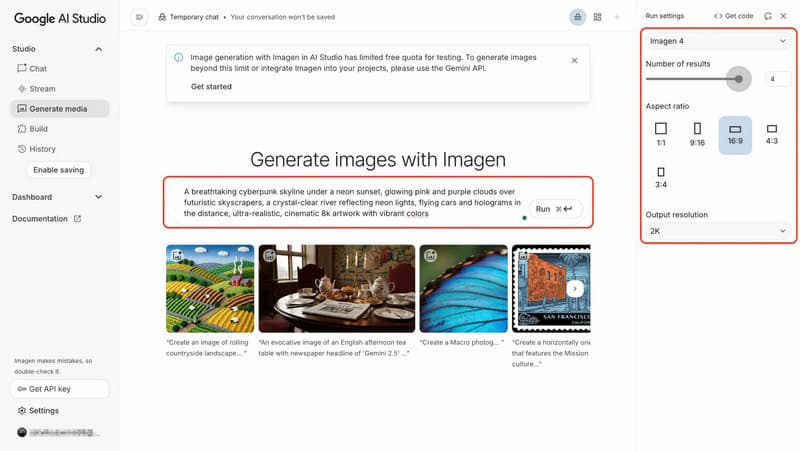
Step 2. On the dashboard, select Generate Media to access all AI creation tools. Click it, then choose Imagen from the available models. This action opens a workspace designed to turn text into images.
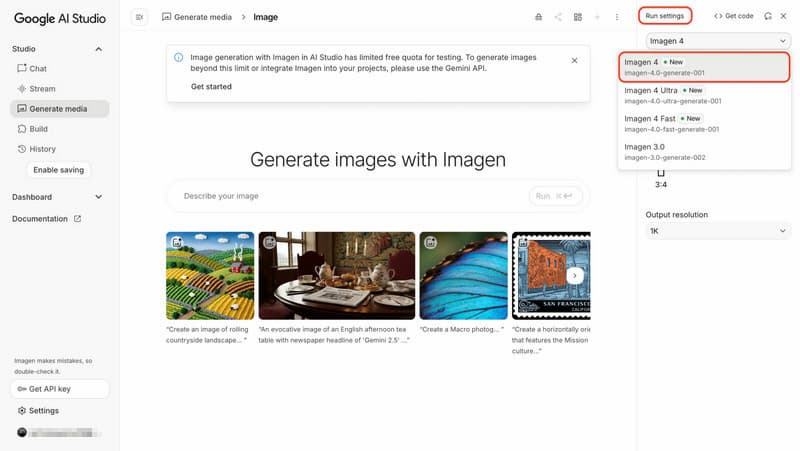
Step 3. In the upper-right navigation, click the Run settings option to open the model versions. Select Imagen 4, which is optimized for sharper details and more realistic outputs. You will also see options like Imagen 4 Ultra and Imagen 4 Fast.
Step 4. Now write your prompt and describe what you want to see in detail, including style, mood, colors, or composition. You can also adjust settings such as aspect ratio, resolution, and the number of images. After setting up everything, click Run to generate your images.
Imagen 4 is one of those AI image generators that feels genuinely powerful the moment you start using it. It shines in realism, detail, and prompt understanding. However, it can still struggle with complex scenes that require precise spatial or logical accuracy.
Part 3: Imagen 4 vs Other AI Generators
Focus
Image Style
Prompt Handling
Editing with Prompts
Character Consistency
Number of Outputs
Image Quality
Speed
Imagen 4 (Google)
Photorealistic images
Realistic
Precise
Limited
Moderate
Up to 4
Up to 2K
Fast
NightCafe
Multi-model art creation
Mixed styles
Moderate accuracy
Basic remixing and variations
Low
Up to 16
Up to 4K
Moderate
Ideogram
Text-heavy design
Realism with strong text design
Strong prompt understanding
Prompt-based edits
Moderate
Up to 4
Up to 2K
Fast
Dreamina (CapCut AI)
Creative images
Stylized
Good but slightly creative
In-platform editing tools
Consistent
Up to 40
Up to 4K
Fast
Midjourney
High-end artistic images
Artistic and cinematic
Highly creative
Limited
Moderate
Up to 4
Up to 4K
Moderate
Part 4: Best Alternatives to Imagen 4: Picwand AI
After becoming familiar with Imagen 4, you may quickly notice that it doesn't offer much control for detailed editing. You can tweak prompts and regenerate results, but fine-tuning is still quite limited. That's where Picwand AI Photo Editor becomes useful.
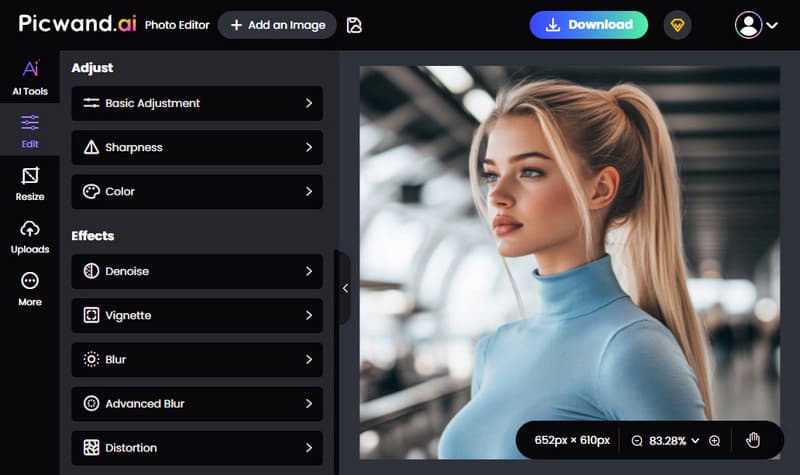
Picwand AI Photo Editor is an all-in-one AI-powered tool built specifically for photo editing. It combines basic tools and smart AI features into a single platform. It lets you adjust brightness, contrast, sharpness, and color settings. It also includes effects like denoise, vignette, blur, advanced blur, and distortion. For composition work, you can crop using freeform or preset ratios, or resize images by entering exact dimensions.
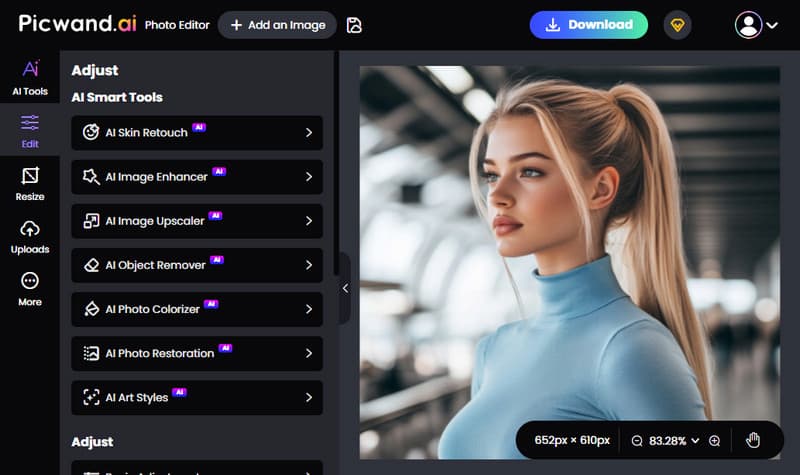
Furthermore, it even allows lens correction through rotation and flipping. Notably, Picwand AI offers AI tools such as skin retouch, image enhancer, upscaler, object remover, photo colorizer, restoration, and art style transformation. After making photo edits, you can export your work in JPG, PNG, or WebP formats with up to 4K resolution.
Why Choose Picwand AI Photo Editor:
• Packed with basic photo adjustments and creative effects.
• Provides more than 10 smart AI features that go beyond basic editing.
• Supports exporting images in JPG, PNG, and WebP with up to 4K resolution.
• Offers flexible cropping options with multiple aspect ratios, including 1:1, 3:2, 2:3, etc.
My Verdict:
Picwand AI Photo Editor is best understood as a tool for detailed photo editing and refinement. It gives you hands-on control over adjustments, effects, cropping, and AI enhancements. With features like retouching, upscaling, object removal, and color restoration, it focuses on polishing visuals rather than generating them from scratch.
Conclusion
Learning how to use Imagen 4 shows just how powerful Google's latest AI image generator has become. It's fast, intuitive, and capable of turning simple prompts into highly detailed and realistic visuals. While it excels at creating images, it still has limits when it comes to precise editing and fine control over details. If you need more flexibility after generating your visuals, Picwand AI Photo Editor is where you'll find it. It gives you advanced editing tools and AI-powered enhancements to refine, adjust, and perfect your images with ease.