Basic PlanVIP PlanVIP ExpiredPurchased credits are valid for life but require an active VIP subscription to use
0Credit(s)
You can use credits to access all the AI tools on Picwand, such as the AI Image Upscaler, AI Age Filter, AI Video Enhancer, AI Video Upscaler, AI Video Effects, and more.
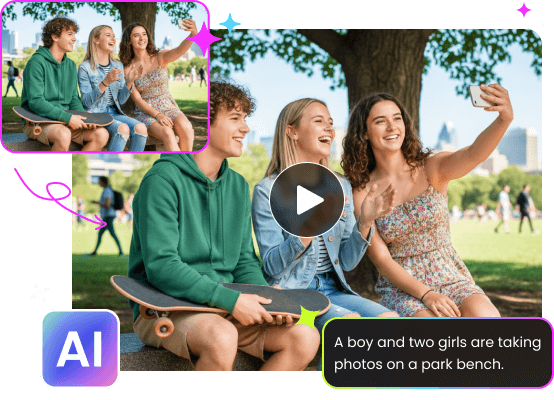
In terms of prompt generation and AI creative tools, there is no shortage of options today. The internet is filled with platforms that promise to turn text into videos using AI. Among these growing choices, Krea AI is one generative AI tool that has been steadily making a name for itself. It is an advanced AI-powered platform for generating visuals. However, while Krea AI is powerful, the quality of its results heavily depends on one crucial factor: how well the prompts are written. This post will break down what Krea AI prompts are, how they work, and why they matter. We will also share tips on how to adjust your prompts to achieve the desired output. Our goal is to help you understand how to craft more effective prompts and utilize the tool more efficiently.
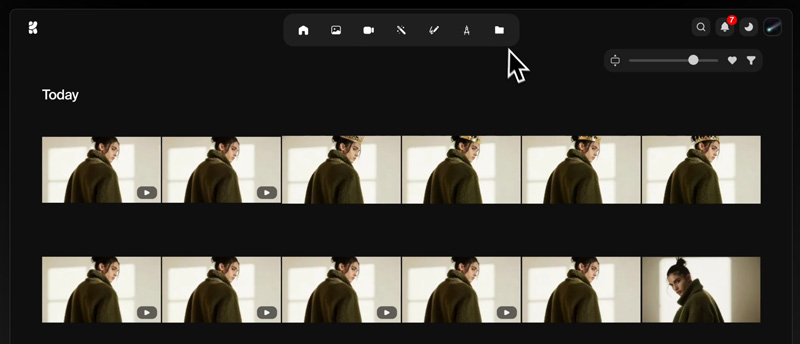
Krea AI is a generative AI creative platform powered by advanced artificial intelligence. It is commonly used to create, enhance, edit, animate, upscale images/videos, and 3D content. Krea provides tools for text-to-image/text-to-video generation, image rendering, and high-resolution upscaling, among others. It includes options for configuring AI models with custom data, asset management, and various models to achieve different styles and effects.
Subject & Action
The subject defines the main focus of the AI-generated image, video, or 3D object. The action describes what the subject is doing or experiencing.
Style & Medium
This aspect determines the artistic style and the medium of the generated content. Krea AI offers thousands of styles and multiple models, allowing creators to select a visual approach.
Composition & Lighting
Composition is the arrangement of elements within the frame. Meanwhile, lighting dictates how light and shadow interact with subjects.
Quality & Detail
This focuses on the resolution, sharpness, and intricacy of the generated content. Krea enables ultra-high-quality outputs, including upscaling to 22K for images and 8K for videos.
Negative Prompts
Negative prompts are instructions that instruct the AI what to avoid in the generated content. This feature is essential for refining results, especially in professional workflows.
Real-time & Interactive
Krea AI supports real-time and interactive generation. It allows users to see immediate previews, make adjustments, and iterate on designs.
In addition to Kera AI, other AI prompt generators are available to create videos from text. Explore them and determine which tool is best suited for your AI generation needs.
Part 2. Adjust Your Prompt to Achieve Desired Output
Creating the perfect AI-generated image or videos depends on how you craft your Krea prompts. Even small tweaks in wording, style, or parameters can change the output. Mastering prompt adjustment is key to producing high-quality, accurate, and visually appealing results. Here are some practical tips to adjust your prompts and achieve your desired output:
Specific Subject & Action
Clearly define what is in the scene and what it is doing.
A golden retriever catching a frisbee in a sunny park.
Style & Medium
Specify the artistic style or medium to guide visual output.
Digital watercolor painting of a cityscape at night.
Composition & Lighting
Use framing and lighting keywords for depth and mood.
Rule-of-thirds composition with dramatic side lighting on a mountain.
Quality & Detail
Indicate desired resolution, clarity, and realism.
No blur, no watermarks, no extra objects in background.
Iterate & Refine in Real-Time
Use interactive previews to tweak prompts gradually.
A castle on a hill, then adjust: Add morning fog and cinematic lighting.
Experiment With Synonyms & Descriptive Language
Try alternative words to refine results.
Sunset glows over a lake instead of Sunset over a lake.
Combine Multiple Aspects
Balance subject, style, composition, and lighting.
A futuristic city (subject) at night (lighting) in cyberpunk style (style), wide-angle view (composition).
Start Simple, Then Layer Complexity
Begin with the core idea, then add details gradually.
1: A dragon flying. 2: A dragon flying over snowy mountains at sunrise, highly detailed.
Learn From AI Feedback
Observe AI output and adjust prompt language for better alignment.
If the generated character looks too cartoonish, refine with: Realistic human character, detailed facial features, cinematic lighting.
Part 3. BONUS: Picwand AI Text-to-Video Generator: The Best Krea AI Alternative
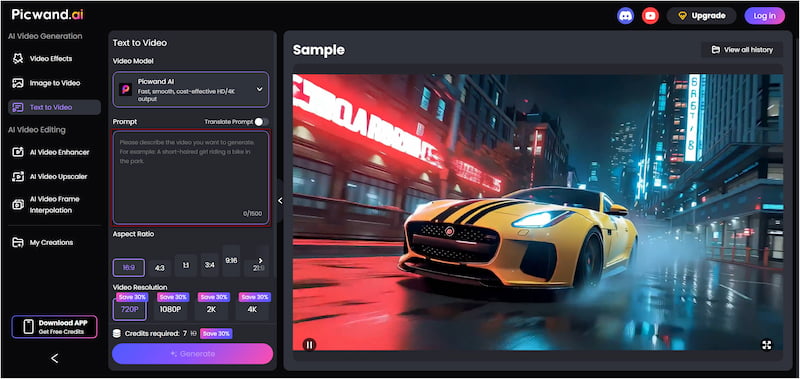
While Krea AI's image-to-video generation is impressive, it falls short in true text-to-video generation. If your goal is to turn pure text prompts into creative videos, Picwand AI Text-to-Video Generator is what you need. It is a smart text-to-video generation tool powered by various models and advanced AI. It excels at understanding simple and highly detailed prompts, supporting descriptions of up to 1,500 characters. It allows you to generate videos up to 10 seconds long, choose from multiple aspect ratios, and export them in up to 4K resolution.
Why Choose Picwand AI Text-to-Video Generator:
• Video duration up to 10 seconds, perfect for short-form content.
• Export generated videos in 720p, 1080p, 2K, and up to 4K resolution.
• Choose from formats like 16:9, 9:16, 1:1, 4:3, 3:4, and more aspect ratios.
• Create videos from descriptive prompts, with a character limit of up to 1,500 characters per generation.
Step 1: Navigate the official page of Picwand AI Text-to-Video Generator using the provided link. In the prompt box, write a clear and detailed text description of the video you want to create. The more descriptive your prompt, the more accurate the generated video will be.
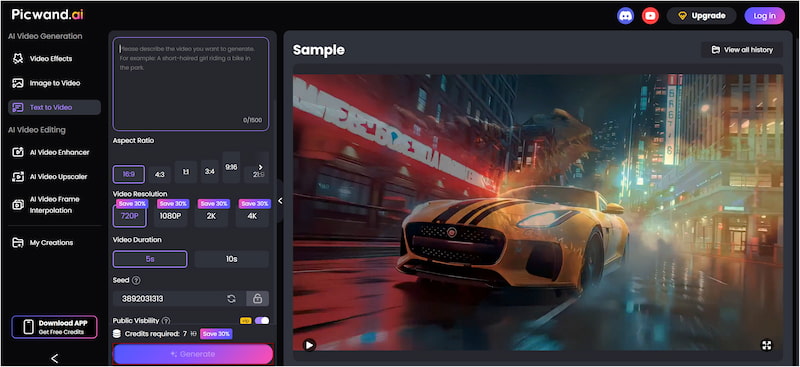
Step 2: Switch to the Aspect Ratio section and select the format that matches your target platform. Then choose your desired output quality, which can go up to 4K. Please note that Picwand supports a maximum video length of 10 seconds.
Step 3: If you want to keep your project private, disable Public Visibility so other users cannot view it. After finalizing the settings, click Generate. Picwand AI will analyze your prompt and render a video that matches your description.
Although the Krea AI Image Generator is solid, it is not optimized for advanced text-to-video generation. If you rely on detailed prompts and want fast, high-quality video output, Picwand AI Text-to-Video Generator is an excellent alternative.
Part 4. FAQs about Krea AI Prompts
Q: Can I train Krea AI with my own images?
A: Yes, Krea AI allows you to train models using your own images. By uploading custom images, Krea AI learns to recognize patterns such as colors, shapes, textures, and stylistic elements.
Q: What are the features of Krea AI?
A: Krea AI offers a wide range of creative features beyond text-to-video generation. This includes text-to-image generation, image upscaling, real-time rendering, and other advanced features.
Q: Is Krea AI truly free to use?
A: Krea AI offers a free plan, but it comes with limitations. Free users have restricted generation credits, lower output limits, and reduced access to advanced features.
Conclusion
Krea AI prompts are essential in determining the quality, accuracy, and creativity of the results you generate. When combined with prompt adjustment and real-time iteration, Krea AI becomes a powerful tool for visual generation. If your goal extends beyond images and you want to transform detailed text prompts into cinematic videos, we offer an alternative. This is now the perfect time to explore Picwand AI Text-to-Video Generator. This tool excels at interpreting long prompts, supports multiple aspect ratios, and delivers high-quality video outputs with resolutions up to 4K.