Basic PlanVIP PlanVIP ExpiredPurchased credits are valid for life but require an active VIP subscription to use
0Credit(s)
You can use credits to access all the AI tools on Picwand, such as the AI Image Upscaler, AI Age Filter, AI Video Enhancer, AI Video Upscaler, AI Video Effects, and more.
Creating a video with Sora starts with one essential skill: writing clear, intentional prompts. Think of prompting as giving a detailed briefing to a cinematographer who hasn’t seen your script or storyboard. If your instructions are vague, they’ll fill in the gaps creatively. But when your prompt clearly explains the purpose, Sora gains the direction it needs to produce consistent, controlled results. In this post, we’ll cover the complete Sora AI video prompt guidelines. We will help you understand how to structure your prompts effectively and intentionally. Our aim is to equip you with the knowledge to get consistently better results and minimize guesswork.
This is where you describe what the video should look like and what’s happening. The scene description in Sora prompts is the foundation of what the model will render.
Cinematography & Visual Framing:
Beyond what’s in the scene, you want to control how it’s visually represented. Cinematography and lighting shape the tone and emotional resonance of a shot.
Action, Motion & Timing:
Once you’ve established where you are and how the camera frames the scene, the work doesn't end there. You need to tell the model what moves, what changes, and in what order they should be applied.
Audio & Dialogue:
If your video includes speech or sound, you should describe them explicitly in the prompt. Explicit audio instructions enable the model to generate synchronous audio that aligns with the visuals.
Iteration & Remix Workflow:
The guide emphasises that prompt engineering with Sora 2 is rarely a one-and-done process. No prompt is guaranteed to produce a perfect result.
Part 2. How to Write Sora Prompt
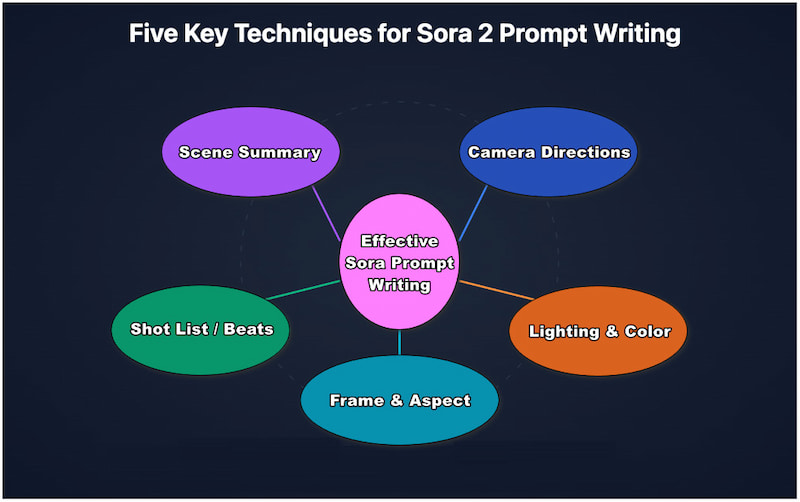
Writing an effective Sora prompt guide is about providing the model with a clear, creative roadmap. The more structured the prompt is, the more reliably Sora can translate your vision. Below are the core components and how to apply each one.
Frame & Aspect:
This is where you define the aspect ratio, resolution, and clip duration. Sora treats these like the container the video must fit into. Stating them upfront ensures the model understands whether you want a vertical video, a widescreen clip, or a square format.
The scene summary is a single sentence that combines tone, purpose, and action. It provides Sora with a clear understanding of what the video is about. This concise summary enables the model to maintain thematic consistency and ensures it frames the entire shot sequence with intention.
Example:
A calm, cinematic moment of a lone hiker standing at a mountain peak during sunrise, taking in the vast landscape.
Shot List / Beats:
A beat is a short, clear action moment within the clip. For short videos, 0–3 beats is ideal; any more can confuse the model or cause rushed motion. Beats allow you to specify timing, progression, and micro-actions, guiding Sora through the video.
Example:
1. The hiker steps forward slightly as the wind brushes their jacket.
2. The camera reveals more of the glowing horizon as clouds drift softly.
3. The hiker exhales visibly in the cold morning air.
Camera Directions:
Camera directions tell Sora how the scene is filmed, not just what appears. This includes lens choice, movements, and framing. Because Sora responds well to film language, specifying camera behavior can improve realism and artistic consistency.
Lighting determines the mood, emotion, and clarity of your video. Color sets the atmosphere. Sora responds strongly to cues like time of day, lightning quality, and color themes. Proper lighting instructions ensure your video feels intentional and cinematic.
Example:
Soft warm sunrise light with golden highlights, long shadows, and slightly desaturated earth-tone colors.
Part 3. Use Sora Prompt to Generate Video with Picwand AI Text-to-Video Generator
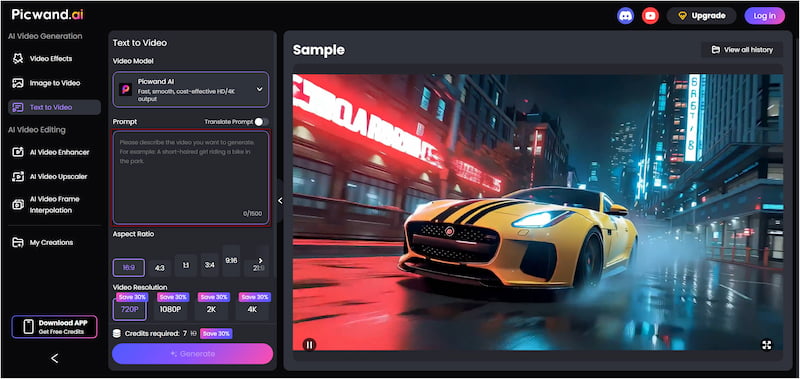
Picwand AI Text-to-Video Generator is a browser-based generative AI tool that translates any text descriptions into video. It allows you to convert detailed text of up to 1,500 characters in length into high-quality videos. This tool provides multiple aspect ratios, including 16:9, 4:3, 1:1, and 3:4, among others. In terms of export quality, you can save your generated videos in resolutions ranging from 720p to 4K. Remarkably, it allows you to generate videos of up to 10 seconds in duration.
Why Choose Picwand AI Text-to-Video Generator:
• Allows highly detailed prompts up to 1,500 characters.
• Generates visually rich video clips up to 10 seconds long.
• Offers multiple aspect ratios to perfectly match different platforms.
• Supports professional-grade quality up to 4K resolution for videos.
Here’s how to prompt Sora using Picwand AI Text-to-Video Generator:
Step 1. Using the provided link, reach the official page of Picwand AI Text-to-Video Generator on your browser. In the prompt box, paste the Sora-style structured prompt or type your own detailed description. This helps Picwand AI to interpret your creative vision clearly.
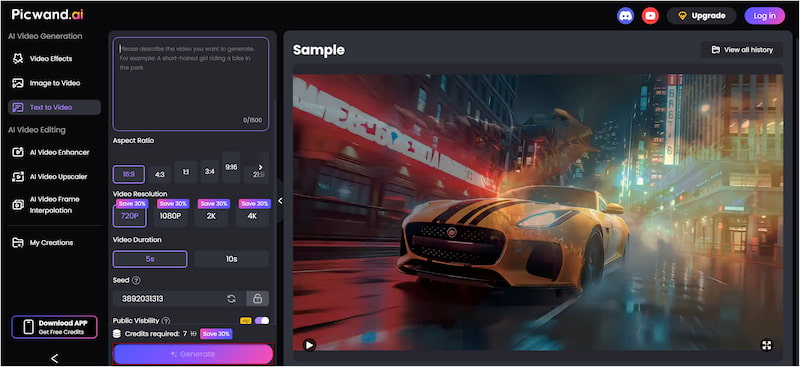
Step 2. Navigate to the Aspect Ratio section and select the format that best matches your output platform. Next, specify your export quality, choosing between 720p, 1080p, 2K, or 4K. Then select the duration; the maximum supported length is 10 seconds.
Step 3. Picwand also gives you the option to control who can see your output. Turn off Public Visibility if you prefer your generation to remain private. After finalizing the prompt, click Generate to analyze, interpret the style and instructions, and begin rendering the video.
Picwand AI Text-to-Video Generator handles complex text prompts exceptionally well. It translates them into fluid motion, expressive visuals, and dynamic compositions. Using the Sora prompt guide with Picwand allows you to produce more accurate and creative videos.
Part 4. FAQs about Sora AI Video Prompt Guidelines
Does Sora AI have any restrictions?
Sora AI has several important restrictions to protect safety, privacy, and responsible use. It does not create videos from images that include real people, especially if the images show identifiable individuals.
What are the new rules for Sora?
The latest Sora rules prohibit users from replicating the likenesses of real people unless the person has opted in through OpenAI’s Cameo feature. This ensures consent-based use of personal identity.
What is the maximum resolution for Sora?
Sora is currently capped at a maximum export resolution of 1080p. However, availability depends on your plan. Free users can export only up to 720p, while Pro subscribers can export up to 1080p.
Conclusion
Mastering Sora AI starts with mastering your Sora AI video prompt guidelines. By understanding how to balance detail with creativity, you guide the model toward visuals that align with your vision. Effective prompting isn’t about getting it perfect the first time; it’s about iterating, refining, and collaborating with the model to achieve the desired outcome. Now that you understand the core principles behind crafting effective Sora prompts, you’re ready to take your workflow to the next level. For a faster, easier way to generate high-quality prompts, use Picwand AI Text-to-Video Generator. It helps you write better prompts and produce better outputs.