What Is Image Compression and How to Use It

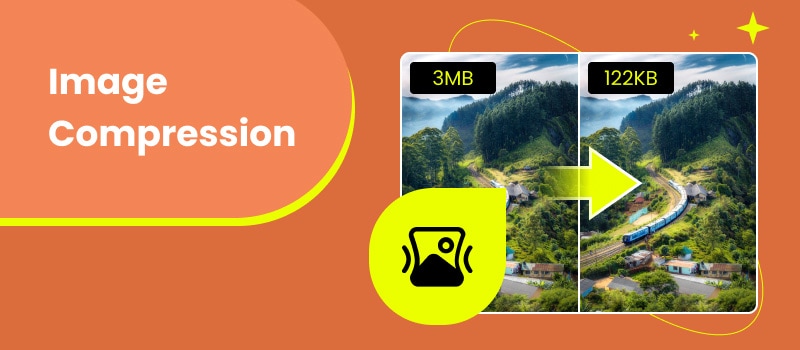
Large image files can slow down websites, take up storage space, and make photos harder to share. Whether you're optimizing images for a website, social media, or everyday use, image compression helps reduce file size while maintaining good visual quality.
In this guide, you'll learn how image compression works, the difference between lossy and lossless compression, and how to choose the right method to reduce image size without unnecessary quality loss.
Contents:
What is Image Compression?
Image compression is the process of reducing an image's file size while maintaining acceptable visual quality. There are two main types: lossless compression, which preserves all image data, and lossy compression, which removes less noticeable data to achieve smaller file sizes. Choosing the right method depends on whether you prioritize image quality or storage and loading speed. Not to mention, compression depends on the type of image file you are using. Basically, there are two types based on which image files are categorized. These are lossless and lossy compression.
Lossless Compression
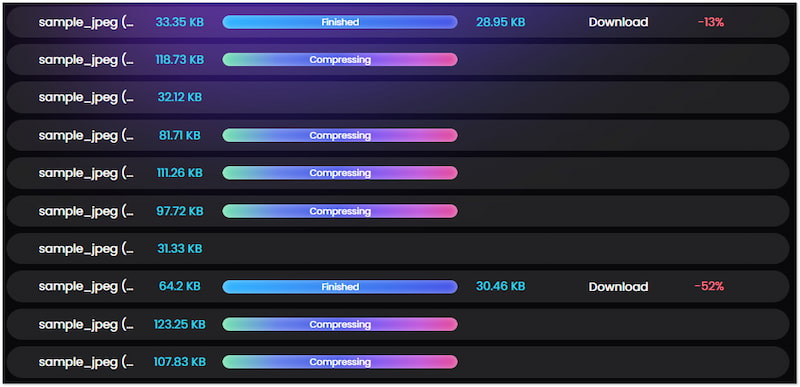
Lossless image compression technique reduces image file size without losing its original quality. This means when an image is decompressed, there is no loss of data during the process. The image will remain exactly the same as the original in terms of data and quality. This technique is vital in platforms where every single piece of data is important. One of its primary advantages is that it maintains the quality of the original image file. But here’s the thing. Lossless compression has lower compression ratios, which make image bigger in quality and size.
Lossy Compression
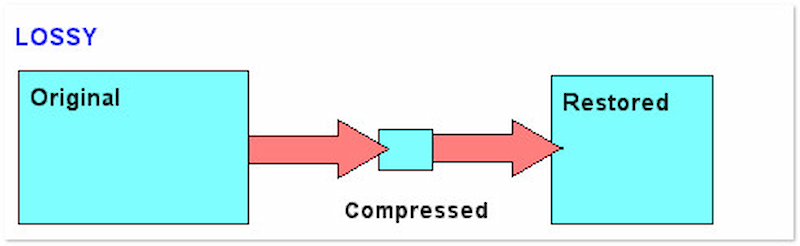
On the other hand, lossy compression uses a different technique to reduce image file size. Lossy image compression optimizes image file size by permanently discarding some of its data. It identifies and removes less important information that is less noticeable to the human eye, resulting in a loss of quality. Despite that, it can still achieve a much higher compression ratio compared to a lossless technique. Now, a small heads-up: Excessive compression using this technique can lead to a perceptible degradation in image quality.
Lossy Vs. Lossless Comparison
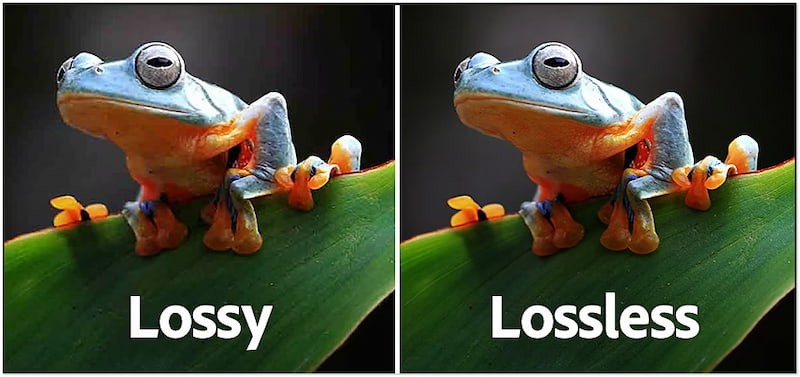
Both lossy and lossless compression share the characteristic of decreasing the digital image file size. Still, there is a difference between lossy vs. lossless compression techniques, particularly in handling data. The lossless compression method ensures that the original file is perfectly reconstructed from the optimized file. However, keep in mind that this technique results in larger file sizes. Meanwhile, lossy compression achieves greater file size reduction but with minimal quality loss. This technique is acceptable for web images and platforms that prioritize smaller file sizes than quality. Remember, consider your specific needs for quality, size, and storage capacity when choosing between these two compression techniques.
Common Image Compression Technique
Image compression algorithms are important for condensing digital image file sizes. These algorithms work by discarding redundancies and irrelevant data, allowing images to maintain quality while the file size is reduced. In this section, we will explore these common algorithms that can be used in various use cases.
Transform Coding
Best for: Photographs, product images, and web content where smaller file sizes are more important than preserving every detail.
Transform coding is ideal for JPEG images because it achieves high compression ratios while maintaining good visual quality. It's commonly used for websites, blogs, and digital photography.
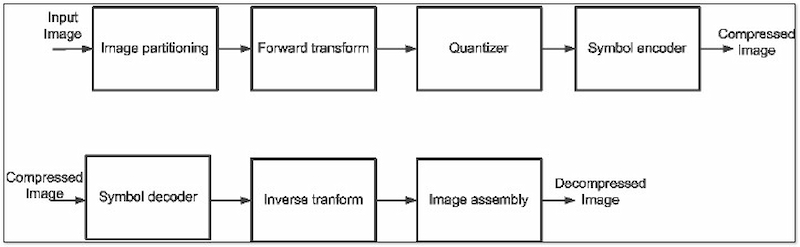
First, let’s have the commonly used compression technique, Transform coding. It works by converting an image from the spatial domain into the frequency domain. Transform coding algorithms like Discrete Cosine Transform analyze the image in the frequency domain. They can then discard less important high-frequency details that might not be readily noticeable.
LZW (Lempel-Ziv-Welch)
Best for: Logos, illustrations, icons, and images with large areas of solid color.
LZW works well for graphics with repeating patterns and limited color palettes. It's commonly used in GIF files and some TIFF images.
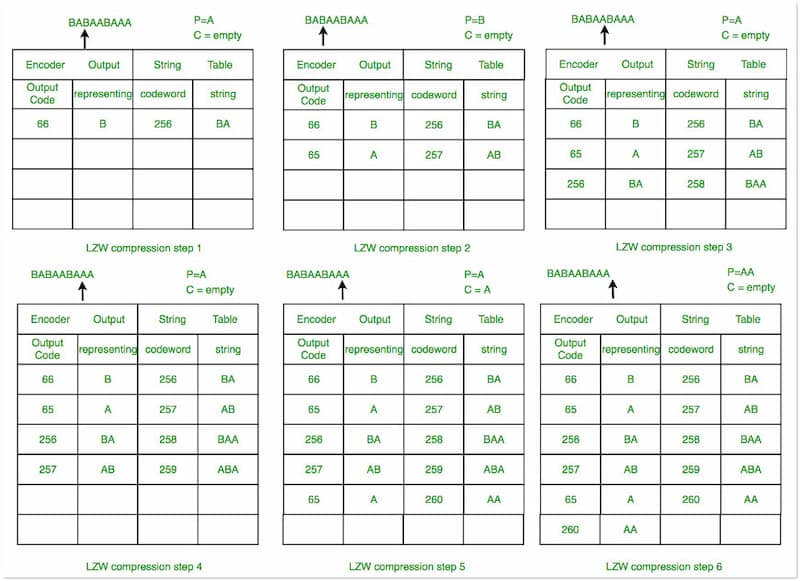
As we continue, let’s proceed to Lempel-Ziv-Welch or LZW. It identifies and replaces recurring patterns with shorter codes. It works by creating a dictionary on-the-fly as it compresses the data. When a recurring pattern is encountered, it’s replaced with a reference to its corresponding code in the dictionary, effectively reducing redundancy.
Run-length Encoding (RLE)
Best for: Simple graphics, technical drawings, scanned documents, and monochrome images.
RLE performs best when neighboring pixels share the same color. It's less effective for detailed photographs.
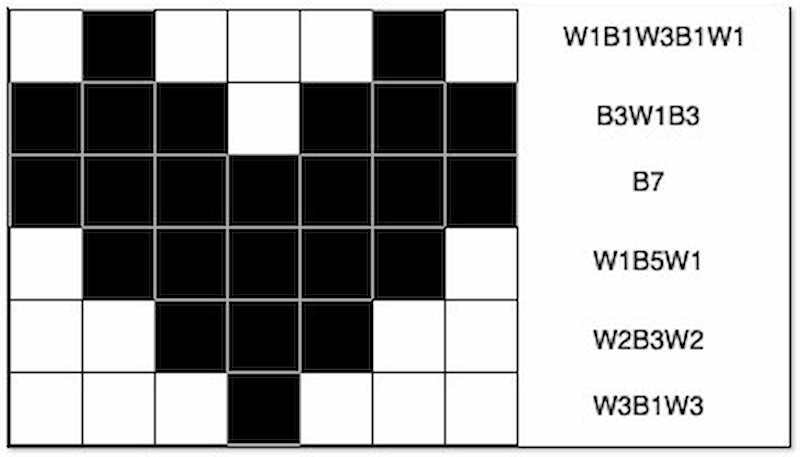
Next, let’s look at Run-Length Encoding. This photo compression technique identifies and encodes sequences of repeating data within an image. For example, a sequence of 20 white pixels followed by 15 black pixels would be encoded as (20W, 15B). RLE is particularly effective for images with flat areas of uniform color or simple patterns.
Huffman Coding
Best for: General-purpose lossless compression as part of formats like JPEG, PNG, and WebP.
Huffman coding is often combined with other compression techniques to reduce file size efficiently without adding significant processing overhead.
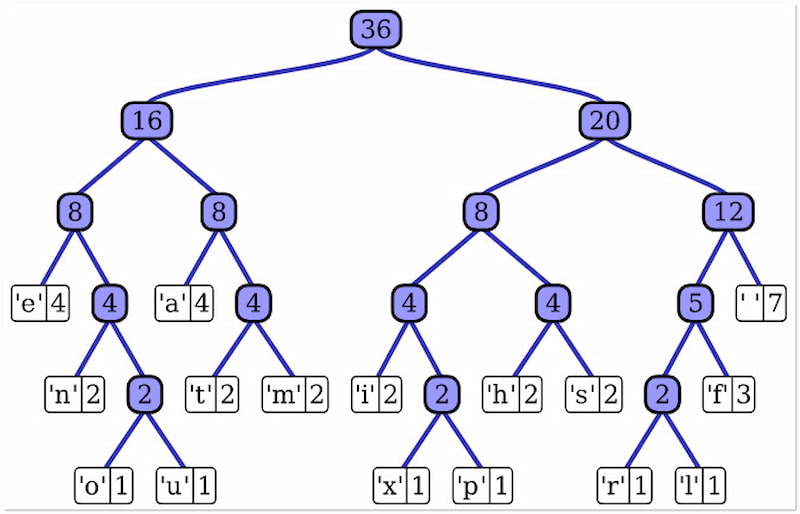
Moving on to our next image compression technique, we have Arithmetic coding. It focuses on assigning shorter codes to more frequently occurring data within an image file. It builds a statistical model of the data and assigns codes based on their probability. This way, frequently occurring data takes up less space in the compressed file.
Deflate
Best for: Web graphics, screenshots, UI elements, and images that require transparent backgrounds.
Deflate is the standard compression method used by PNG, making it an excellent choice when image quality must remain unchanged.
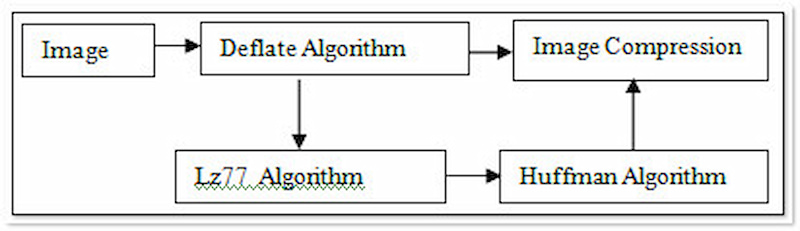
Lastly, let’s talk about Deflate. It combines LZ77 and Huffman coding. LZ77 works similarly to LZW by identifying and replacing repeating data patterns with references. Deflate then utilizes Huffman coding to optimize the code lengths for these references and other data in the compressed file. It is used in conjunction with other methods, such as those in PNG format.
Compression Methods in Different Image Formats
Various image formats adopt different compression methods to optimize file size and quality. These methods can be categorized into lossy and lossless image compression. Each image is designed with specific use cases and uses the most fitted compression technique.
| Image Format | Compression | Best For | Not Recommended For |
| JPEG | Lossy | Photos, product images, blogs, websites | Logos, text-heavy graphics, transparent images |
| PNG | Lossless | Logos, screenshots, UI elements, graphics with transparency | Large photo galleries due to bigger file sizes |
| GIF | Lossless | Simple animations, icons, memes | High-quality photographs |
| BMP | Uncompressed / RLE | Image editing, archival, Windows applications | Web publishing or file sharing |
| WebP | Lossy & Lossless | Modern websites, e-commerce, social media, fast-loading pages | Older software with limited WebP support |
How We Tested the Image Compression Tool
To evaluate the performance of the image compression tool, we tested the tool based on several key factors, including compression efficiency, image quality, supported formats, processing speed, and ease of use.
We used different types of images, including high-resolution photos, screenshots, and graphic images, to compare how each compression method performs in real-world scenarios. During testing, we focused on:
- • Compression Ratio: How much each tool can reduce image file size while maintaining acceptable quality.
- • Image Quality Preservation: Whether compressed images retain sharp details, colors, and overall visual clarity.
- • Supported Formats: The ability to process popular image formats such as JPG, PNG, WebP, GIF, and BMP.
- • Processing Speed: How quickly images can be compressed, especially when handling multiple files.
- • User Experience: The simplicity of the interface, upload process, and download options.
How to Choose the Right Image Compression Method
The best image compression method depends on how you plan to use your images. Here's a quick guide for different types of users.
| User Type | Recommended Format | Compression Strategy | Best For |
| Website Developers | WebP or JPEG | Lossy compression | Faster page loading, improved SEO, and reduced bandwidth usage |
| Photographers | JPEG (sharing) or PNG (editing) | Light lossy or lossless compression | Maintaining image quality while reducing file size |
| Graphic Designers | PNG | Lossless compression | Logos, illustrations, screenshots, and transparent graphics |
| Content Creators | WebP or JPEG | Moderate lossy compression | Blogs, social media, and digital marketing visuals |
| Everyday Users | JPEG | Standard lossy compression | Saving storage space and sharing photos online quickly |
Quick Recommendations
- • Choose WebP if you’re optimizing images for a website and want the best balance between quality and file size.
- • Choose JPEG for photos, travel pictures, and everyday image sharing.
- • Choose PNG for logos, graphics, screenshots, or images that require transparency.
- • Use lossless compression when preserving image quality is more important than file size.
- • Use lossy compression when smaller files and faster loading speeds are your priority.
How to Compress Images Online (Step by Step)
If you want to make your image smaller in size, Picwand Online Image Compressor is a free online tool that helps you compress images quickly without losing quality. It is an AI-powered tool that uses a lossless image compression technique to optimize image file size. It can reduce digital image file size by up to 90% while keeping the best quality. For good measure, Picwand Online Image Compressor can handle both lossy and lossless formats. This includes JPG/JPEG, PNG, WebP, GIF, BMP, and more. But what makes it truly remarkable is its simultaneous compression support. It allows you to upload and process up to 20 image files at once.
Why Choose Picwand Online Image Compressor:
- • Optimize digital image file size without quality loss.
- • Uses a lossless compression technique powered by AI.
- • Supports compressing up to 40 image files simultaneously.
- • Handles both lossy and lossless files like JPEG, PNG, WebP, etc.
Step 1. Reach Picwand Online Image Compressor by navigating to its official website.
Step 2. Click Upload Image(s) to import the images you want to compress. For images from online sources, you can use the drag-and-drop functionality.
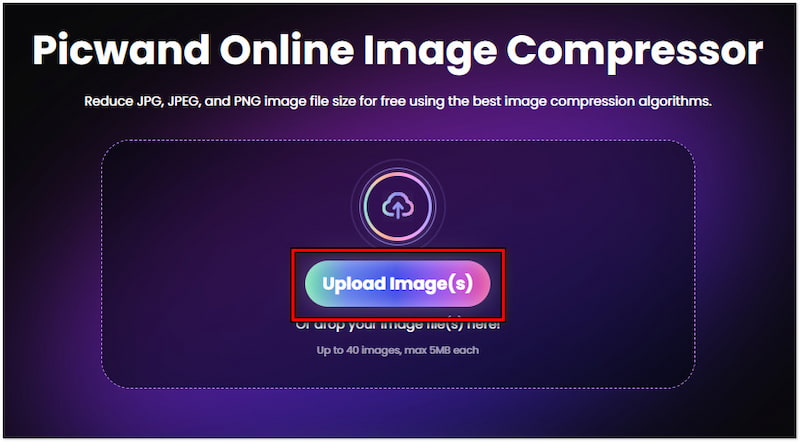
Step 3. After importing the images, Picwand Online Image Compressor will analyze them and apply the lossless compression algorithm. So, sit back and wait for the compression to finish.
Step 4. Once the compression process is finished, click the Download All button. A ZIP folder containing the compressed files will be downloaded to your computer.
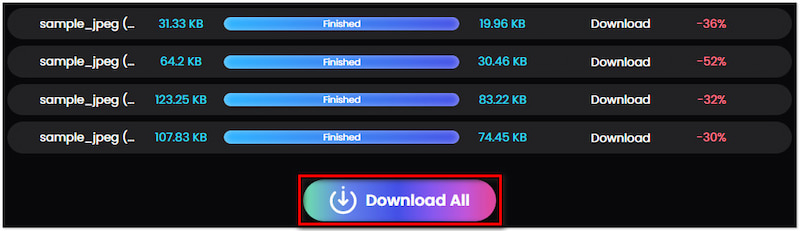
Picwand Online Image Compressor provides a convenient way for JPG, WebP, GIF, BMP, PNG and JPEG compression. It ensures that you can get a well-reduced image file without compromising the original quality.
FAQs about Image Compression
1. What's the best image compression tool for the web?
For most users, an online image compressor that supports JPEG, PNG, and WebP is the most convenient option. AI-powered tools can also help reduce file size while preserving image quality.
2. Compress JPEG vs. PNG: Which is better?
It depends on your needs. JPEG is better for photos because it creates much smaller files, while PNG is ideal for logos, screenshots, and images that require transparency or lossless quality.
3. How much can I compress an image without visible quality loss?
In many cases, you can reduce an image by 30% to 70% without noticeable quality loss. The exact amount depends on the image content and the compression method used.
4. Can I compress images without losing quality?
Yes. Lossless compression reduces file size while preserving all original image data, making it ideal when image quality is the top priority.
5. Will image compression reduce image resolution?
Not necessarily. Compression reduces file size, while resolution refers to the image dimensions. Most compression tools keep the original resolution unless you choose to resize the image.
Conclusion
In conclusion, image compression is an essential tool for managing digital image files. It offers several benefits in terms of transmission efficiency and storage. By applying lossy or lossless compression, you can optimize your images for various use cases. If you want to reduce image sizes, Picwand Online Image Compressor can be your companion. It uses a lossless compression technique, ensuring that you’ll get an optimized image file without data loss.

AI Picwand - Anyone Can be A Magician
Get Started for Free