A Step-by-Step Guide: How to Enhance Image Quality in Photoshop

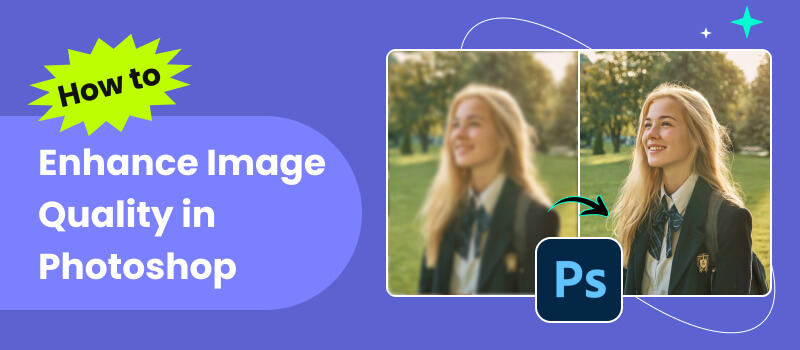
Have you ever taken photos that fail to showcase the original beauty of the subject, or photos that are blurry and lifeless? Don't worry, Photoshop can achieve precise and professional image quality enhancement. Photoshop is one of the most commonly used professional image processing tools for improving image clarity, color, and overall visual effects. This article will gradually guide you on how to enhance photo quality in Photoshop and transform ordinary photos into stunning visual works. It will also introduce a more efficient alternative - Picwand AI Photo Enhancer, which can achieve image enhancement with just one click.
Contents:
Part 1: How to Improve Image Quality in Photoshop
Adobe Photoshop is professional image-processing software. It includes many editing and drawing tools. For example, it can denoise a grainy image and enhance image quality, allowing users to easily denoise in Photoshop for clearer results. Here are 4 methods on how to enhance the quality of an image in Photoshop.
Method 1: Adjust Brightness and Sharpness
The first method is to adjust the photo's brightness and contrast. Ensuring color balance and clarity in photos is one of the important ways to enhance photo quality. The following are the detailed steps:
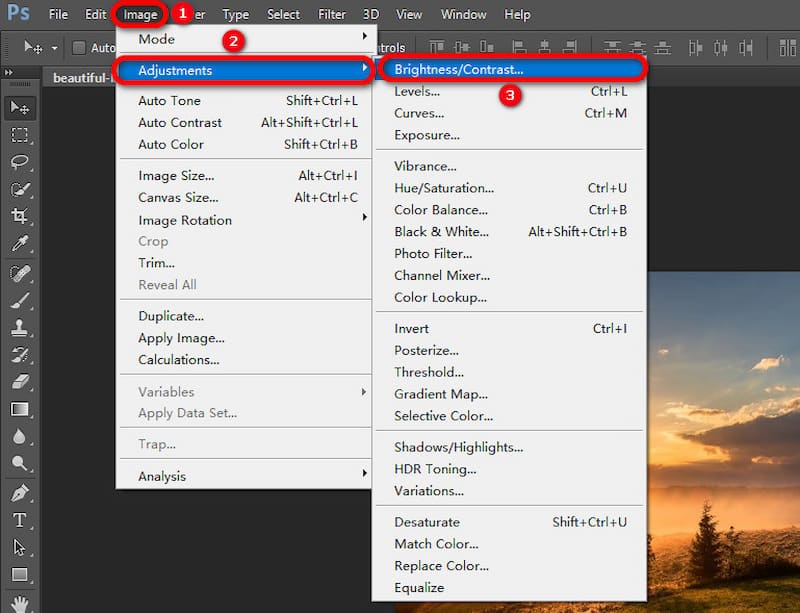
Step 1: Click the Adjustments in the Image navigation. Then select Brightness/Contrast.
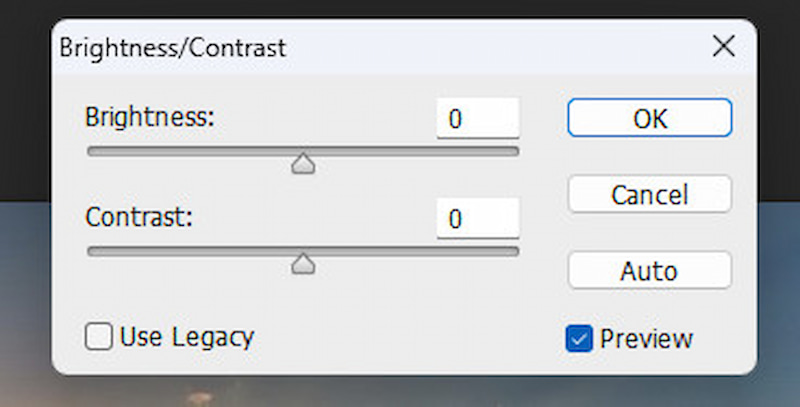
Step 2: Set the brightness and contrast values.
You can also adjust the brightness and contrast by clicking the brightness/contrast icon under “Adjustments” on the right side of the page. This adjusting method is more straightforward.
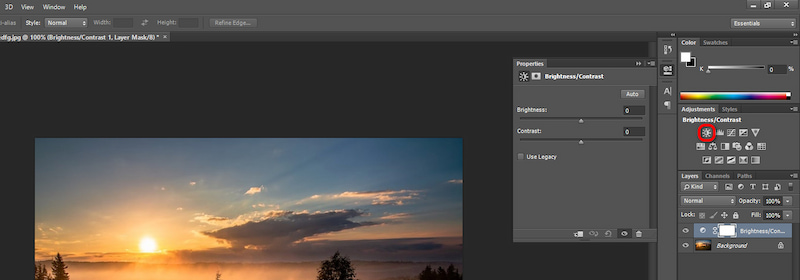
By adjusting the color and definition in Photoshop, the overall quality of the image is effectively improved. This method can not only correct the problem of underexposure or overexposure, but also improve the details and texture of the image.
Method 2: Adjust Image Size
The second method to enhance photo quality in Photoshop is to change the image size, especially by enlarging it. Detailed Guides are as follows:
Step 1: Click Image and select Image Size.
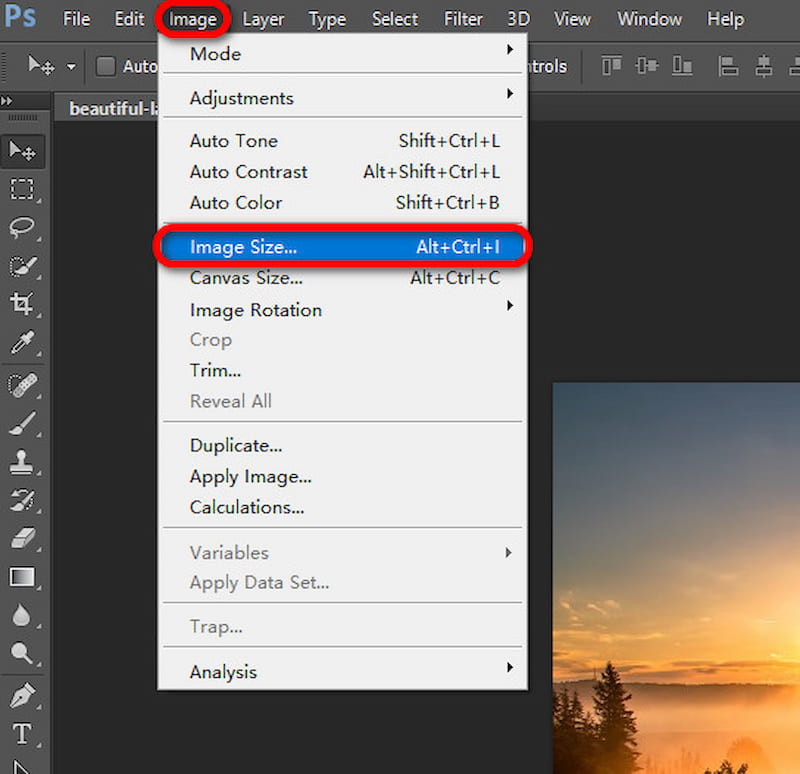
Step 2: Set parameters such as Width, Height, and Resolution. After setting the values, click OK.
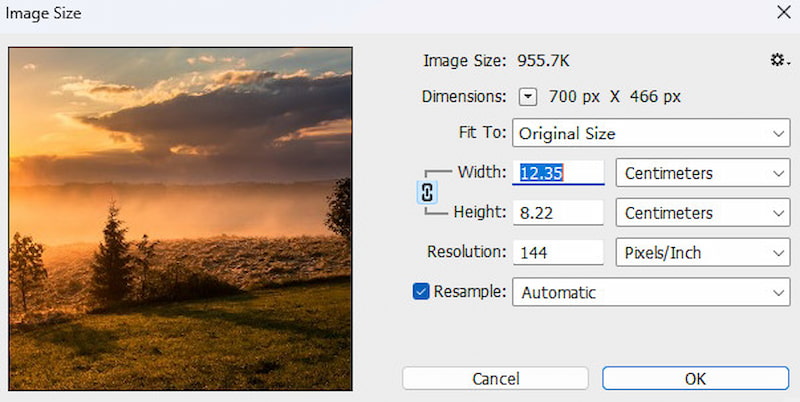
This method can help you enlarge images without losing quality. However, in order to avoid quality loss, the amplification factor should be minimized as much as possible.
Method 3: Use Photoshop's Sharpen Tool
Sharpening is a technique used in image processing to enhance edge clarity by increasing pixel contrast to highlight contours, making the image clearer. The sharpening tool in Photoshop can sharpen blurry objects. Specific objects can also be highlighted, and the operation steps are as follows:
Step 1: Select Sharpen under Filter in the navigation tab, and then choose Smart Sharpen.
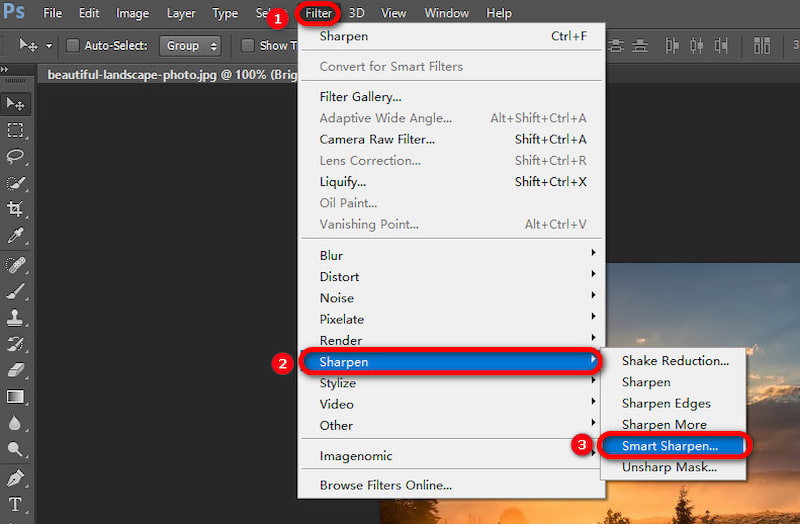
Step 2: Adjust the amount, radius, and reduce noise parameters. This quantity determines the intensity of sharpening, and the radius affects the range of sharpening effect.
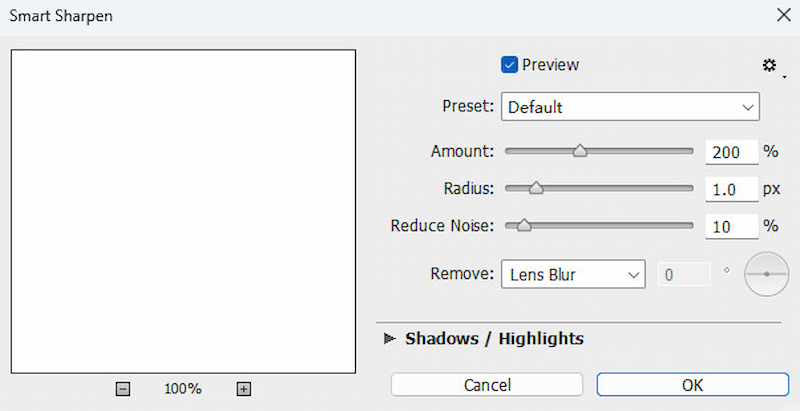
Interface Explanation: Amount refers to the degree of sharpening, and the larger the amount, the stronger the sharpening. Sharpening will increase the contrast of the edges. The radius slider controls its influence range, and the larger the quantity, the larger the influence range. Noise refers to the appearance of particles, false colors, etc. in the image, which reduces the image quality, details, and excessive distortion. Reducing noise can reduce or remove these in the image, thereby improving the purity of the image.
But be sure to sharpen in moderation. If used improperly, it can easily cause overexposed highlights or bright halos along the edges.
Method 4: Use Super Resolution
The super-resolution feature of Photoshop can double the resolution of the image. And obtaining a higher resolution image. Here are the steps on how to use the "Super Resolution" feature to improve image quality in Photoshop:
Step 1: Click File, and then select Open to upload your image.
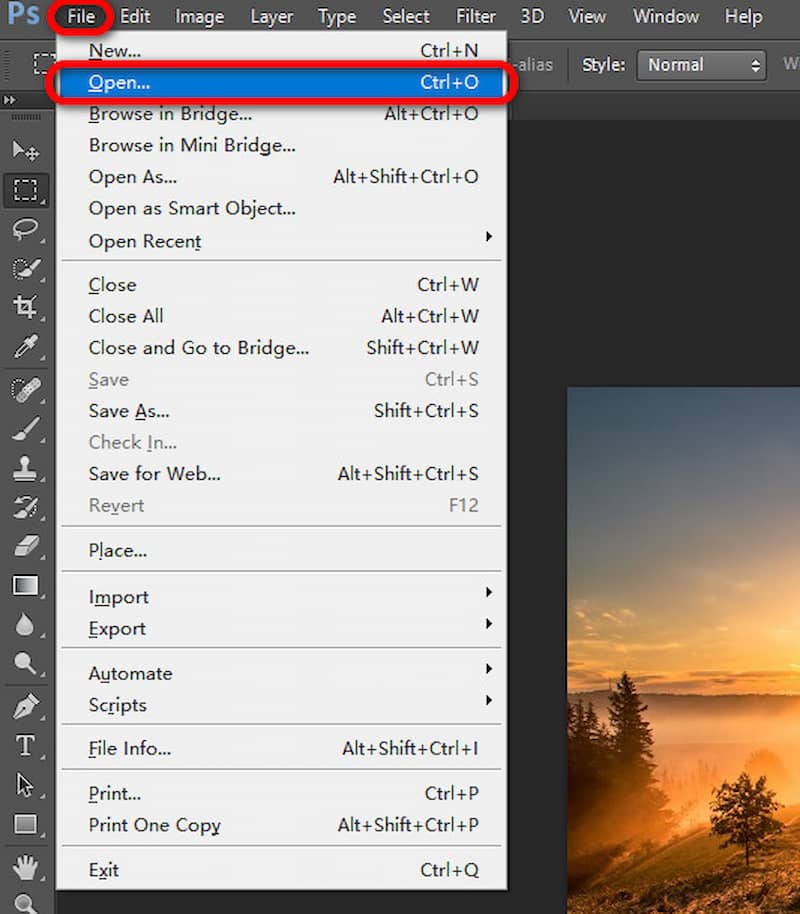
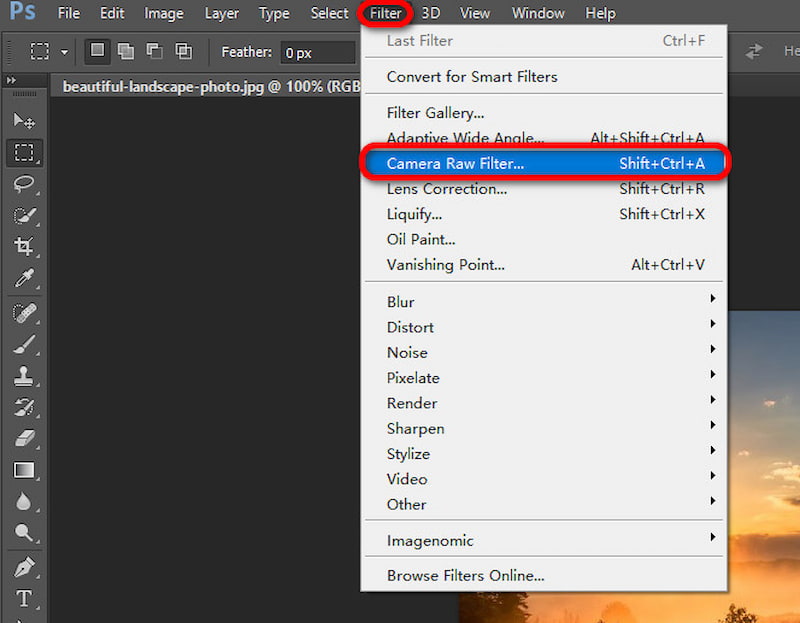
Step 2: After opening the uploaded photo, go to Filter and click Camera Raw Filter.
Step 3: Right-click the Preview and select Enhancev, then check the Super Resolution box in the pop-up window and click Enhance.
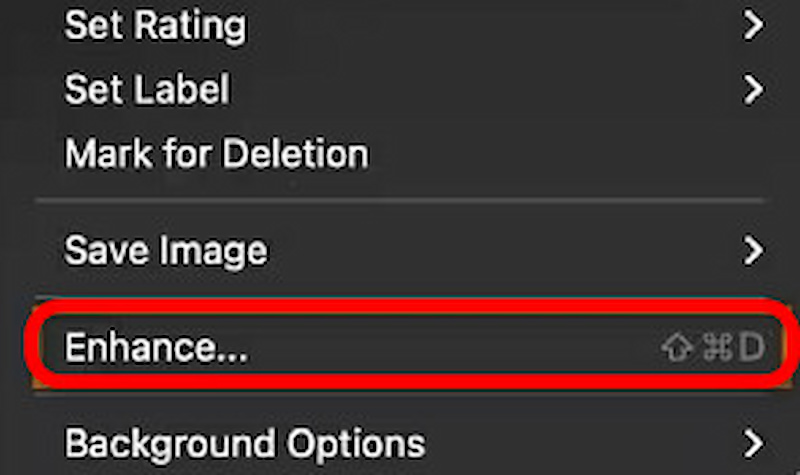
By using Photoshop's Super Resolution feature, you can double the image resolution without compromising the image quality. The enhanced image has a clearer visual effect while preserving the original image's details and clarity. This function is suitable for photographers and designers to enhance visual effects.
The above are four methods to improve image quality in Photoshop. By completing the above operations, your image quality will be professionally improved. However, the operation is difficult and requires a lot of time and effort to learn, and requires payment for use, making the learning cost high for beginners. It is more suitable for people with editing experience or those who have a high demand for image professionalism.
Part 2: Photoshop Alternatives: Picwand AI Photo Enhancer for One-Click Image Quality Enhancement
However, not everyone has sufficient time, money, and energy to learn and use Photoshop to improve image quality. For users who want to quickly improve image quality, Picwand AI Photo Enhancer provides a simpler and more efficient solution.
Picwand is a fully featured free online photo editor and video generator that uses advanced AI algorithms to provide users with professional image and video editing, generation, and other advanced functions. It not only has image enhancement tools, but also can remove a background from a picture, with powerful image editing capabilities. And Picwand AI Photo Enhancer is a powerful photo enhancer from Picwand that uses AI technology to increase image resolution to 4K in seconds without sacrificing image quality.
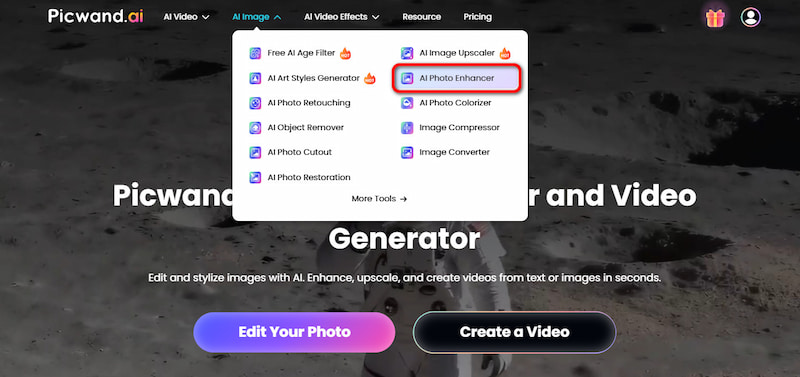
Step 1: Go to the official Picwand website and click AI Photo Enhancer under the AI Image navigation tab.
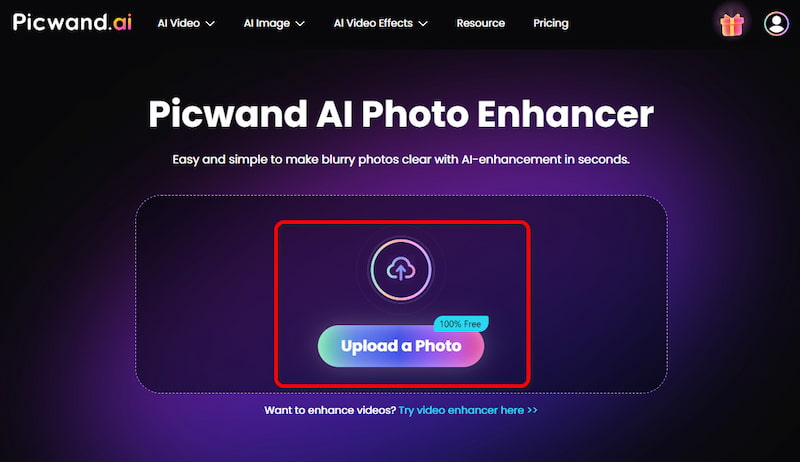
Step 2: Click Upload a Photo to upload your image.
Step 3: Choose a model and image resolution. For photos, usually select General Model, then click Start to upload the image. After a few seconds, you will be able to see a high-quality image that has been processed.
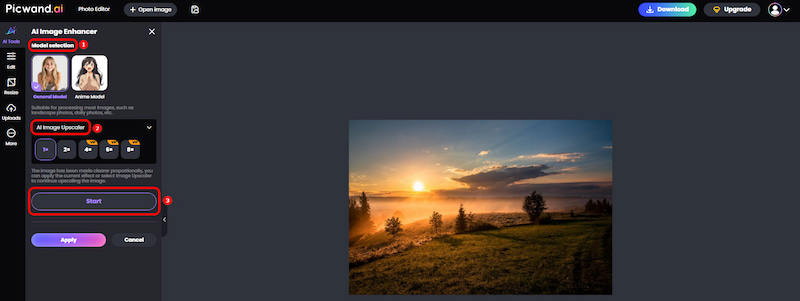
Step 4: Preview the before-and-after comparison by sliding the slider. If you're satisfied with the output image, click Apply to generate the enhanced image. And you can click Download to save the photo.
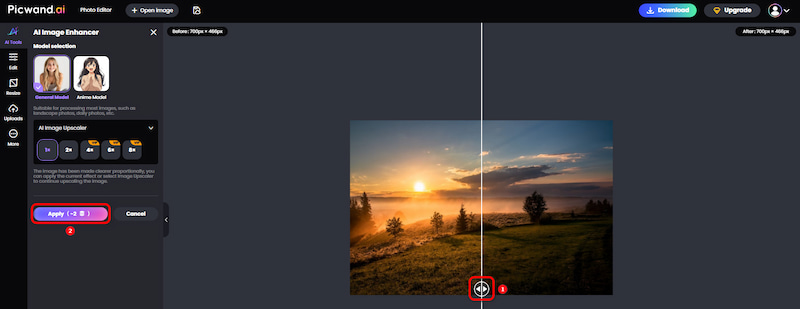
The Picwand AI Photo Enhancer tool has a simple interface and does not require complex editing. Users only need to upload images, which can automatically recognize the content of the images and enhance clarity, brightness, and details with just one click, delivering fast, high-quality results. It is particularly suitable for users who do not have editing skills or want to quickly obtain high-quality photo results.
FAQs
Do I need professional knowledge to use Picwand?
No. The interface design of Picwand is very simple and easy to operate. Simply upload images, and with one click, the image quality can be improved. No image editing skills are needed to easily optimize images.
How to improve image quality in Photoshop?
There are four ways to enhance image quality in Photoshop: using super-resolution, adjusting color and clarity, adjusting brightness and contrast, and using sharpening tools.
How to convert low-quality images into high-quality images online for free?
You can use Picwand AI Photo Enhancer to improve image quality with just one click and increase the resolution to 4K, easily converting low-quality images into high-quality ones without the need for complex editing.
How to improve image resolution?
You can use Picwand AI Image Upscaler to increase image resolution for free. Simply upload the image and quickly achieve an increase in image resolution within seconds.
Conclusion
The above are the methods for enhancing image quality in Photoshop. I hope this article can help you enhance the quality of your images. Overall, Photoshop has the professional ability to enhance photos and has multiple methods to improve the quality of your photos with realistic output effects. However, the operation is complex and requires payment, making it suitable for people without editing experience. Beginners are more suitable for using Picwand AI Photo Enhancer to enhance images because its interface is simple and easy to operate, allowing for one-click image enhancement without the need for complex editing. Even those without any editing experience can use it to quickly improve image quality. Choose the tool that suits you best and start your image-enhancing journey!
AI Picwand - Anyone Can be A Magician
Get Started for Free