How to Use Lightroom Enhance: Complete Guide for Beginners

Adobe Lightroom Enhance Photo has long been one of the most trusted tools among photographers, designers, and content creators. Its powerful features, clean interface, and non-destructive editing make it perfect for detailed image adjustments. Among its newest and most appreciated functions is Lightroom Enhance, a feature designed to improve image quality using AI and advanced algorithms.
But while Lightroom Enhance is powerful, not everyone finds it easy or accessible. You need a subscription, a certain level of editing knowledge, and sometimes high-performance hardware to handle RAW files and AI upscaling. That’s why many users—especially beginners—start looking for a simpler, web-based alternative.
In this guide, we’ll walk through why Adobe Lightroom Auto Enhance is worth using, how to use it step-by-step, and introduce an easier solution for those who want AI-quality enhancements without the technical learning curve: Picwand.
Contents:
Part 1. The Main Reason to Use Lightroom Enhance
Lightroom Enhance is designed to do what basic image editing tools cannot. It doesn’t just adjust brightness or contrast—it uses advanced computational photography technology to increase detail, smooth noise, and upscale photos while maintaining quality.
Here are the main reasons photographers rely on Lightroom Enhance:
1. Super Resolution for RAW and JPEG
Lightroom Enhance can double your photo’s resolution. This is especially useful for:
• Printing large posters
• Cropping heavily without losing detail
• Restoring images shot with older devices
• Improving smartphone photos
The enhanced image preserves texture and clarity much better than traditional resizing.
2. Better Detail Recovery
Sometimes shadows hide important details, or highlights wash out textures. Adobe Lightroom AI Enhance helps recover them without making the image look artificial.
3. Low-Light and High-ISO Improvement
Night photos or indoor shots often have noise. Lightroom Enhance reduces noise while sharpening edges, making the image cleaner and more professional.
4. Works Seamlessly With Lightroom Workflow
For photographers already using Lightroom, Enhance is integrated perfectly—no need to switch apps or adjust file formats.
5. Ideal for Professional Photography Needs
If you shoot portraits, landscapes, products, or wildlife, Enhance helps you extract the best possible quality from your image files.
In short: Lightroom Enhance is perfect for users who need maximum detail and professional-grade results.
Part 2. How to Use Lightroom Enhance
Enhancing photos in Lightroom is easy once you know where to find the feature. Here’s a clear, beginner-friendly walkthrough.
Steps
Step 1: Launch Lightroom (Classic or CC), then click Import to bring in the image you want to enhance.
Step 2: Select your photo from the filmstrip or library view. Right-click the image and choose:
Photo → Enhance. This opens the Enhance preview window.
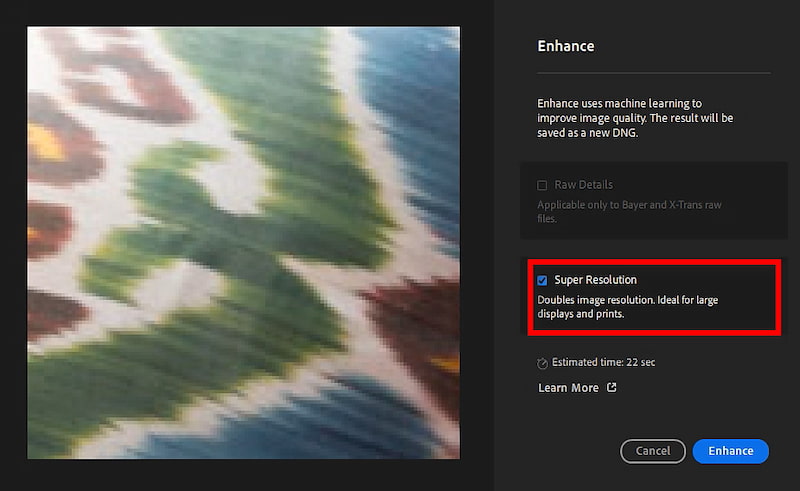
Step 3: Inside the Enhance window, you’ll see options like: Super Resolution, Raw Details
Denoise (in newer versions). Check Super Resolution to enlarge the image while maintaining detail.
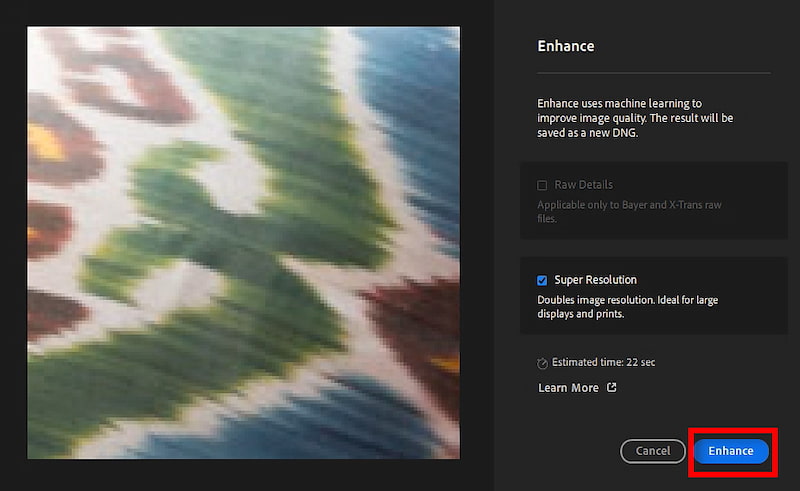
Step 4: Click Enhance and Lightroom will generate a new DNG file with the enhancements applied. You’ll find the enhanced version next to your original photo.
Lightroom Enhance is excellent, especially for Lightroom skin smoothing and photographers who want maximum quality. The Super Resolution feature is noticeably better than standard upscaling found in most editing apps.
But it does come with limitations.
Cons
- Requires an Adobe subscription
- Needs strong hardware for fast processing
- Exported DNG files are large and consume storage
- More suitable for professionals than beginners
- Not ideal for users who want quick, automatic enhancement
- Not beginner-friendly compared to online AI tools
If you shoot RAW or need professional-grade output, Adobe Lightroom Enhance is a powerful tool.
If you want fast AI enhancement without technical steps, you may prefer a simpler alternative like Picwand.
Part 3. An Easy Alternative to Lightroom Enhance — Picwand
Adobe Lightroom AI Enhance is powerful, but sometimes too advanced for everyday users. If your goal is simply to make your photos clearer, sharper, and more detailed without complex editing, Picwand is a great alternative.
Picwand AI Photo Enhancer
Picwand AI Photo Enhancer is a web-based AI photo enhancement tool that requires no editing skills, no subscription, and no installation. It uses deep learning algorithms to automatically improve clarity, color, and resolution.
It’s popular for:
• Restoring old photos
• Enhancing blurry or pixelated images
• Improving low-light photos
• Boosting facial detail
• Upscaling images for printing or design
Compared to Lightroom Enhance, Picwand is more beginner-friendly and faster.
Features
• AI Upscaler: Picwand can enlarge images significantly without losing sharpness. It’s ideal for social media, e-commerce, and creative projects.
• Old Photo Restoration: The AI removes scratches, noise, stains, and fading—perfect for scanned photos and historical images.
• Facial Detail Enhancement: Picwand rebuilds natural-looking facial features without over-smoothing or creating AI artifacts.
• Noise Reduction & Clarity Boost: Ideal for night photos or low-resolution smartphone shots.
• One-Click Automation: No sliders, no technical settings—upload and enhance.
• Works on Any Device: You can use Picwand on a laptop, tablet, or even your phone.
Steps
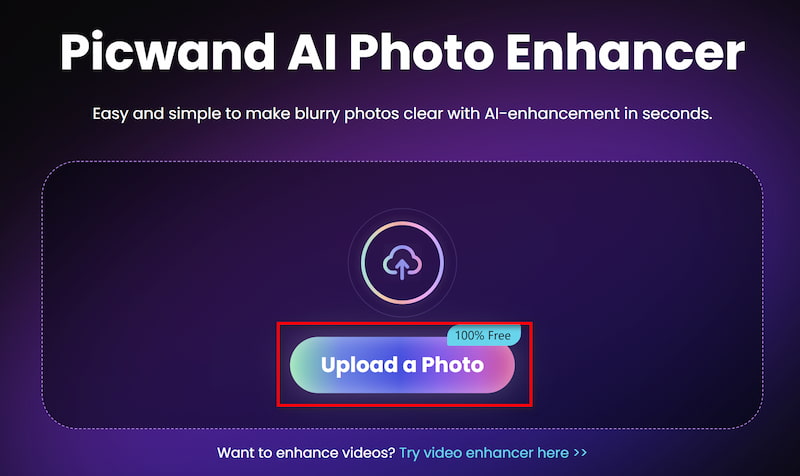
Step 1: Click Add your photo(s) to upload the old image in Picwand AI Photo Enhancer.
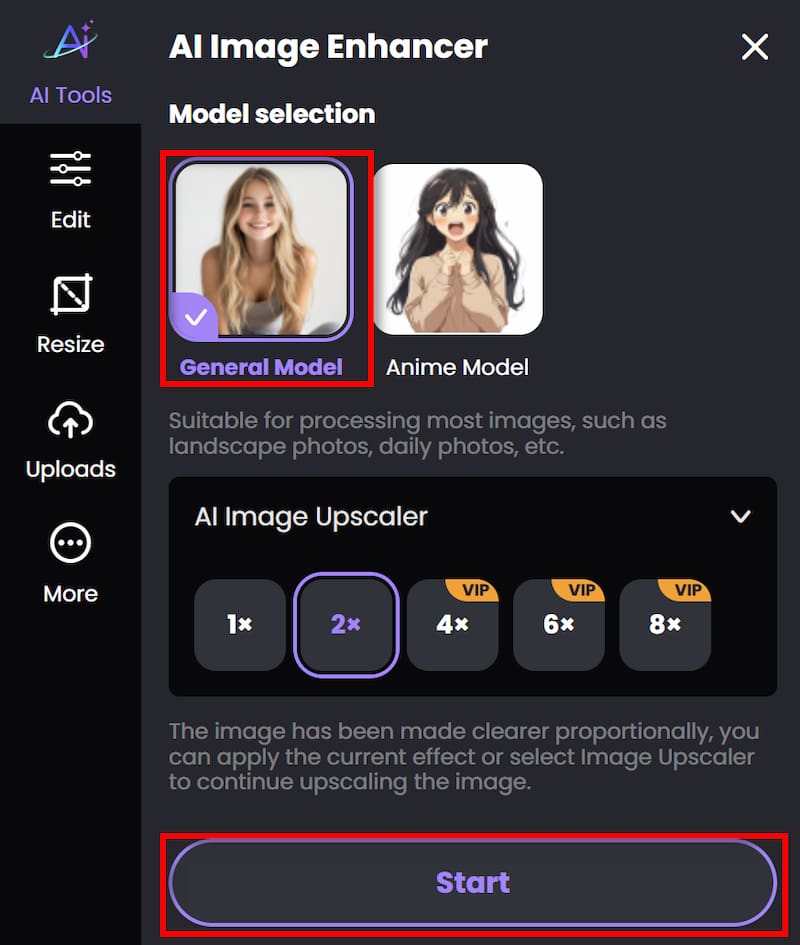
Step 2: Beside Photo enhancement, if you want to improve the resolution, you can also achieve image upscaler by adjusting the parameter. Then click on Start to begin processing.
Step 3: Wait for seconds. And then you can click Download to save the finished work.
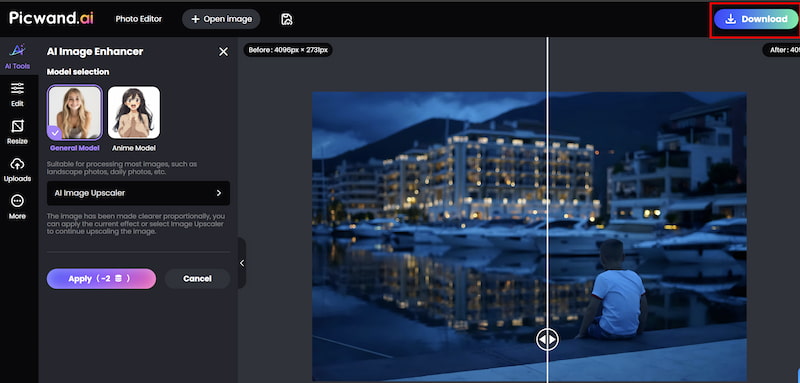
Picwand excels as a simple, fast, and automated enhancement tool to enhance and fix underexposed photo. It produces results close to Lightroom Enhance but requires no editing knowledge. For beginners or users who need quick output, Picwand is the better choice.
Pros
- No subscription required
- Beginner-friendly
- Fast processing
- Great for low-quality or old photos
- Strong facial reconstruction
- Natural-looking enhancement
- High-resolution output
Part 4. FAQs about Lightroom Enhance
Can Lightroom Enhance fix blurry images?
To some extent, yes, but it may not fix severe blur. Picwand is stronger in blur recovery.
Can I use Picwand for old photos?
Yes. Picwand’s restoration AI is designed for repairing old, faded, or low-resolution pictures.
Which is easier: Lightroom or Picwand?
Picwand—because it’s fully automated and web-based.
Conclusion
Lightroom Enhance is a powerful tool for professional photographers who need high-quality results and advanced control. Its Super Resolution feature helps increase detail, restore sharpness, and improve the overall quality of RAW and JPEG images.
But for many everyday users, Lightroom can feel complex, expensive, and hardware-heavy.
If you’re looking for a quick, easy, and AI-driven enhancement, Picwand AI Photo Enhancer is the best alternative. With its one-click workflow, impressive detail restoration, and web-based convenience, Picwand makes professional-level enhancement accessible to everyone—no subscription or editing expertise required.
Using Lightroom for editing and Picwand for powerful AI enhancement can also be an effective workflow, giving you both flexibility and quality.
AI Picwand - Anyone Can be A Magician
Get Started for Free