Basic PlanVIP PlanVIP ExpiredPurchased credits are valid for life but require an active VIP subscription to use
0Credit(s)
You can use credits to access all the AI tools on Picwand, such as the AI Image Upscaler, AI Age Filter, AI Video Enhancer, AI Video Upscaler, AI Video Effects, and more.
Prompt AI Veo 3 is Google’s advanced AI-powered video generation tool. It can transform detailed text prompts into high-quality, cinematic video clips. In today's time, short-form video content dominates social media and marketing. Tools like Veo 3 are highly relevant because they allow creators to produce professional-looking videos. Such tools require no cameras, actors, or complex editing software. This post will cover the basics of writing prompts for AI Veo 3. We will also provide guidance on how to structure your text effectively to get consistent, visually stunning results. Our goal is to help you understand how to communicate your ideas clearly to the AI. This ensures your videos turn out exactly as envisioned.
Prompt AI Veo 3 is Google’s video generation model, available in Google Flow, the Gemini app, and the Gemini API. It can turn any textual description into short, high-quality videos up to 8 seconds long. It lets you generate videos simply by describing what you have in mind in text.
High-Fidelity Video
Veo 3 is built to generate high-fidelity video content, offering resolutions of either 720p or 1080p. This allows creators to produce visually detailed footage that resembles real camera output.
Aspect Ratio Options
Veo 3 offers the flexibility to generate in both 16:9 and 9:16 aspect ratios. Landscape is ideal for YouTube and film-style productions, while vertical video aligns with TikTok, Reels, and Shorts.
Variable Clip Length
Veo 3 lets users choose clip durations of 4, 6, or 8 seconds. Shorter clips work well for quick transitions and social media content, while the 8-second option is ideal for more detailed action sequences.
Rich Audio & Dialogue Generation
Veo 3.1 takes audio to a new level with highly realistic and synchronized sound design. It can produce multi-person dialogue, ambient soundscapes, and precisely timed effects.
Complex Scene Comprehension
Veo 3 can follow storytelling cues such as character dynamics, emotional tone, and scene progression. This allows Veo to generate clips where characters interact meaningfully, actions follow logical beats, and the overall visual style is cohesive.
Prompting Essentials
Before learning how to make Google Veo 3 prompts, it's essential to first grasp the fundamentals of prompt creation. Using a simple five-part formula, you can guide the model with precision and reduce randomness in your output.
Cinematography
Cinematography defines how the camera in your generated video behaves. Specifying cinematography gives Veo clear instructions on how to capture the scene.
Subject
The subject is the central character, object, or entity that the viewer’s attention should focus on. Clearly identifying the subject ensures Veo knows who or what should remain prominent throughout the clip.
Action
Action describes what the subject is doing. Defining the action helps Veo create purposeful motion rather than random or static scenery.
Context
Context sets the environment and background that surround the subject. It enriches the scene by establishing where the subject exists and how the surroundings influence the mood.
Style & Ambiance
Style and ambiance define the overall aesthetic, mood, tone, and lighting of the scene. This component determines the emotional feel and artistic direction of your video.
How to Write Prompts for Google Veo 3
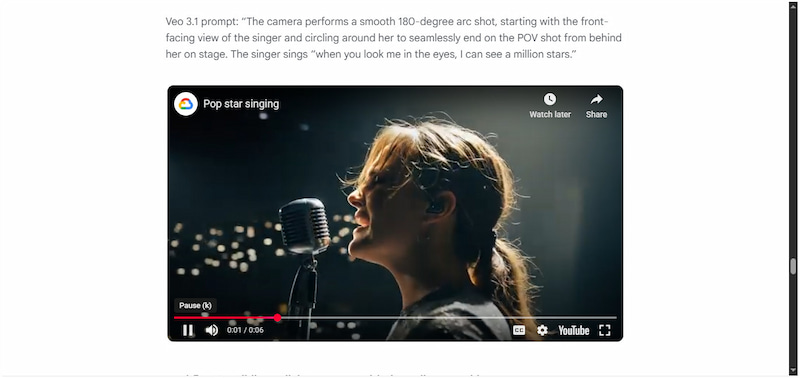
The Veo 3 AI video prompt guide involves more than describing visuals. It’s about guiding how the camera moves, how the scene transitions, and how audio blends with the video. One powerful technique is using the First and Last Frame workflow. It lets you animate motion between two specific images, helping you design film-like transitions.
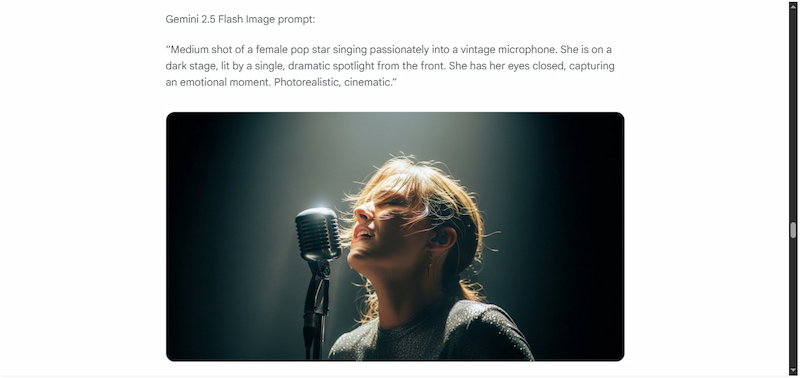
Step 1: Begin by generating your first image using Gemini 2.5 Flash Image. This image sets the opening viewpoint of your transition.
Don’t like the image you got from Gemini 2.5 Flash Image? Use Midjourney's photo-to-cartoon transformation instead for a unique style.
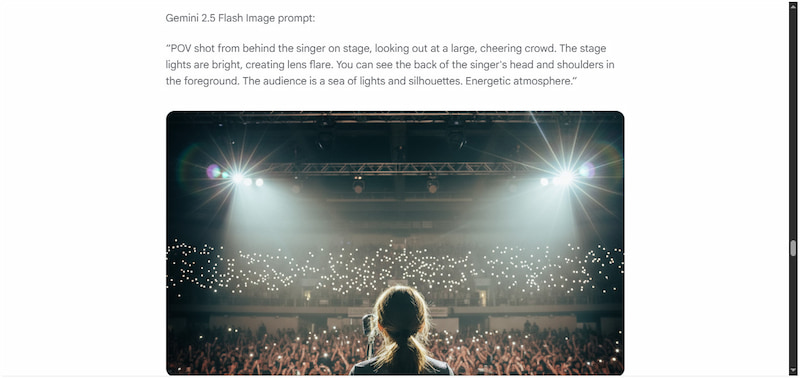
Step 2: Next, generate a complementary second image from a different perspective. This final frame will serve as the culmination of your transition.
Step 3: Now upload both images into Veo using the First and Last Frame feature. This step involves describing the type of motion that connects the two visuals.
That’s how to prompt Veo 3! Using Veo 3 offers an exciting glimpse into the next generation of AI-powered video creation. It delivers stunning, high-fidelity video generation with cinematic camera motion and deeply realistic audio. However, clip lengths are still short, which can limit extended storytelling.
Part 2. Use The Best Veo 3 Prompt to Generate Video with Picwand AI Text-to-Video Generator
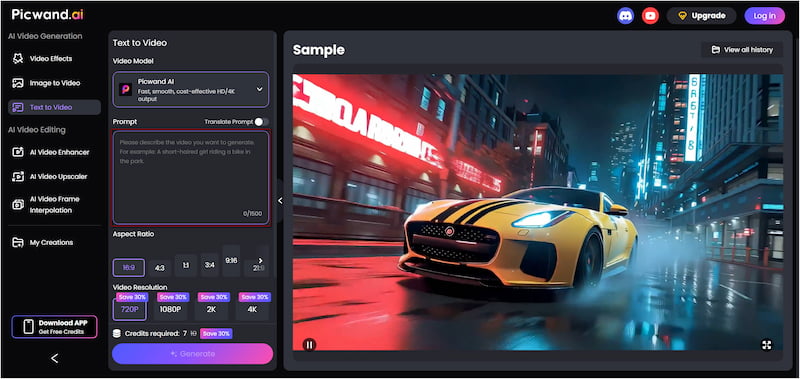
Picwand AI Text-to-Video Generator is a premier online text-to-video generator. It can transform text prompts into video clips without requiring prior video editing experience. It supports detailed prompts of up to 1,500 characters, allowing you to describe them in detail for highly accurate results.
Beyond the 16:9 and 9:16 ratios, it offers additional options, including 4:3, 1:1, 3:4, 21:9, and others. For the export resolutions, it ranges from 720p up to 4K. This tool ensures your video is perfectly suited for any platform. Ultimately, its 10-second video duration is ideal for social media content, ads, animations, and more.
Why Choose Picwand AI Text-to-Video Generator:
• Generate short-form videos ranging from 5 seconds to 10 seconds.
• Provides multiple aspect ratio formats, such as 16:9, 4:3, 1:1, and more.
• Text prompts of up to 1,500 characters for detailed instructions for your video.
• Supports exporting videos at resolutions up to 4K, providing professional-quality clips.
Here’s how to write prompts for Google Veo 3 alternative:
Step 1: Open a browser and reach the official Picwand AI Text-to-Video Generator site via the provided link. In the prompt box, type a descriptive idea for your video. Be specific, include details about the cinematography, subject, actions, context, style, and ambiance.
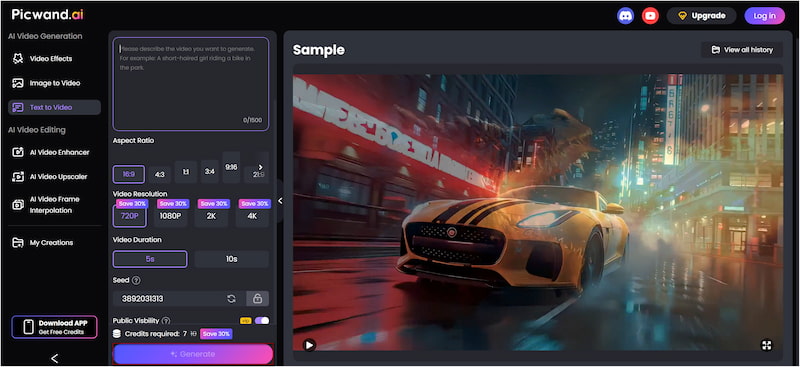
Step 2: Scroll to the Aspect Ratio section to select the video format that suits your target platform. Next, select the video resolution. Options include 720p, 1080p, 2K, or 4K. Then set the video length, which can be up to 10 seconds.
Step 3: Optionally, toggle Public Visibility to keep your video private. Once all settings are ready, click Generate. Picwand AI will process your prompt, creating frames, animating motion, and generating audio. Within moments, your detailed text transforms into a video clip.
Picwand AI Text-to-Video Generator is a top-performing AI prompt generator for modern creators. It effortlessly converts descriptive text into high-quality video clips. If your current YouTube video suffers from low quality, improve it with a YouTube video enhancer.
Part 3. FAQs about Prompt AI Veo 3
How to make the best prompts for Veo 3?
To create the best prompts for Veo 3, you should structure your description using a five-part formula. This includes cinematography, subject matter, action, content, style, and ambiance.
What is Veo 3 AI?
Veo 3 AI is a state-of-the-art text-to-video generation model developed by Google Gemini. It can turn detailed text prompts into short, high-quality video clips with realistic visuals and audio.
Is Veo 3 AI free?
Veo 3 AI is not entirely free of charge. While Google may offer limited trial access, full access to Veo 3’s high-quality video generation features requires a subscription or the purchase of usage credits.
Conclusion
In conclusion, prompt AI Veo 3 is a powerful tool that brings text-to-video generation to a new level. It allows you to transform detailed written prompts into cinematic, high-quality video clips. By understanding the key components of a well-structured prompt, you can guide the AI to produce consistent results. To put your newfound knowledge into action, use Picwand AI Text-to-Video Generator. It offers flexible aspect ratios, high-resolution output, 1,500-character support, and a duration of 5-10 seconds.