Basic PlanVIP PlanVIP ExpiredPurchased credits are valid for life but require an active VIP subscription to use
0Credit(s)
You can use credits to access all the AI tools on Picwand, such as the AI Image Upscaler, AI Age Filter, AI Video Enhancer, AI Video Upscaler, AI Video Effects, and more.
Google’s Veo 3 has quickly drawn attention as a next-generation AI video generation model, especially for creators interested in cinematic visuals and text-to-video workflows. However, as more users experiment with the platform, one recurring complaint appears across forums and creator communities: Veo 3 audio not working. In many cases, creators finish a generation only to find that the exported video has no sound at all—no background music, no ambient audio, and no narration, even when audio was clearly requested in the prompt. This can be frustrating, particularly for marketers, educators, and social media creators who rely on audio to convey meaning and emotion.
This article breaks down why Veo 3 AI no audio issues happen, how to fix them step by step, and whether Veo 3 is truly the best tool for content creators right now. If audio reliability is a priority for your workflow, we’ll also introduce a more stable alternative—Picwand AI—and explain why many creators are switching.
Although Veo 3 is positioned as an advanced AI video model, audio generation is still one of its weakest and least transparent components. Most “Veo 3 audio not working” cases fall into one of the following three categories.
1. Prompt-Related Issues
One of the most overlooked reasons for missing audio in Veo 3 videos is how the prompt is written.
Unlike some AI video tools that automatically attach background music or sound effects, Veo 3 often requires explicit audio instructions. If your prompt focuses heavily on visuals—camera movement, lighting, character actions—but barely mentions sound, the model may default to silent output.
Common prompt mistakes include:
• Assuming audio is enabled by default
• Using vague phrases like “cinematic atmosphere” without specifying sound
• Forgetting to mention narration, dialogue, or background audio
For example, a prompt such as:
“A cinematic sunset over the ocean with smooth camera movement” may produce a visually rich clip but no audio at all.
A more effective prompt would be: “A cinematic sunset over the ocean with gentle wave sounds and soft ambient music in the background.”
Even then, audio generation in Veo 3 is inconsistent, and properly written prompts do not guarantee sound output.
2. Generation Limit Bugs and Server-Side Glitches
Another major cause of Veo 3 no sound issues is server-side instability.
Veo 3 is still in a limited-access or experimental phase for many users. During peak usage times, the system may prioritize visual rendering and silently fail audio generation without showing an error message.
Typical symptoms include:
• Audio works in one generation but disappears in the next
• Preview includes sound, but exported video does not
• Longer videos lose audio entirely
These problems are not caused by user error and cannot be fixed locally. Regenerating the video sometimes helps, but many creators report needing multiple attempts—wasting time and generation credits.
3. Corrupted Output Files
In some cases, Veo 3 does generate audio, but the final output file becomes corrupted during export or download.
This often happens when:
• The download process is interrupted
• The video container fails to embed the audio track properly
• The file is opened in a media player with limited codec support
Users may assume Veo 3 audio is missing, when in reality the sound track exists but is unreadable.
To rule this out:
• Try opening the video in different players (VLC, QuickTime, browser)
• Re-download the file
• Check file properties to see if an audio stream is listed
Unfortunately, even when this is the issue, Veo 3 does not provide tools to re-export or repair audio tracks.
Part 2. Is Google’s Veo 3 the Best Tool for Content Creators?
Veo 3 excels in visual storytelling, but content creation today is not visual-only.
Audio plays a critical role in:
• Engagement
• Accessibility
• Brand identity
• Emotional impact
From a creator’s perspective, Veo 3 has several limitations:
Strengths:
• High-quality visuals
• Strong cinematic style
• Impressive motion consistency
Weaknesses:
• Unreliable audio generation
• Limited control over sound design
• No dedicated audio editing options
• Inconsistent exports
For filmmakers experimenting with visuals, Veo 3 can be exciting because of its AI upscaling video function. But for marketers, educators, YouTubers, and social media creators, unstable audio is a deal-breaker. Most creators need a tool that works predictably, not one that requires repeated regenerations just to get basic sound. This is why many users start looking for Veo 3 alternatives that offer tighter control over both video and audio.
Part 3. The Best Veo 3 Alternative: Picwand AI
If Veo 3 audio not working has disrupted your workflow, Picwand AI offers a more practical and creator-friendly solution.
Picwand AI Text-to-Video Generator is designed for real-world content production, not just experimental demos. It focuses on stability, usability, and consistent output—especially when it comes to audio.
Key Features of Picwand AI
• Built-in audio support for background music and narration
• Stable text-to-video generation with synchronized sound
• Clear export structure with properly embedded audio tracks
• Beginner-friendly interface with professional results
• Optimized for marketing videos, tutorials, and social media
Unlike Veo 3, Picwand AI does not treat audio as an optional or experimental feature. Sound is integrated into the generation pipeline from the start by leveraging advanced AI image models.
How to Use Picwand AI
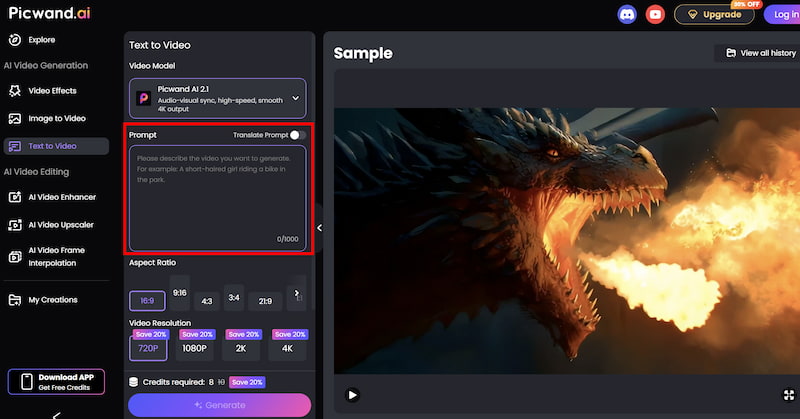
Step 1. From the main dashboard, choose the Text-to-Video Generator option. This tool allows you to generate short video clips purely from written descriptions.
Step 2. Enter your text prompt by describing the scene you want to create using natural language. You can specify elements such as environment, mood, movement, and visual style. For example, you might describe a cinematic landscape, a product showcase, or a short animated concept.
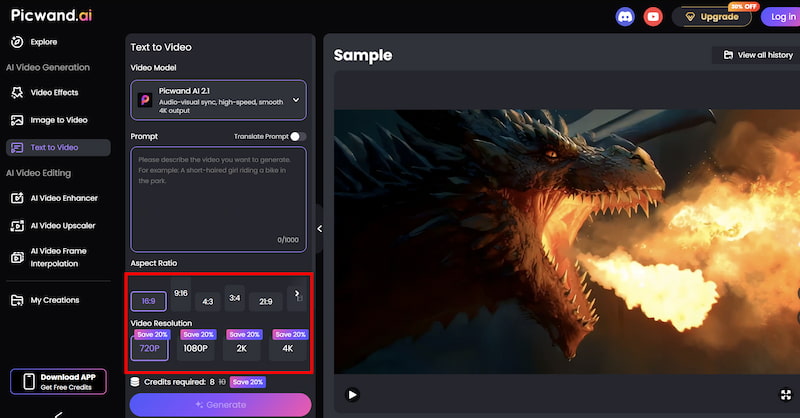
Step 3. Before generating the video, you can fine-tune settings such as Aspect Ration, Video Resolution, etc. These options help tailor the output to social media, marketing, or presentation needs.
Step 4. Once your prompt is ready, click the generate button. Picwand processes the request and produces a preview video within a short time, allowing you to review the result instantly. If you are satisfied with the output, you can export the video directly.
This streamlined workflow allows creators to produce video content without traditional editing software.
Results: Picwand AI vs. Veo 3
Feature
Veo 3
Picwand AI
Audio reliability
Inconsistent
Stable
Prompt complexity
High
Low
Export success rate
Variable
High
Creator control
Limited
Strong
Best for marketing
No
Yes
For creators who value efficiency, Picwand AI eliminates the trial-and-error cycle common with Veo 3 audio issues.
Part 4. FAQs about Veo 3 Audio Not Working
Why is Veo 3 audio not working even when I mention sound in the prompt?
Because audio generation in Veo 3 is still unstable and may fail due to server-side limitations or internal generation bugs.
Does Veo 3 support voice narration reliably?
Currently, voice narration is inconsistent and not officially documented for full reliability.
Is Picwand AI suitable for beginners?
Yes. Picwand AI is designed for non-technical users while still delivering professional-quality output.
Conclusion
If you’re struggling with Veo 3 audio not working, you’re not alone. Missing sound is usually caused by prompt limitations, server-side glitches, or export issues—and many of these problems are outside the user’s control.
While Veo 3 remains an impressive visual experiment, it falls short as a reliable, all-in-one content creation tool. For creators who need consistent audio, predictable exports, and efficient workflows, Picwand AI Text-to-Video Generator stands out as a more dependable alternative.
Instead of fixing silent videos after generation, choosing a tool that gets audio right from the start can save time, effort, and frustration—and help you focus on creating content that actually connects with your audience.