How to Enhance Image Quality in Canva: Complete Beginner-Friendly Guide

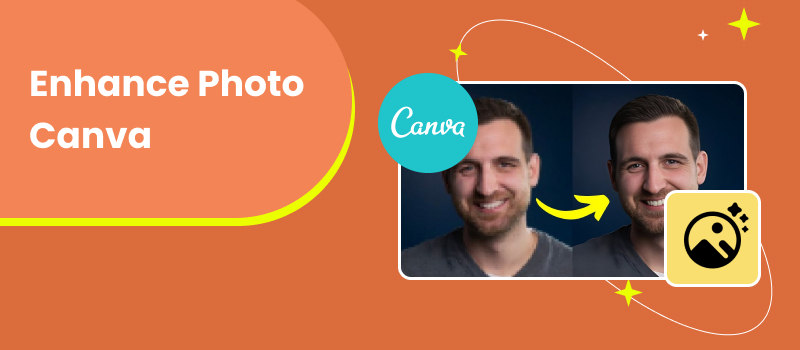
Whether you're generating content for your business, making marketing materials, or posting a snapshot to Instagram, high-quality images are crucial in today's digital world. Canva's simplicity, templates, and intuitive UI have made it one of the most widely used design tools. With only a few clicks, Canva Enhance Photo can brighten, sharpen, or adjust the color of images.
Although Canva's built-in photo enhancer is effective for design, it isn't always strong enough for more complex adjustments, particularly when working with low-resolution, hazy, or ancient photos. In this guide, we’ll break down how to enhance photos in Canva step-by-step, evaluate its performance, and introduce a more advanced alternative: Picwand, an AI photo enhancer designed specifically for high-quality restoration.
This “How to” guide is simple, practical, and written to help beginners, content creators, and marketers directly improve their workflow.
Contents:
Part 1. How to Use Canva Enhance Photo
Canva offers several useful photo enhancement tools within its editor. Image Enhance in Canva is designed for quick fixes and light adjustments rather than heavy restoration. Still, they work well for basic tweaks like brightness, contrast, saturation, and sharpness. Here are steps to help you enhance image quality in Canva.
Steps
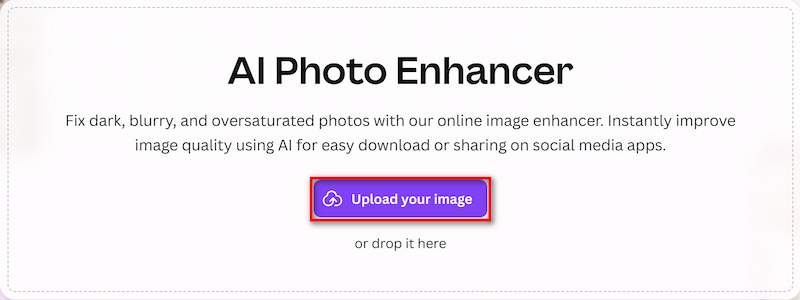
Step 1: Go to Canva’s main workspace to locate AI Photo Enhancer, and click on Upload your image to select the photo you want to enhance.
Step 2: Modify the Controls for Basic Enhancement. Important improvement choices are located in the Edit panel: Brightness: corrects photos that are underexposed; Contrast: provides clarity and depth; Sharpness improves clarity; saturation increases color intensity; Vibrance: enhances hues without going overboard; Lighting is balanced by highlights and shadows; Color tone is controlled by temperature and tint; These tools aid in the manual adjustment of the image. Or you can use Canva’s Built-in “Auto Enhance” (if available)
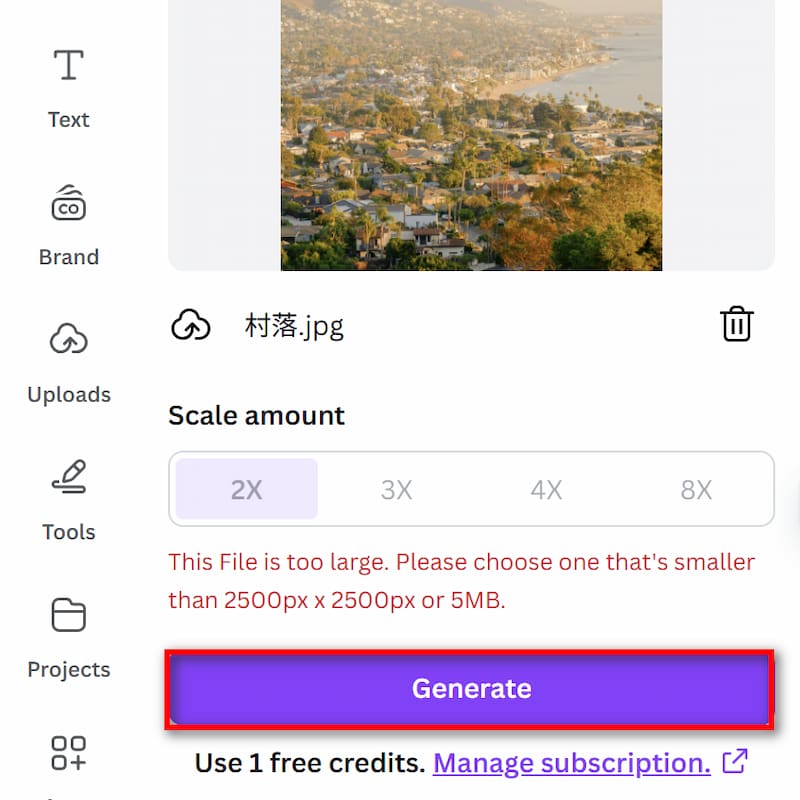
Step 3: Click on Generate to let Canva process the photo.
Step 4: Once you’re satisfied with the changes, click on Download to restore it.
Canva works well for basic editing and quick improvements. Canva can efficiently enhance your photo whether it's just a little boring or requires a few little tweaks. The tools are simple to use for novices, and the UI is clear.
But deep AI restoration is not a feature of Canva Enhance Photo. It is unable to enhance low-resolution photographs, rectify very blurry images, or restore face characteristics. Most of the changes are aesthetic rather than structural.
Pros
- Extremely easy to use
- Integrated within Canva’s design workspace
- Good for light color and brightness adjustments
- Useful presets and filters
- No technical background required
Cons
- No strong AI enhancement engine
- Cannot restore old or damaged photos
- Struggles with blurry, pixelated, or low-resolution images
- Limited control compared to dedicated AI tools
- Quality depends heavily on the input photo
If you need simple enhancement, just like Tiktok Photo Editor, Canva works well. If you need professional-grade enhancement — something that can actually rebuild detail — you’ll need a more advanced tool. And that’s where Picwand comes in.
Part 2: The Best Canva Alternative for Photo Enhancement — Picwand
While Canva enhance photo is an excellent design platform, it isn’t designed as a full AI photo enhancement tool. For users who want clearer details, sharper faces, restored old photos, or higher-resolution results, Picwand is a stronger solution.
Picwand AI Photo Enhancer
Picwand AI Photo Enhancer is a web-based AI tool built specifically for enhancing and restoring photos. Unlike Canva’s manual adjustments, Picwand uses deep learning algorithms to automatically improve clarity, color, texture, and resolution.
People use Picwand for:
• Fixing blurry or pixelated photos
• Restoring old or damaged photos
• Upscaling images to 4K without losing quality
• Enhancing facial details
• Improving low-light or grainy photos
Its AI model focuses on natural-looking results rather than artificial smoothing.
Pros
- Superior AI accuracy and detail recovery
- Best for restoring old or low-quality photos
- Natural-looking face enhancement
- Fast processing speed
- Easy for beginners; powerful for professionals
- Higher-resolution output than Canva
Features
• AI Upscaling: Picwand can enlarge your photo while maintaining crisp edges and realistic textures. This is especially useful for printing, e-commerce product photos, and social media visuals.
• Old Photo Restoration: AI automatically removes scratches, stains, and noise while restoring natural tones and details—something Canva cannot do.
• AI Face Enhancer: Picwand excels in face recovery. It sharpens eyes, improves skin texture, and reconstructs fine details without making subjects look “AI-generated.”
• Denoising & Clarity Enhancement: Perfect for grainy night photos or low-quality smartphone images.
• Color Recovery & Correction: Restores vibrance while keeping skin tones and lighting balanced.
Steps
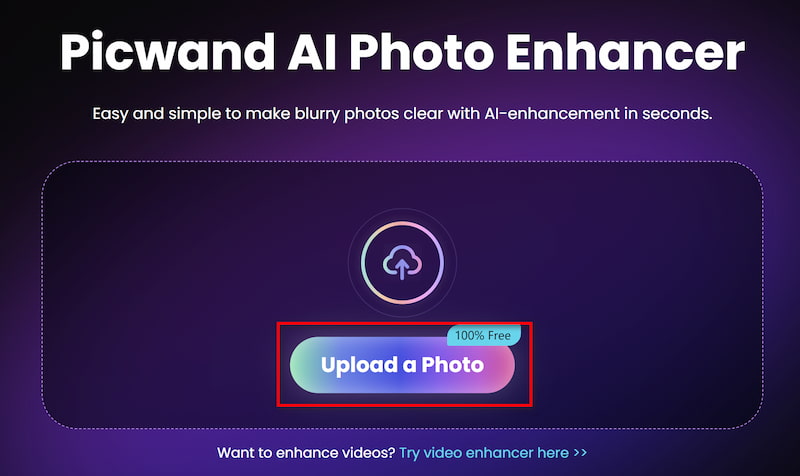
Step 1: Click Add your photo(s) to upload the old image in Picwand AI Photo Enhancer.
Step 2: Beside Photo enhancement, if you want to improve the resolution, you can also achieve image upscaler by adjusting the parameter. Then click on Start to begin processing.
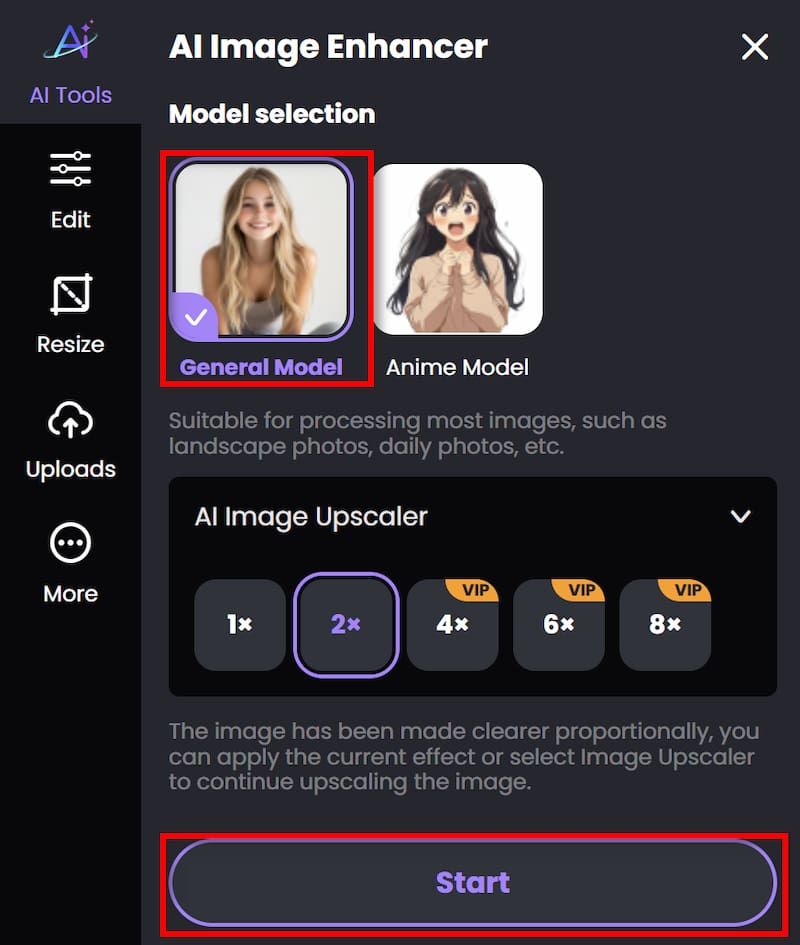
Step 3: Wait for seconds. And then you can click Download to save the finished work.
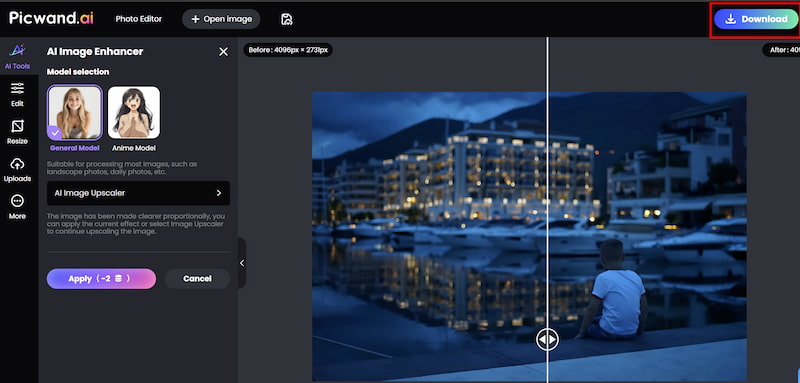
Compared to Canva, Picwand provides significantly more advanced functions to help you to enhance image quality. Its AI engine is built specifically for image improvement, making it ideal for users who need clarity, detail accuracy, and restoration that Canva cannot achieve. If your image is blurry, pixelated, old, dark, or damaged, Picwand will give you a cleaner and more professional output.
Part 3. FAQs about Enhance Photo Canva
Can Canva improve image quality fore free?
Yes, Canva’s basic enhancement tools—brightness, contrast, filters—are free. Advanced features may require a Pro plan.
Can Canva fix blurry or pixelated images?
Not effectively. Canva is not designed for deep AI restoration. Tools like Picwand perform far better for blurry or low-resolution photos.
Is Picwand free to use?
Picwand offers free trials and paid plans depending on your usage needs. High-resolution downloads may require credits.
Conclusion
Enhance Photo Canva is a great design platform that provides simple-to-use tools for light photo improvement. When you're already working on a Canva project, it's ideal for modifying brightness, contrast, and general aesthetics. Its enhancing skills are restricted, though, and they are unable to repair extremely blurry photographs, recover ancient photos, or reconstruct detail.
For users who need real, high-quality enhancement, Picwand AI Photo Enhancer stands out as the best alternative. Its advanced AI restoration, face enhancement, and upscaling capabilities deliver results that Canva simply cannot achieve.
Whether you're preparing visuals for social media, business, e-commerce, or personal projects, combining Canva’s design power with Picwand’s enhancement precision will give you the best
AI Picwand - Anyone Can be A Magician
Get Started for Free