Best Image to Video AI in 2026: Tested & Ranked

Turning a still shot into a moving video used to mean After Effects and hours of keyframing. This is what image-to-video AI is able to do in seconds in 2026. The global AI Video Generator market size was valued at $788.5 million in 2025 and is anticipated to reach $3.44 billion by 2033. AI video platforms have over 124 million monthly active users in January 2026. Let’s go out nine best image-to-video AI systems by four types of motion, price ranges, and creative scenarios. If you’re animating a product shot for an advertisement or creating a short film from a portrait, the ideal tool depends on the kind of motion you need and how much money you have to spend.
Contents:
1. Quick Answer: The Best Image to Video AI at a Glance
The best image-to-video AI in 2026 is Picwand for most creators: it handles a wide range of image-to-video use cases, supports vertical social-video workflows, and lets you start with free credits.
- • Most image types: Product photos, portraits, illustrations, landscapes, and other everyday still images can be used as starting points.
- • Free to start: Picwand provides free-credit opportunities through its Rewards Center, including daily check-ins and promotional activities.
- • Social-ready: Build for vertical 9:16 when your destination is TikTok, Reels, or Shorts. YouTube currently classifies square or vertical videos up to three minutes as Shorts.
If you need one simple starting point, upload your image to Picwand, describe the movement you want, generate a short clip, then enhance and export it.
If you need highly controlled cinematic shots, keep reading. Runway and Veo 3.1 deserve a place on your shortlist.
2. What to Expect from Image to Video AI
“Image to video” sounds like one feature. It is actually several different creative techniques. Understanding the difference will make tool selection much easier.
① Photo Motion
This is the simplest form. The original image remains recognizable while subtle elements begin to move.
Think:
- • Clouds drifting
- • Water flowing
- • Hair moving in the wind
- • Clothes reacting to motion
- • Camera slowly pushing toward a subject
- • Background elements gaining depth
This works particularly well with photographs that are already visually strong.
Good choices: Picwand, Viggle AI image-to-video generator.
For example, a mountain photograph does not necessarily need a dramatic transformation. A slow camera push and subtle cloud movement may be enough to make it feel alive.
② Camera Move
Here, the image becomes the starting frame for a virtual camera.
The model may simulate:
- • Zoom in
- • Zoom out
- • Pan left/right
- • Tilt
- • Dolly
- • Tracking
- • Orbit
- • Pull-back shots
Runway's Gen-4 video workflow requires an input image and supports 16:9, 9:16, and square outputs. Gen-4 is priced at 12 credits per second, while Gen-4 Turbo is 5 credits per second.
Google's Veo 3.1 goes further by offering camera controls and image references. Google also reports image-to-video performance on VBench, where its Veo 3 generation was preferred overall in the cited evaluation.
Good choices: Runway, Veo 3.1, Picwand AI image-to-video generator
③ Character Animation
This is where things become considerably harder.
Animating a person or fictional character requires the model to maintain:
- • Face
- • Body proportions
- • Clothing
- • Pose
- • Hands
- • Movement
- • Identity
Kling 3.0 is designed for more sophisticated video generation, including native audio modes and 720p/1080p output. Its official model guide lists generation costs from 6 credits per second for 720p without native audio to 12 credits per second for 1080p with native audio.
Pika takes a more creative approach, with tools for image-to-video and effects. Its current free plan includes 80 monthly video credits and supports commercial use according to its pricing page.
Good choices: Kling, Pika, and Viggle AI turn photos into video.
3. How We Tested
A meaningful free image-to-video AI comparison needs more than watching impressive demos.
The fair way to test these tools is to give them comparable inputs.
Our test set
A practical benchmark should contain four image types:
Test A — Product photo
A clean product image on a simple background.
Purpose: test product stability, camera movement, reflections, and commercial-video usefulness.
Test B — Portrait
A single-person photograph.
Purpose: test facial consistency, hair, clothing, body movement, and identity preservation.
Test C — Landscape
A scenic photograph.
Purpose: test environmental motion, camera movement, depth, and realism.
Test D — Meme/character image
A stylized or humorous character.
Purpose: test exaggerated motion, template compatibility, and creative animation.
Evaluation criteria
Each tool is evaluated on five practical dimensions:
- • Motion quality: Does movement look intentional and natural?
- • Subject consistency: Does the person/product remain recognizable?
- • Generation efficiency: How much iteration is normally needed?
- • Free access: Can a new user test it without paying immediately?
- • Vertical support: Is 9:16 available for short-form platforms?
One important limitation
AI video results are probabilistic.
The same prompt can produce different results on different runs. A single successful generation should therefore not be treated as proof that a model will perform perfectly every time.
For that reason, the most useful test is not: “Did it make one beautiful video?”
It is: “How often can a creator get a usable video without wasting excessive credits or time?”
Update policy
We re-test the major tools every three months as new models ship. That is particularly important in 2026, when model names and capabilities are rapidly evolving. For instance, Luma now lists Ray3.2 as their current video model and makes it clear not to confuse it with previous Ray2-era products.
4. Best Image to Video AI Tools Compared
The price might change, please follow the official website.
5. Tool Details
Best for: Most creators who want one straightforward image-to-video workflow.
Motion type: Photo motion, camera movement, reference-based generation.
Three reasons to use it:
- • It covers everyday image-to-video use cases.
You can start with a product image, portrait, illustration, landscape, or other still image and turn it into a moving clip. - • It is part of a larger workflow.
Picwand’s current platform groups AI Image to Video with Video Enhancer, Video Upscaler, Video Cloner, Reference to Video, and other AI tools. - • You can start with free credits.
Its Rewards Center provides daily check-in credits and other promotional opportunities. The page currently lists a seven-day check-in sequence and additional community rewards.
Test impression: For a general-purpose process, the benefit is less about chasing the single best cinematic frame and more about decreasing the number of various tools needed post-creation.
Pricing: Picwand currently lists a $14.90 monthly plan with 100 credits, a $7.08/month equivalent annual plan billed at $84.90, and lifetime credit options.
Its credit system also covers enhancement and other AI functions. For example, the current pricing page lists video enhancement from 3 credits per 10 seconds at 1080p/30fps, with higher costs for 4K, 8K, or 60fps.
Great for
- • Online store developers
- • Social media managers.
- • For novices
- • Marketers of products
- • Short-form creators
- • Anyone who desires both generation and improvement
Why it is not perfect:
Specialists such as Runway or Veo can offer deeper cinematic control for demanding productions.
Bottom line: Picwand wins because it is the most practical all-rounder rather than because every individual generation will beat every specialist model.
(2) Runway — Best for Cinematic Camera Control
Best for: Filmmakers and creators who care about camera movement.
Motion type: Camera movement.
Highlights
- • Gen-4 requires an input image
- • 9:16 output supported
- • Strong camera and motion control
- • Gen-4 and Gen-4 Turbo options
Runway's Gen-4 supports 5- and 10-second generations, functioning as a great photo-to-video AI. Gen-4 costs 12 credits per second, while Turbo costs 5 credits per second. It supports 720×1280 output for 9:16 video.
Test impression: It makes the most sense when “make this photo move” is not enough and you actually want to direct the camera.
Pricing: Credit-based. The exact cost depends on the selected model.
Best for: Film concepts, brand films, cinematic social content, visual experimentation.
Why it is not #1: The extra control also means a steeper workflow and potentially higher generation costs.
(3) Kling 3.0 — Best for Character Motion
Best for: People, characters, and action scenes.
Motion type: Character animation.
Highlights
- • 720p and 1080p
- • Native speech generation modes
- • Strong motion control.
- • Credit cost per second
As to Kling official documentation 3.0 generation is rated at 6 credits/sec for 720p without native audio and 8 credits/sec for 1080p without native audio. Native audio costs more to produce.
Impresssion test
If there is a person or character in the shot and movement is more important than just camera animation, Kling warrants careful testing.
Prices: Based on credit.
Perfect for: Character shots, portraiture, action, story clips.
Why it is not #1: It is a specialist. Picwand offers a broader workflow for creators who also need enhancement, product content, and other image/video operations.
(4) Luma — Best for Realistic Motion
Best for: Realistic-looking generative video.
Motion type: Natural and cinematic movement.
Luma's current information identifies Ray3.2 as its current video model, while older Ray2 documentation remains available for reference.
Luma's credit system varies by model and resolution. Its current pricing documentation shows that video generation can consume substantially different amounts of credits depending on model and resolution.
Highlights
- • Realism in strong motion
- • Image and video processing.
- • A number of model choices
- • Iterative generation.
Test print: Luma is pretty when the simplest interface is less important than genuine movement.
Best for: Creative professionals, cinematic experiments, concept development.
Why it is not #1: The current Luma ecosystem is powerful but more complex for someone who simply wants to animate a product photo and post it.
(5) Hailuo — Best for Budget Experimentation
Best for: Creators who want to experiment with image-to-video without immediately committing to a premium workflow.
Motion type: Natural motion and prompt-directed animation.
MiniMax's documentation confirms that Hailuo-02 supports image-to-video generation, including 512p output with 6- or 10-second durations in its API.
Highlights
- • Image-to-video support
- • Short generation lengths
- • Strong experimentation value
Test impression
Hailuo image-to-video AI is worth testing when you want another generation option before spending heavily on premium models.
Best for
Beginners, social experiments, creators comparing model outputs.
Why it is not #1
The overall production workflow is less comprehensive than Picwand's combination of generation and enhancement tools.
(6) Pika — Best for Creative and Stylized Animation
Best for: Memes, playful content, and stylized social videos.
Motion type: Stylized animation + effects.
Pika's current free plan provides 80 monthly video credits and includes Pika 2.5 at 480p. It is a great AI video optimizer for social media platforms.
Key points
- • Special effects
- • Image to Video
- • Pikaframes 5.
- • Free monthly credits
- • Commercial usage noted on price page
Test Print
Pika is less a product-video generator and more of a creative playground.
Best for
Memes, social experiments, stylized characters, creative transitions.
Why it is not #1
Creators looking for a broader photo-to-video + enhancement workflow may prefer Picwand.
(7) Viggle — Best for Photo-to-Motion Templates
Best for: Turning a still character into a dancing or moving character.
Motion type: Template-driven character motion.
Viggle's Move tool can make a character in a static image move according to a motion video, while Mix can insert a character image into a motion video. Its free plan currently provides five free Viggle videos per day.
Highlights
- • Character motion templates
- • Dance/meme-friendly
- • Five free videos per day
- • Simple workflow
Test impression
For “make this character dance,” Viggle AI image-to-video is more direct than most general-purpose image-to-video tools.
Pricing
Free plan available. Pro is currently listed at $7.99/month when billed annually, with 80 credits/month and watermark removal.
Best for
Memes, dance videos, avatars, entertainment creators.
Why it is not #1
It is excellent at a narrower category of motion rather than being a general-purpose image-to-video workstation.
(8) Google Veo 3.1 — Best Premium Cinematic Quality
Best for: Creators who prioritize cinematic realism and advanced control.
Motion type: Cinematic camera movement + reference-driven video.
Google describes Veo 3.1 as its leading video model and lists image-to-video, audio generation, realistic physics, reference images, camera controls, first/last-frame generation, and object insertion among its capabilities.
Google's published study claims that Veo 3.1 fared highly on image-to-video preference, text alignment, and visual quality in its stated benchmark comparisons. These are Google's own benchmark findings, they should be interpreted as vendor-reported data rather than an impartial universal ranking.
Highlights
- • Image to video
- • Original audio
- • Camera settings
- • Reference photos
- • Strong physics
Test printout
If you can afford to explore and want a slick cinematic shot, Veo 3.1 should be toward the top of the selection.
Pricing
Google Flow now offers a free entry tier with credits, while paid Google AI plans provide bigger credit amounts.
Best for
Creative studios, filmmakers, quality brand films.
Why it’s not #1
This is more than the average creative needs for a basic product animation.
6. How to Choose by Your Photo Type
You have pictures of your products.
Use Picwand first.
Generally speaking, regulated movement is preferable to startling alteration in product photos.
"Slow camera push-in, subtle rotation, soft studio lighting, realistic product reflections, premium commercial aesthetic, vertical 9:16" are some examples.
You have portraits or selfies
Try Kling or Pika.
The difficult part is not making the face move. It is making the face move without losing identity.
Use relatively subtle instructions first: “Natural blink, slight smile, gentle head movement, soft hair movement, subtle camera push-in.” Overloading the prompt with dramatic movement can increase visual instability.
You have landscapes
Try Veo 3.1 or Runway.
Landscape images give AI models plenty of room to create camera movement.
Try: “Slow cinematic aerial push forward over the valley, clouds moving gently, sunlight breaking through the mist, realistic atmospheric depth.”
You have a premium brand image
Try Picwand first, then compare the same source image in Runway or Veo if cinematic quality is critical. That gives you a practical two-stage workflow:
Fast production → Picwand
Premium comparison → Runway/Veo
7. Step-by-Step: Turn a Photo into a Video with Picwand
The workflow is straightforward.
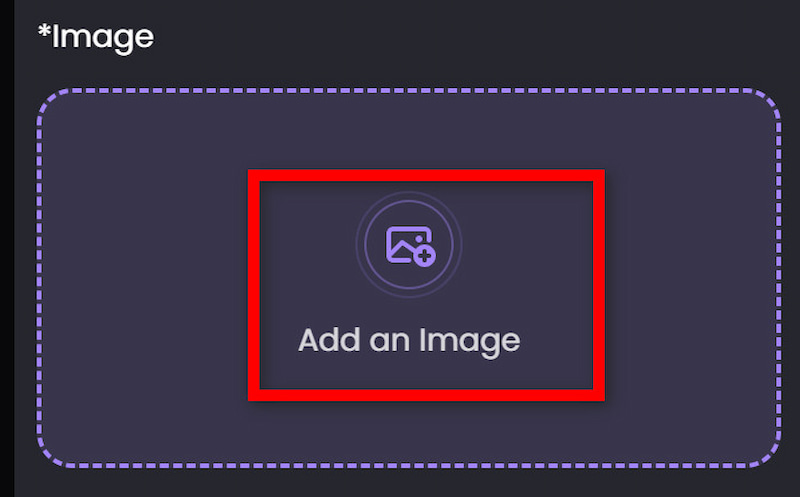
Step 1. Upload your image
Open Picwand's AI Image to Video and upload the image you want to animate.
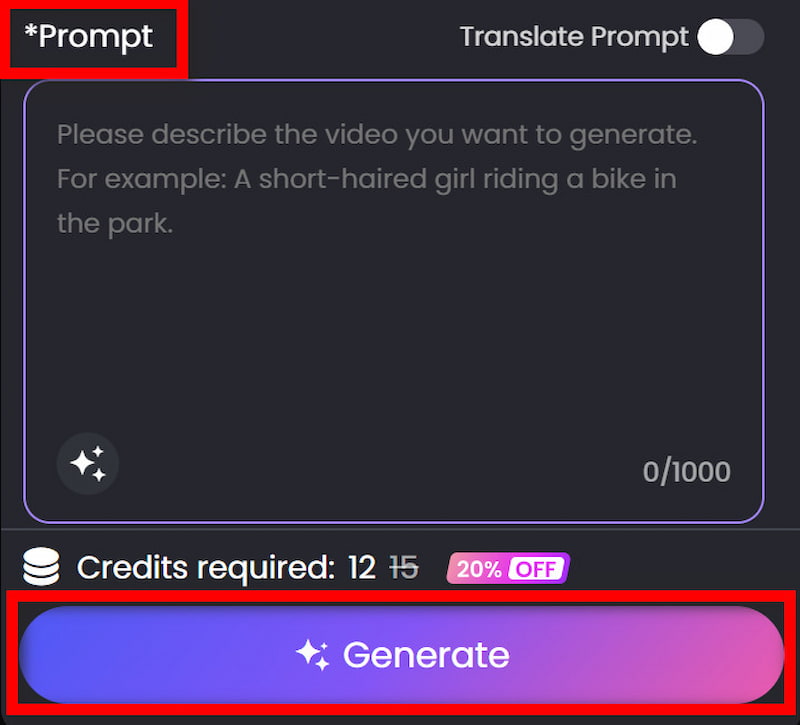
Step 2. Describe the motion
Don’t describe the image in the prompt, choose the aspect ratio and other parameters. Click on Generate.
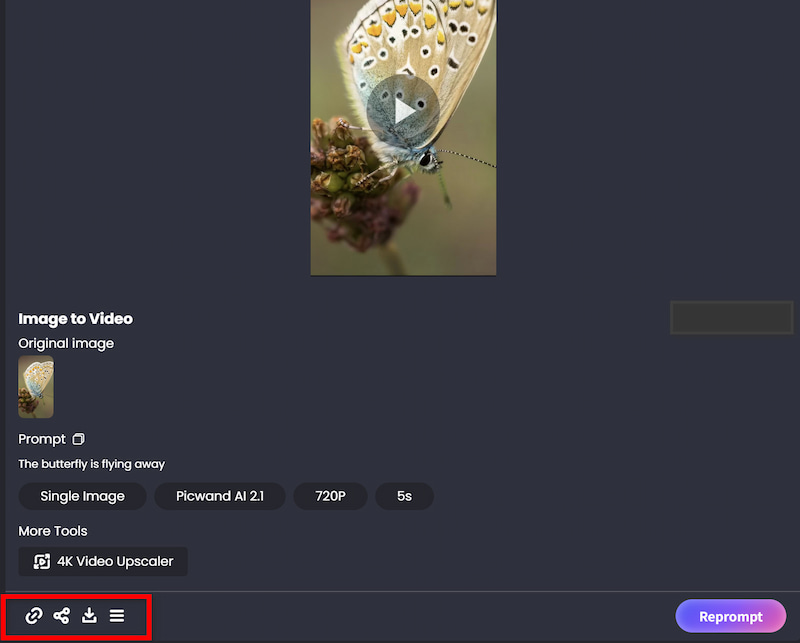
Step 3. Download
If you are satisfied with the final output, download the finished video and share it to other social media platforms.
8. FAQs about Best Image to Video AI
How do I turn a photo into an AI video?
Upload your photo to an image-to-video AI tool, describe the movement you want, choose the output format, generate the clip, and review the result.
What's the best image-to-video AI for product photos?
Picwand is our first choice for most product-photo workflows.
The reason is practical: a product creator often needs more than image animation. They may also need enhancement, upscaling, background processing, and social-video output.
Can I use my own photos, or only AI-generated images?
You can use your own images. Picwand specifically explains that users can upload photos directly to the selected tool. Make sure you have the necessary rights to use the image and any identifiable people in it.
What aspect ratio should I use for social videos?
9:16 is the safest default for full-screen vertical social video. For YouTube Shorts, YouTube currently categorizes square or vertical videos up to three minutes as Shorts.
Is image-to-video better than text-to-video?
Neither is universally better.
Use image-to-video when you already like the visual and want to animate it.
Use text-to-video when you want the AI to create both the visual concept and the motion.
For product marketing, image-to-video often gives you more control because the actual product appearance already exists.
For cinematic storytelling, text-to-video can offer greater creative freedom.
Conclusion
That’s all about the best image-to-video AI. No single model wins every shot. Picwand is our best overall image-to-video choice for most creators because it combines straightforward image animation with a broader AI video workflow, offers free-credit access, and gives users enhancement and other tools after generation.
AI Picwand - Anyone Can be A Magician
Get Started for Free