Canva Photo Enhancer Review: Full Guide, Features & Best Alternative
Whether you’re a content creator, marketer, student, small-business owner, or casual designer, visuals matter more than ever. Sharp, vibrant, and high-quality photos make your designs look more professional and engaging. Canva has become one of the most widely used online design tools, thanks to its drag-and-drop interface and massive template library. One of its often-used features is the Canva Image Enhancer, which promises to boost clarity, adjust colors, refine lighting, and help your photos look better with minimal effort.
But how powerful is Canva’s image sharpener tool really? Does it match the results of modern AI-driven enhancers? And is it the best choice if your photo is blurry, low-resolution, or heavily pixelated? In this review, we’ll break down what Canva Image Enhancer can and cannot do, explore its key features, test its usability, review its pricing, and compare it with a simpler and more advanced alternative—Picwand AI Photo Enhancer. Let’s dive in.
Contents:
Part 1. A Comprehensive Canva Image Enhancer Review
What Is Canva Photo Enhancer?
The Canva Photo Enhancer is a built-in editing tool found inside Canva’s image editor. It allows users to adjust and improve their photos without needing complex software like Photoshop or Lightroom. Instead of advanced technical tools, Canva keeps everything simple with straightforward sliders like: Brightness, contrast, saturation, clarity/sharpen, highlights, shadows, temperature, vibrance, and filters.
The enhancer is primarily designed for light adjustments, not deep restoration. It’s ideal for users who want quick improvements within their design workflow.
Features
1. Basic Image Adjustments for Quick Fixes
Canva Image Enhancer lets you fine-tune lighting, sharpness, and color using manual sliders. These tools are perfect for giving your photo a polished look.
2. Filters and Presets
Canva Enhancer includes dozens of filters that help create a unified color tone for social media and branding.
3. Auto-Enhance (in some versions)
Some users may see an “Auto Enhance” or “Auto Adjust” option that automatically adjusts lighting and color.
4. Integrated Editing Workflow
Unlike standalone image enhancers, Canva’s tools sit inside its design interface, allowing you to enhance and design in one place.
5. Additional Tools for Creators
These include background removal (Pro), AI tools, cropping, retouching, and design templates.
6. No Installation Required
Everything runs inside the browser, making Canva Photo Enhancer extremely accessible.
How to Use Canva to Enhance Photos
Canva’s enhancement process is simple and intuitive. Here’s the step-by-step guide:
Steps
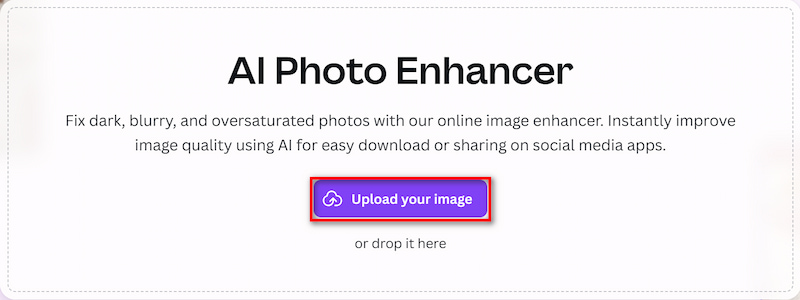
Step 1: Go to Canva’s main workspace to locate AI Photo Enhancer, and click on Upload your image to select the photo you want to enhance.
Step 2: Modify the Controls for Basic Enhancement. Important improvement choices are located in the Edit panel: Brightness: corrects photos that are underexposed; Contrast: provides clarity and depth; Sharpness improves clarity; saturation increases color intensity; Vibrance: enhances hues without going overboard; Lighting is balanced by highlights and shadows; Color tone is controlled by temperature and tint; These tools aid in the manual adjustment of the image. Or you can use Canva’s Built-in “Auto Enhance” (if available)
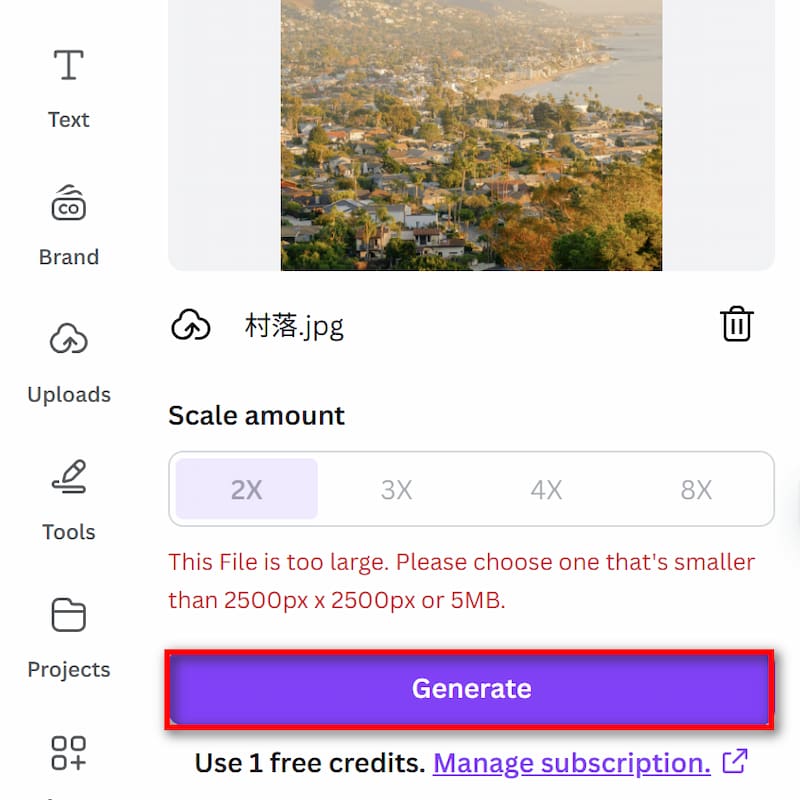
Step 3: Click on Generate to let Canva process the photo.
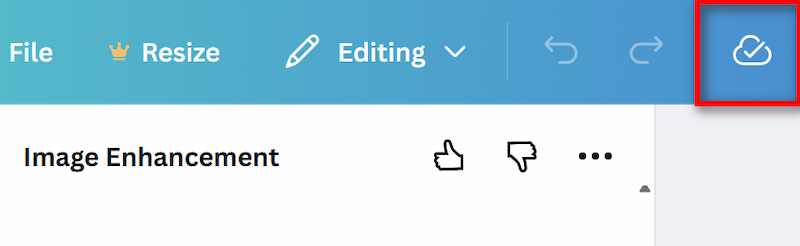
Step 4: Once you’re satisfied with the changes, click on Download to restore it.
Pricing Tiers
Canva AI Photo Enhancer offers two main pricing plans:
Canva Free
Includes:
• Basic editing tools
• Simple enhancement sliders
• Basic filters
• Standard export quality
Canva Pro (Paid)
Includes everything above plus:
• Background remover
• Magic Edit / AI tools
• Higher-quality output
• Premium filters
• Brand kits
• Unlimited storage
• Better performance and workflow tools
The core image enhancer works in both Free and Pro, but Pro offers more editing capabilities overall.
Pros
- Extremely easy to use
- Great for quick, light adjustments
- Perfect for content creators and social media posts
- Integrated into the Canva design ecosystem
- Accessible on any device
- No installation required
Cons
- Not designed for repairing blur
- Cannot restore old/damaged photos
- No advanced AI upscaling
- Results depend heavily on the original image
- Limited control compared to professional tools
- Not ideal for high-detail enhancement
Canva is one of the best AI tool to restore old photos. If your picture only needs a minor improvement, Canva Image Sharpener is enough. But if your image is blurry, low-resolution, pixelated, or old, Canva simply can’t fix it.
Part 2. An Easy Alternative to Quickly Enhance Your Images — Picwand
For users who want true AI-powered enhancement, Picwand AI Photo Enhancer is a strong alternative. Canva Photo Enhancer’s tool works for light adjustments, but Picwand specializes in deep restoration, clarity improvement, face enhancement, and high-resolution upscaling. Picwand is designed for users who want the fastest and most effective one-click enhancement—no editing skills required.
Picwand AI Photo Enhancer
Picwand uses deep learning models trained on millions of images to reconstruct details, repair blur, fix pixelation, remove noise, restore old photos, and upgrade photos to HD or 4K resolution.
It is particularly popular among: Photographers, social media creators, e-commerce sellers, students, families restoring old photos, and designers who want clean visuals fast.
Features
1. One-Click AI Enhancement
Picwand automatically improves clarity, removes noise, and sharpens facial features in seconds.
2. 4K Upscaling
Picwand can upscale low-resolution photos without losing detail.
3. Old Photo Restoration
It repairs scratches, fixes fading, and revives colors.
4. Anti-blur & Anti-pixelation
It reconstructs texture and edges for blurry or pixelated images.
5. Face Enhancement
Improves eyes, skin texture, and facial structure while keeping results natural.
6. Works on Any Device
No downloads or technical setup required.
If Canva is great for design, Picwand is great for photo quality.
Steps
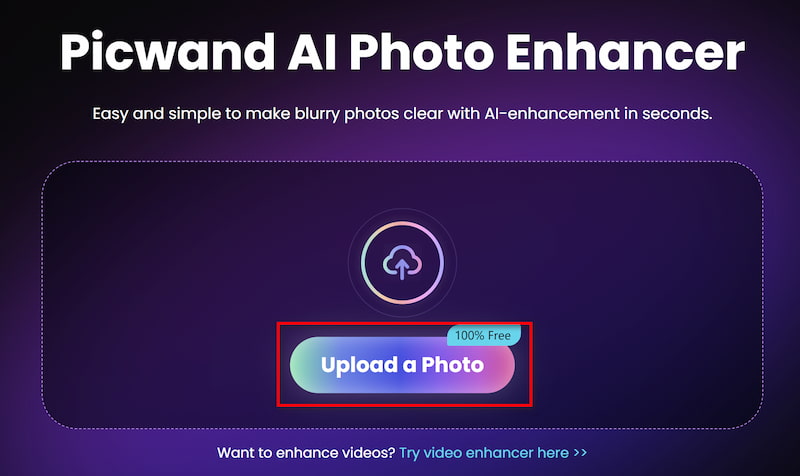
Step 1: Click Add your photo(s) to upload the old image in Picwand AI Photo Enhancer.
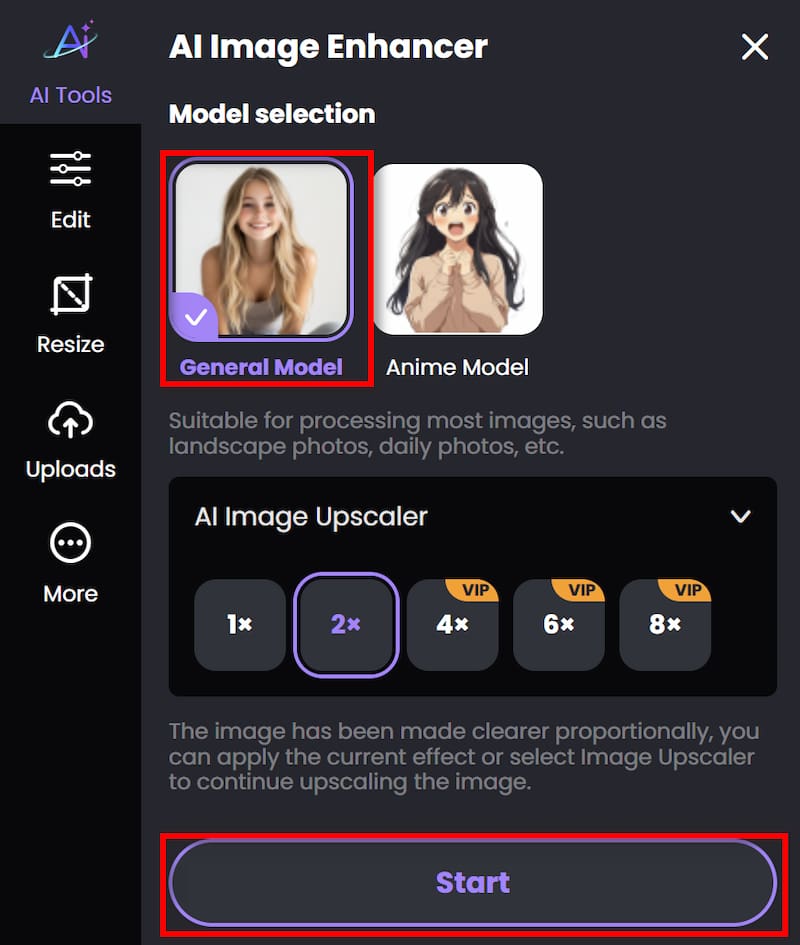
Step 2: Beside Photo enhancement, if you want to improve the resolution, you can also achieve image upscaler by adjusting the parameter. Then click on Start to begin processing.
Step 3: Wait for seconds. And then you can click Download to save the finished work.
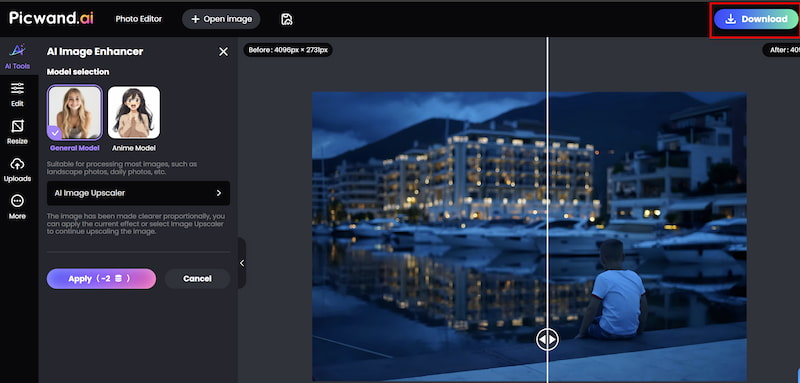
Compared to Canva, this video sharpener offers much stronger enhancement, especially for blurry, low-resolution, or old photos. It requires no design skills, making it ideal for beginners.
Part 3. FAQs about Canva Image Enhancer
Which tool is best for professional-quality enhancement?
Picwand AI Photo Enhancer8, because it uses AI to recover real detail, not just adjust color or lighting.
Can Canva fix blurry images?
Not effectively. Canva doesn’t rebuild details or repair blur but Picwand AI Photo Enhancer can repair it with great results.
Do I need editing skills to use Picwand?
Not necessary. Picwand AI Photo Enhancer is pretty easy to use and the enhancement is fully automatic within several seconds.
Conclusion
Canva Image Enhancer is great for quick, basic improvements—adjusting brightness, contrast, color, and sharpness. It’s easy, convenient, and perfect for creators already designing in Canva.
However, if your photo is blurry, low-quality, pixelated, or old, Canva’s tools are simply not enough. It cannot restore fine details or upscale images meaningfully.
For users who want a more powerful, AI-driven, one-click enhancement experience, Picwand AI Photo Enhancer is the best alternative. It repairs blur, restores old photos, sharpens facial details, and improves image clarity far beyond what Canva can offer. Together, these tools form a perfect workflow: Use Canva for design, and Picwand for professional-quality enhancement.
AI Picwand - Anyone Can be A Magician
Get Started for Free